44
Connecting your equipment
03
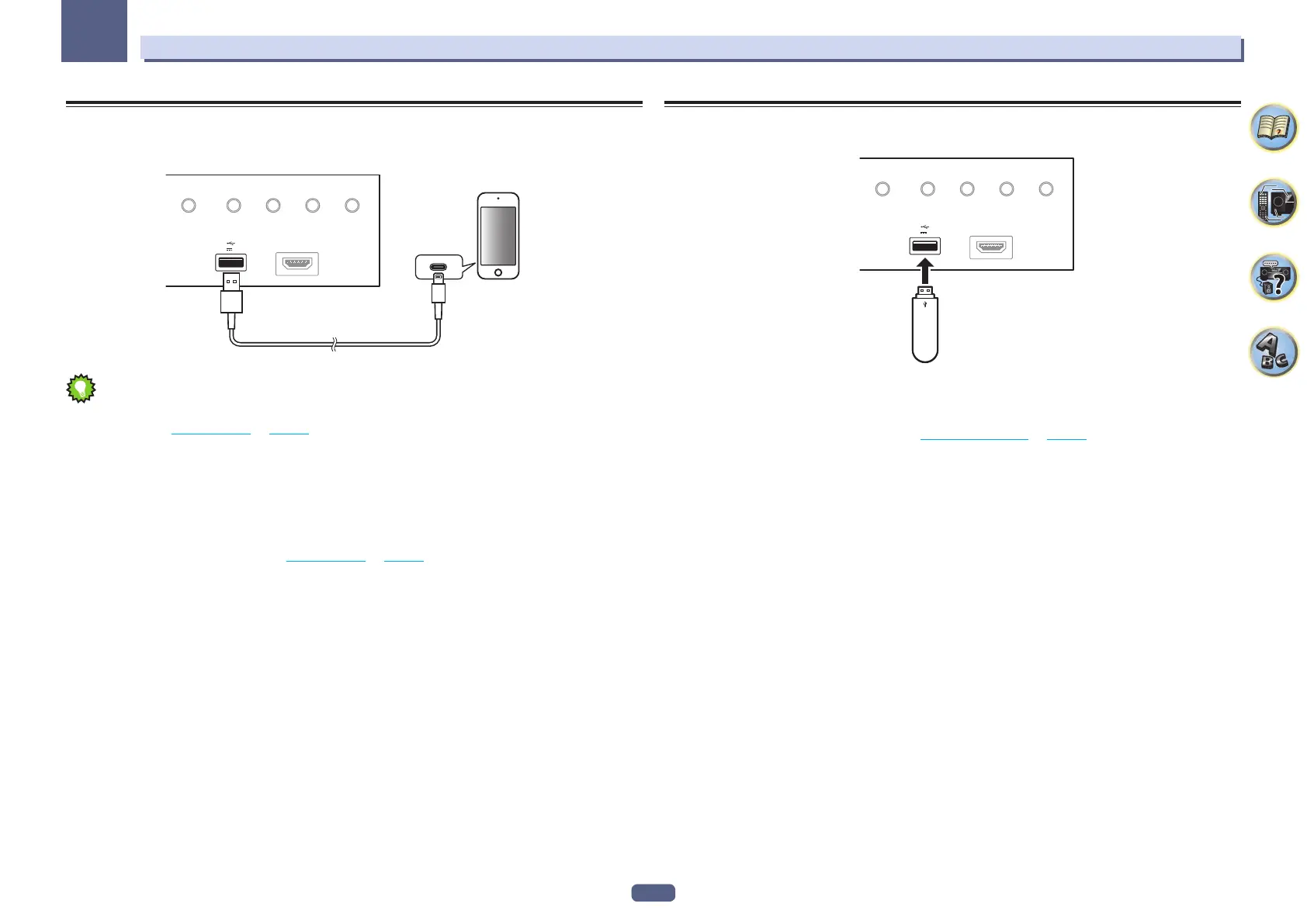
Connecting an iPod
This receiver has a dedicated iPod terminal that will allow you to control playback of audio content from your iPod
using the controls of this receiver.
HDMI 5 INPUT
AUTO/ALC/
DIRECT STATUS BAND TUNER EDIT
iPod iPhone
DIRECT CONTROL
5V 1
A
USB cable included with the iPod
iPod/iPhone
Tip
! An iPod/iPhone can be connected to the receiver. For details on supported models and versions of the respec-
tive products, see Playing an iPod on page 57 .
% Switch the receiver into standby, and then use the iPod cable to connect your iPod to the
iPod/iPhone terminal on the front panel of this receiver.
! For the cable connection, also refer to the operating instructions for your iPod.
! When connecting an iPhone to this unit, keep the iPhone at least 20 cm away from this unit. If the iPhone is
kept closer to this unit and a telephone call is received by the iPhone, noise may be output from this device.
! iPod recharging occurs whenever an iPod is connected to this unit. (Recharging is enabled only when the
unit’s power is turned on.)
! For instructions on playing the iPod, see Playing an iPod on page 57 .
Connecting a USB device
It is possible to play audio and photo files by connecting USB devices to this receiver.
HDMI 5 INPUT
AUTO/ALC/
DIRECT STATUS BAND TUNER EDIT
iPod iPhone
DIRECT CONTROL
5V 1
A
USB mass
storage device
% Switch the receiver into standby then connect your USB device to the USB terminal on the
front panel of this receiver.
! This receiver does not support a USB hub.
! For instructions on playing the USB device, see Playing a USB device on page 58 .


 To Next Page
 Loading...