Press the button from the scanner's panel.
Right-click the icon
in the Windows system tray, and then choose
Execute in the pop-up menu that opens. Click the Custom button function
item in the pop-up menu.
The scanner starts to scan immediately and carry out the corresponding action
according to the settings you have set up in the Button Configuration window.
Attention
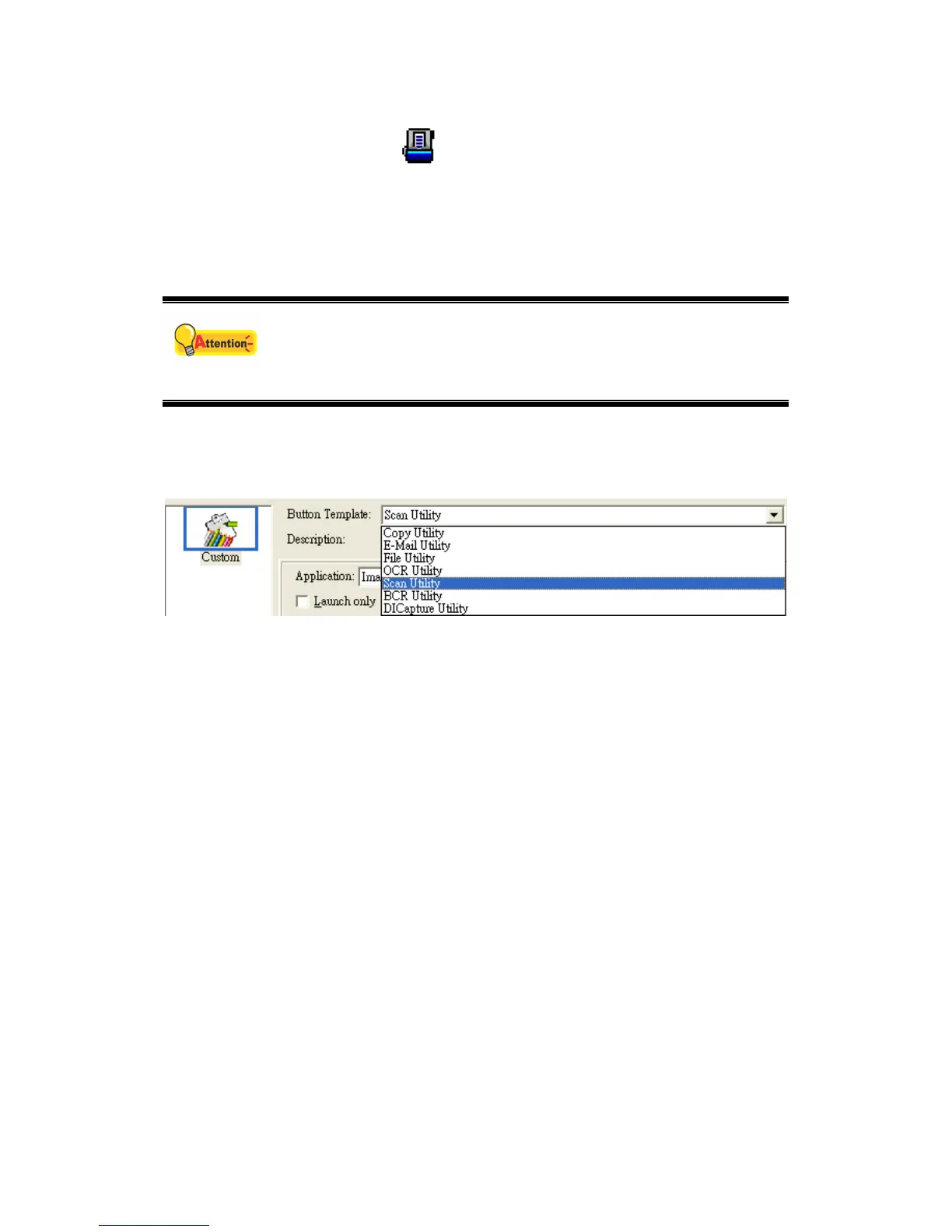
The [Custom] button can function with the default setting “Scan”,
even though you didn’t define the function by using DocAction
beforehand.
Button Functions Overview
OCR -- Scans documents directly to a text editor or viewer, thus saving you
the time usually needed for retyping. It converts the scanned images into an
editable text file or a text-searchable pdf file. ABBYY FineReader 6.0 Sprint
Plus is the default software to support OCR scanning. The *.txt, *.rtf and *.xls
file formats are editable, but *.pdf file format is not editable.
File -- Scans documents or images and saves them to files. You may
determine where they are saved and how their files are named to best meet
your needs.
Scan -- Scans documents or images to a linked image-editing application
programs for viewing or post processing. Alternatively you may set up this
button as a hot key to simply launch any application program without scanning
action. Image Folio and Page Manager are the default softwares to support
this function.
Copy -- Scans documents or images directly to the printer without saving them
to your hard drive, making it ideal for getting a quick copy of a document or
image. DocAction transforms your scanner and printer into a convenient office
copier.
E-Mail -- Scans documents or images directly to your e-mail program and
automatically creates a new message with the image files attached. A copy is
20





 To Next Page