146 How-To Topics
Hints & Tips
• The sample card verifies communication between the driver and the printer.
The images and text do not change.
• The magnetic stripe test card verifies that the driver sends magnetic stripe
data to the printer and that the printer encodes it. The data cannot be
changed.
• The magnetic stripe data sent by the driver requires that the printer be set to
encode the three-track ISO format for a three-track module, or the JIS-II
format for the single-track module.
• The sample card buttons will print one copy of the selected card. The Number
of Copies entry on the Printing Preferences > Advanced page does not apply
to the sample cards.
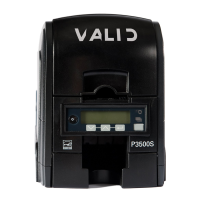
How to Print a Printer Test Card
The printer includes a test card that runs without using a driver or other source of
card data. Use it to verify that the printer is working.
1. Begin with the printer “Ready”. The U
SER button
shows steady green.
2. Press the U
SER button to display “Suspended” on Line
1 of the LCD panel.
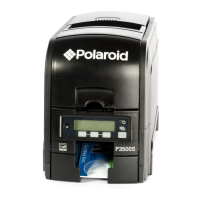
3. Press the E
NTER key to enter the menu system.
4. Press the E
NTER key to enter the Maintenance menu.
5. Press the down arrow key to display “Test Card” on
line 2.
6. With Test Card displayed on Line 2, press the E
NTER
key to display “Start” on Line 2.
7. After the card prints, press the U
SER button to return
the printer to Ready.


 To Next Page
 Loading...