158 How-To Topics
1. Obtain the IP Address, Subnet Mask, and
Gateway Address for each printer before you
begin this procedure.
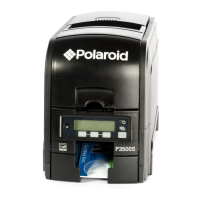
2. Begin with the printer “Ready”. The U
SER
button glows steady green.
3. Press the U
SER button to display
“Suspended” on Line 1 and Menu available
on Line 2.
4. Press the E
NTER key to enter the menu
system.
“Main Menu” appears on Line 1 and
“Maintenance” is shown on Line 2
5. Press the down arrow key to scroll to the
Configuration menu.
6. Press the E
NTER key when “Configuration”
appears on Line 2.
7. Press the down arrow key until “DHCP/
Static IP” is displayed on Line 2.
8. Press the E
NTER key to enter the DHCP/
Static IP menu.
9. Press an arrow key to scroll to display “Static
IP” on Line 2.
10. Press the E
NTER key to apply the setting.
“Configuration” will be displayed on Line 1
and “DCHP/Static IP” is displayed on Line 2.
11. Press the down arrow key to display
“Network” on Line 2.
12. Press the E
NTER key and “Network” is displayed on Line 1 and “IP Address”
on Line 2.
13. Press E
NTER and the IP address appears on Line 2.


 To Next Page
 Loading...