46 Using the Printer
• Print a test card. See “How to Print a Printer Test Card”.
• Change the LCD backlight. See “How to Change the LCD Backlight”.
LCD Menus
The menu system has three major
branches:
• Use the Maintenance menu to
run a cleaning card or a test
card.
• Use the Status menu to see
settings and data about the
printer.
• Use the Configuration menu
to change settings.
HINTS & TIPS
• The menu system can be
opened when “Ready” is
displayed on Line 1 of the
LCD panel.
• The printer returns to the
“Printer Ready” status after
two minutes of no activity.
Changes not applied will be
lost.
• To leave a selection without changing the value, press the up or down arrow
key to scroll to Exit and then press the E
NTER key.
Messages and Conditions
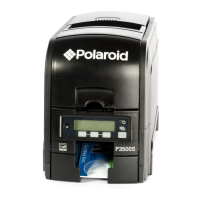
When the printer cannot process the card sent, it issues a condition. Conditions
are displayed on the LCD display on the front panel. In most cases, the driver also
displays the condition as a message. See “Printer Driver Messages” for
information about the messages the driver displays.
Messages on the Printer
• All messages are associated with a card job.
• The printer displays a short description and a message number for each
message.


 To Next Page
 Loading...