Connecting to a PictBridge Compliant Printer
Read this section if the model you purchased has PictBridge functions.
If a printer that supports PictBridge is available, images can be printed
by connecting the digital still camera directly to the PictBridge-
compatible printer without using a computer.
Connecting the camera to the printer
1. Connect one end of the USB cable to your camera.
2. Connect the other end of the USB cable to the USB port on the printer.
3. Select [Printer] with the / buttons, and press the button.
Printing images
When the camera is properly connected to a Pict-Bridge compliant
printer and set to [ ], the Pict-Bridge menu is displayed on Printer
the monitor.
1. Select the item you want to configure with the / buttons,
and press the button.
[Image] :
Select whether you want to print specific image
or all images. You may also select printing
number for specific image.
[Page Size]:
Select the desired paper size according to the
printer type.
[Layout] :
Select the desired printing layout according to
the printer type.
[Print] :
After all settings are configured, select this item to
start printing.
2. After you select [Image] in the previous step, and press
the button to enter its respective menu. Select
[Single ], [All ] with the / buttons, and press the button.
[Single ]: Select to print one specific image.
[All ] : Select to print all images.
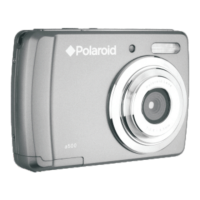
Polaroid a500 Digital Camera User Guide
www.polaroid.com
EN-40
Image
Single
All
Set:Select:
USB
PC
Printer
Set:Select:
Pinter
Image
Page Size
Set:Select:
Layout
Print


 To Next Page
 Loading...