Page 6
1
2
3
4
5
6
b
Network
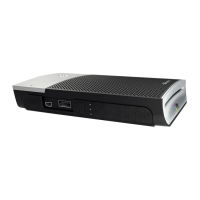
Print Server
c
Wait!
See Step 4
!
Use HP
®
Web Jetadmin
®
to set up the print server on
the network. See print server documentation for
information. Continue when the print server is identified
to the network (can take up to 20 minutes).
Configure the print server for your network. Obtain the settings,
including the print server IP address or network name, from
your network personnel.
IP Address:
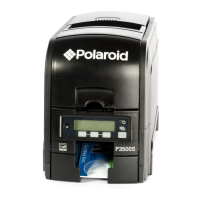
a Connect the printer to the print server using a
USB cable. See Step 1.
b Insert the PCID Driver CD-ROM.
c Click “Install the Printer” after the window opens.
Choose “DIrect Network” during installation.
Set the printer IP address in the driver’s Properties>Ports>
Configure dialog box.
Open the Printer Toolbox when Printing
Preferences opens. Click “Print Sample Card”
on the Printer Toolbox.
Your card should look like the factory card.
Congratulations,
you have installed the printer! Complete the printer
warranty/registration card and install your ID software now.
Connect the print server to the network
using an Ethernet cable.



 To Next Page
 Loading...