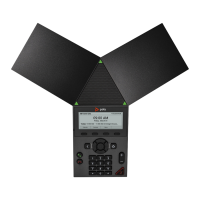
Access Trio
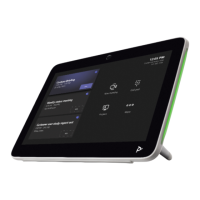
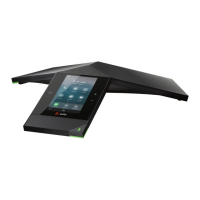
Trios have icons, status indicators, and screens to help you navigate the user interface and understand
important information on the state of the solution. For some systems, the Trio may be setup to require login
to make use of feature and functionalities beyond making or accepting calls.
System Log In
When System Log In is enabled, users will receive log in credentials and must log into their user accounts
on the Trio to access and view their personal Local Directory, Contact Favorites, and Custom Settings.
Request user access credentials from your system administrator.
Any setting changes made while logged into the system are saved for your login and displayed the next
time you log into the system.
Emergency calls may be placed while the system is locked. Calls to pre-defined authorized numbers may
also be placed when a user is logged out if the system administrator enables these functions.
Log In
If a log in is required to use the system, the User Login screen displays:
1. Enter the requested User ID and Password.
2. Press Log In.
If the User Login Screen is not displayed, navigate to: Settings > Features > User Login >
Log In and follow the steps above.
When the login credentials are accepted, the related profile displays. If the credentials are not
accepted, a message indicating the log in failed is provided and the User Login screen becomes
available again for a retry. Contact the system administrator for assistance or to confirm the login
credentials.
Log Out
After using Trio, log out to prevent access to your personal settings.
1. Tap Log Out or navigate to Settings > Features > User Login > Log Out
2. Tap Yes to confirm when prompted.
The system redisplays the User Login screen or the Default Profile for the Trio, as defined by
the administrator.
Change System Log In Password
To change your login password from any Trio on your network:
1. Navigate to Settings > Features > User Login > Change User Login Password.
2. Enter the requested password information (Old and New passwords).
3. Tap Enter to save the change when finished. Use the new password the next time you log in.

 To Next Page
 Loading...