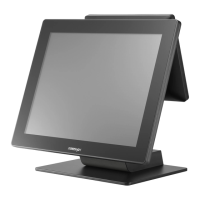
Installing Rear-Mount POS Monitor
RT-series POS terminal also allows you to additionally
install rear-mount POS monitor to expand its functionality.
Regarding the step-by-step instructions which aim to help
you mount it onto your POS system, Please refer to the
user manual specific to the device you intend to install.
Installing PoweredUSB or USB Hub
Please go through the below steps to complete the installation of
PoweredUSB or USB hub.
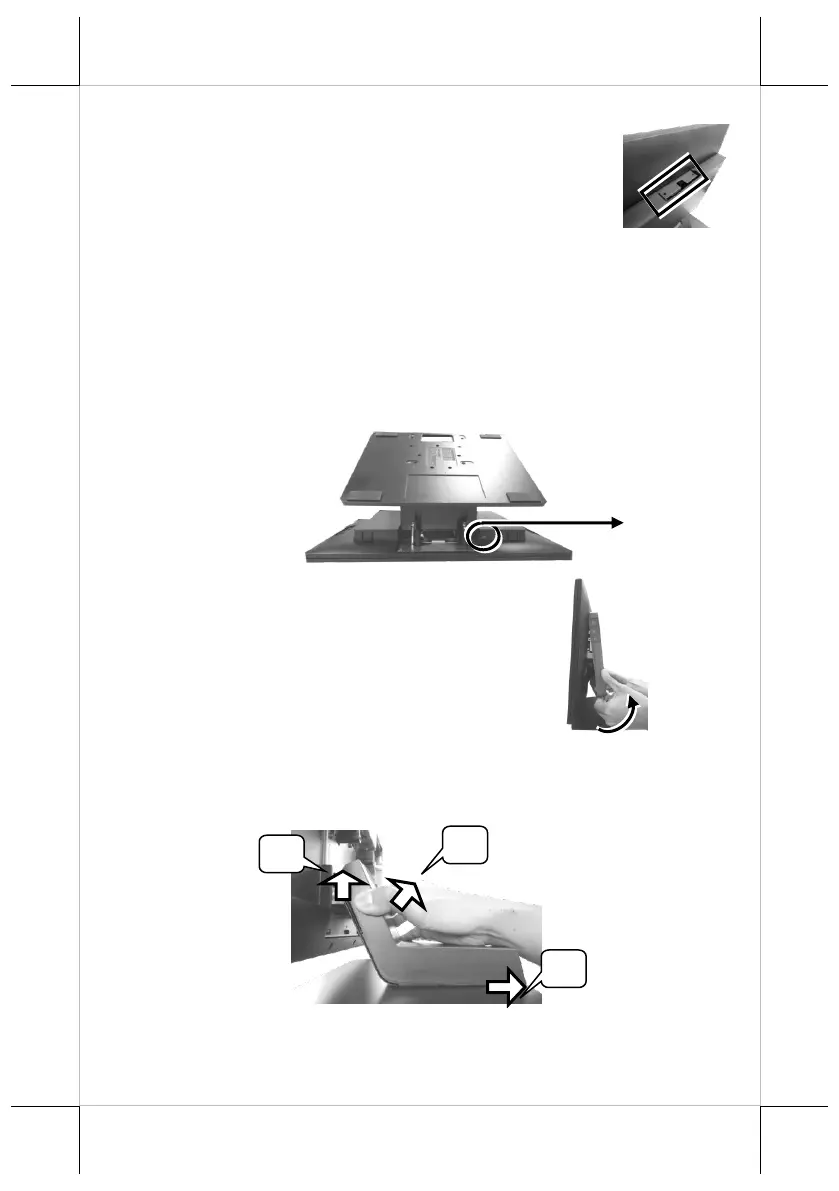
1. After tilting the screen all the way down, remove the system back
cover.
1.1 If the system back cover is fire-resistant, first locate the screw as
indicated in the figure, and then remove it.
1.2 Hold down the release lever at the bottom
of the system back cover and then pulling
the cover outwards
2. To remove the stand cover from the base, grab the top side of the
cover, (1) lift the stand cover up gently, (2) pull it at a 45 degree
angle, and then (3) slide it in the horizontal direction shown by the
arrow.
Screw for Fire-Resistant
System Back Cover


 To Next Page
 Loading...