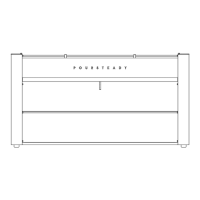
POURSTEADY
©2019 — REV 4.0
6
ONNETN TO THE NTERNET
Submit
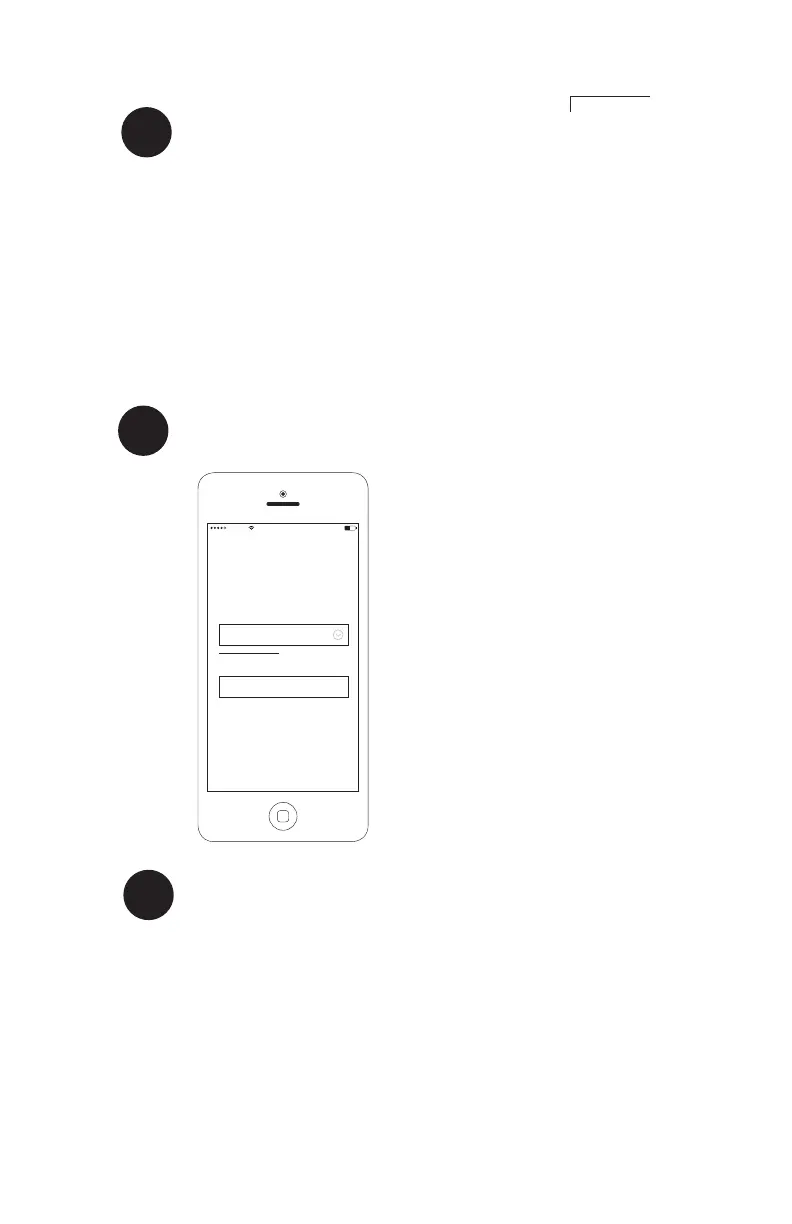
Select Network
SSID
Password
Don’t see your network?
Carrier
6:24 PM
POURSTEADY
Network Password
lt dird Wi-Fi ntork
4
• When prompted, select the Wi-Fi
network you want the Poursteady
to connect to from the list.
• Enter the password and press
“Submit.”
• If you do not see your network in
the list, it is likely that the Wi-
Fi hardware was not able to see your
particular network on it’s initial
scan. If you are sure that your
network is on and in range, you can:
1) manually entering your network
name and password by clicking the
“Don’t see your network?” link.
2) unplugging and re-inserting the
Wi-Fi adapter, which will take
1-2mins to rescan.
Enur a onntion
5
• If the machine receives the correct network
credentials and is able to connect to the internet,
you should be able to see it appear in the
Poursteady app and on your network.
• If it fails to connect, or successfully reach the
internet, it will restart the Poursteady-psXXX
access point so that you may re-enter your network.
3
oin th “Pourtad-pXXX”
ntork
• Disconnect your device (cellphone or computer)
from your regular Wi-Fi network.
• From your computer or mobile device, search the
available Wi-Fi networks or devices and select
the network titled “Poursteady-psXXX.”
• When the window pops up with POURSTEADY at the
top, you are now connected directly to the
Poursteady machine and should proceed to Step 4.
This will
match your
machine’s
serial
number.


 To Next Page
 Loading...