Need help?
Do you have a question about the Pulsar PCMK ISO 60% and is the answer not in the manual?
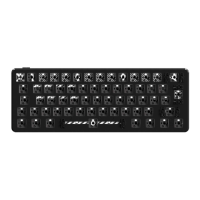
The PCMK 60% Mechanical Keyboard is a compact, high-performance input device designed for users who prioritize a minimalist layout without sacrificing functionality. This key guide provides comprehensive instructions for its operation, customization, and maintenance, ensuring users can fully leverage its capabilities. The keyboard is available in a 60% ISO layout, indicating a compact design that omits the numeric keypad, function row, and navigation cluster, making it ideal for desk space optimization and portability.
The PCMK 60% Mechanical Keyboard serves as a primary input device for computers, offering a tactile and responsive typing experience characteristic of mechanical keyboards. Its core function is to translate keystrokes into digital signals, enabling text input, command execution, and system control. The 60% layout, while compact, retains all essential alphanumeric keys and provides access to secondary functions via the FN key combination, ensuring that users can perform a wide range of tasks.
The manual highlights the keyboard's 60% ISO layout, which is a key technical specification defining its physical size and key arrangement. While specific switch types (e.g., Cherry MX, Gateron, Kailh) are not detailed in the provided pages, the "Mechanical Keyboard" designation implies the use of individual mechanical switches under each keycap, offering distinct tactile feedback and actuation points compared to membrane or scissor-switch keyboards. The keyboard features extensive LED control, suggesting the presence of RGB or single-color backlighting, which can be customized in terms of color, pattern, brightness, and speed. The connectivity appears to be wired, as indicated by the USB cable shown in the illustrations.
The PCMK 60% Mechanical Keyboard offers a rich set of usage features, primarily centered around its customizable LED lighting and efficient access to secondary functions through the FN key.
The keyboard provides extensive control over its integrated LED lighting system. Users can adjust various aspects of the backlighting to suit their preferences or match their setup's aesthetic.
FN + ↑ / Left Shift): This feature allows users to alter the direction of dynamic lighting effects, providing visual variety.FN + ↓): Users can cycle through different LED colors, offering personalization options.FN + Right Shift): This enables switching between various pre-programmed lighting patterns, such as breathing, wave, or reactive effects.FN + Alt / Left Shift): Increases the intensity of the backlighting.FN + Win): Decreases the intensity of the backlighting.FN + Alt / Left Alt): Accelerates the animation speed of dynamic lighting patterns.FN + Ctrl / Left Ctrl): Decelerates the animation speed of dynamic lighting patterns.FN + PrtSc): This advanced feature suggests the ability to record and save custom lighting profiles directly on the keyboard, allowing users to create their unique lighting sequences.FN Key Combinations:Due to its compact 60% layout, many standard keyboard functions are accessed by pressing the FN key in combination with other keys. This design choice maximizes desk space while retaining full functionality.
FN + 1! = F1FN + 2@ = F2FN + 3£ = F3FN + 4$€ = F4FN + 5% = F5FN + 6^ = F6FN + 7& = F7FN + 8* = F8FN + 9( = F9FN + 0) = F10FN + - = F11FN + = = F12FN + PrtSc = PrtSc (Print Screen)FN + Ins = Ins (Insert)FN + Home = HomeFN + PgUp = PgUp (Page Up)FN + Del = Del (Delete)FN + End = EndFN + PgDn = PgDn (Page Down)FN + V = Media Rewind / Previous TrackFN + B = Play/PauseFN + N = Media Forward / Next TrackFN + M = Volume MuteFN + < = Volume UpFN + > = Volume DownFN + Q = Mouse Left ClickFN + E = Mouse Right ClickFN + W = Mouse ForwardFN + A = Move LeftFN + S = Move BackwardFN + D = Move RightFN + R = Wheel Scroll UpFN + F = Wheel Scroll DownFN + C = Stop (potentially for mouse movement or media)FN + /? = Arrow UpFN + Alt (Right Alt) = Arrow LeftFN + ~# = Arrow DownFN + Ctrl (Right Ctrl) = Arrow RightFN + Z = LED 1 (potentially a specific LED mode or profile)FN + X = LED 2 (another specific LED mode or profile)The primary maintenance feature highlighted in the manual is the reset function:
FN + ESC long press): This allows users to reset the keyboard to its factory default settings. This is a crucial feature for troubleshooting issues, clearing custom configurations, or resolving unexpected behavior. A long press ensures that the reset is intentional, preventing accidental data loss or configuration changes.The compact design of the 60% keyboard also implicitly contributes to easier maintenance in terms of cleaning, as there are fewer keys and less surface area to manage compared to full-sized keyboards. The use of mechanical switches generally implies a longer lifespan and individual switch replacement capability, though this is not explicitly detailed in the provided pages.
In summary, the PCMK 60% Mechanical Keyboard is a feature-rich, compact input device designed for users seeking a blend of performance, customization, and portability. Its extensive LED control and efficient FN key combinations provide a full range of functionalities despite its small footprint, while the reset feature ensures easy troubleshooting and configuration management.

 To Next Page
 General