

EasyManua.ls Logo

PureLink VIP-400 - User Manual

PureLink VIP-400
25 pages
Print Icon
To Next Page IconTo Next Page
Loading...
VIP-400 USER MANUAL
VERSION 1.5
VIP-400
4K60 HDMI and USB over IP Fiber/CAT
USER MANUAL
PureLink
220-10 State Route 208
Fair Lawn, NJ 07410 USA
Tel: +1.201.488.3232
Fax: +1.201.621.6118
E-mail: sales@purelinkav.com
For order support, please contact your local dealer.
For technical support, please contact us at support@purelinkav.com.

Table of Contents

Question and Answer IconNeed help?

Do you have a question about the PureLink VIP-400 and is the answer not in the manual?

Summary

Product Description

Specifications

Input Video Support

Lists supported HDMI 2.0 video resolutions and frame rates, including HDR.

Input Audio Support

Details supported HDMI audio formats and analog stereo input capabilities.

HDCP Support

Specifies HDCP 1.4 and 2.2 input support and HDCP 1.4 output with 2.2 inputs.

Data Rate and Latency

Describes the data rate range, installer throttle, and maximum latency of the VIP-400.

Distance Capabilities

Outlines the maximum transmission distance using CAT6a and SFP module types.

Front Panel - ENCODER (transmitter)

Front Panel Components

Details the function and status of front panel controls and indicators like reset, power LED, link light, display, channel select, USB ports.

Rear Panel - ENCODER (transmitter)

Rear Panel Ports

Lists and describes all rear panel connectors for the ENCODER, including power, network, video, audio, and control interfaces.

Front Panel - DECODER (receiver)

Front Panel Components

Details the function and status of front panel controls and indicators for the DECODER, similar to the ENCODER.

Rear Panel - DECODER (receiver)

Rear Panel Ports

Lists and describes all rear panel connectors for the DECODER, including power, network, video, audio, and control interfaces.

Network Functions

Built-in Web Server

Explains the functionality provided by the built-in web server for device management and monitoring.

API Functionality

Describes the availability and purpose of the API for device control and diagnostics.

AV over IP Solution Configurations

Point-to-Point Extension

Explains how to set up a simple point-to-point extender solution using the VIP-400.

Distribution Setup

Details setting up a distribution system with one encoder and multiple decoders using a network switch.

Switching Setup

Describes how to configure a switching setup with multiple encoders and one decoder.

Matrix Setup

Explains how to build a matrix system using multiple encoders and decoders with network switching.

Connecting to the VIP-400 over the Network

Default IP Address

States the factory default IP address range for VIP-400 units.

Checking Encoder IP Address

Details methods to find an encoder's IP, via front panel, decoder, or another endpoint.

Checking Decoder IP Address

Front Panel Method

Explains how to find a decoder's IP via its front panel display.

Display Connection Method

Details finding a decoder's IP by connecting it to a display.

Finding All System IP Addresses

Using API Commands

Covers using API commands like 'node_list' to discover all VIP-400 devices.

Using VPX Management Software

Explains automatic detection of VIP-400 devices using VPX Management Software.

Windows Computer LAN Port Setup

Opening Network Page

Provides steps to access network settings via taskbar or search on Windows 8.1/10.

Configuring Windows LAN Adapter

Selecting LAN Adapter

Guides on selecting the correct LAN adapter from the Network Connections window.

Accessing Adapter Properties

Details how to open the properties page for the selected LAN adapter.

Setting Windows IP Properties

Internet Protocol Version 4 (TCP;IPv4)

Guides on accessing and configuring the TCP/IPv4 properties.

Manual IP Configuration

Details how to manually set the IP address and subnet mask for the TCP/IPv4 properties.

Mac Computer Network Setup

Opening Network Preferences

Guides to access network settings on macOS via menu bar or system preferences.

Configuring Mac Network Adapter

Selecting Network Adapter

Details selecting the appropriate network adapter from the list in macOS.

Setting IP Subnet Parameters

Explains how to set the correct IP subnet parameters in macOS.

Network Switch Requirements

Network Switch Recommendations

Suggests using VLAN management for isolating multicast traffic.

Bandwidth Usage and Latency

Installation and Connections

Installation Methods

Describes how the VIP-400 can be rack or tab mounted.

Power Connections

Explains power options, including PoE and AC adapter, and recommended power supply for multiple units.

Network Connectivity

Details network connectivity requirements, recommended cabling (CAT6a), and default IP settings.

Audio, Video, IR, and RS232 Transport

Covers transport of audio, video, IR, and RS232 signals, including layered routing.

Transport Features

Passthrough Modes

Describes RS-232 follow video and breakaway/layered switching modes.

Network API for RS-232

Details API control of RS232 ports for commands to third-party devices.

LED Indicators and Pin Information

Diagnostic LEDs

Explains the status and meaning of panel and RJ45 port LEDs.

RJ45 Cable Pin Information

Provides pinout information for RJ45 connectors according to TIA/EIA-568-B standard.

Front Panel Operations

Changing Encoder and Decoder Channels

Details button presses to change channels on encoder and decoder units.

Reset to Factory Defaults

Warranty Terms and Conditions

Warranty Returns and Repairs

Advance Replacement and Claims

Customer Service Contact

Summary

Product Description

Specifications

Input Video Support

Lists supported HDMI 2.0 video resolutions and frame rates, including HDR.

Input Audio Support

Details supported HDMI audio formats and analog stereo input capabilities.

HDCP Support

Specifies HDCP 1.4 and 2.2 input support and HDCP 1.4 output with 2.2 inputs.

Data Rate and Latency

Describes the data rate range, installer throttle, and maximum latency of the VIP-400.

Distance Capabilities

Outlines the maximum transmission distance using CAT6a and SFP module types.

Front Panel - ENCODER (transmitter)

Front Panel Components

Details the function and status of front panel controls and indicators like reset, power LED, link light, display, channel select, USB ports.

Rear Panel - ENCODER (transmitter)

Rear Panel Ports

Lists and describes all rear panel connectors for the ENCODER, including power, network, video, audio, and control interfaces.

Front Panel - DECODER (receiver)

Front Panel Components

Details the function and status of front panel controls and indicators for the DECODER, similar to the ENCODER.

Rear Panel - DECODER (receiver)

Rear Panel Ports

Lists and describes all rear panel connectors for the DECODER, including power, network, video, audio, and control interfaces.

Network Functions

Built-in Web Server

Explains the functionality provided by the built-in web server for device management and monitoring.

API Functionality

Describes the availability and purpose of the API for device control and diagnostics.

AV over IP Solution Configurations

Point-to-Point Extension

Explains how to set up a simple point-to-point extender solution using the VIP-400.

Distribution Setup

Details setting up a distribution system with one encoder and multiple decoders using a network switch.

Switching Setup

Describes how to configure a switching setup with multiple encoders and one decoder.

Matrix Setup

Explains how to build a matrix system using multiple encoders and decoders with network switching.

Connecting to the VIP-400 over the Network

Default IP Address

States the factory default IP address range for VIP-400 units.

Checking Encoder IP Address

Details methods to find an encoder's IP, via front panel, decoder, or another endpoint.

Checking Decoder IP Address

Front Panel Method

Explains how to find a decoder's IP via its front panel display.

Display Connection Method

Details finding a decoder's IP by connecting it to a display.

Finding All System IP Addresses

Using API Commands

Covers using API commands like 'node_list' to discover all VIP-400 devices.

Using VPX Management Software

Explains automatic detection of VIP-400 devices using VPX Management Software.

Windows Computer LAN Port Setup

Opening Network Page

Provides steps to access network settings via taskbar or search on Windows 8.1/10.

Configuring Windows LAN Adapter

Selecting LAN Adapter

Guides on selecting the correct LAN adapter from the Network Connections window.

Accessing Adapter Properties

Details how to open the properties page for the selected LAN adapter.

Setting Windows IP Properties

Internet Protocol Version 4 (TCP;IPv4)

Guides on accessing and configuring the TCP/IPv4 properties.

Manual IP Configuration

Details how to manually set the IP address and subnet mask for the TCP/IPv4 properties.

Mac Computer Network Setup

Opening Network Preferences

Guides to access network settings on macOS via menu bar or system preferences.

Configuring Mac Network Adapter

Selecting Network Adapter

Details selecting the appropriate network adapter from the list in macOS.

Setting IP Subnet Parameters

Explains how to set the correct IP subnet parameters in macOS.

Network Switch Requirements

Network Switch Recommendations

Suggests using VLAN management for isolating multicast traffic.

Bandwidth Usage and Latency

Installation and Connections

Installation Methods

Describes how the VIP-400 can be rack or tab mounted.

Power Connections

Explains power options, including PoE and AC adapter, and recommended power supply for multiple units.

Network Connectivity

Details network connectivity requirements, recommended cabling (CAT6a), and default IP settings.

Audio, Video, IR, and RS232 Transport

Covers transport of audio, video, IR, and RS232 signals, including layered routing.

Transport Features

Passthrough Modes

Describes RS-232 follow video and breakaway/layered switching modes.

Network API for RS-232

Details API control of RS232 ports for commands to third-party devices.

LED Indicators and Pin Information

Diagnostic LEDs

Explains the status and meaning of panel and RJ45 port LEDs.

RJ45 Cable Pin Information

Provides pinout information for RJ45 connectors according to TIA/EIA-568-B standard.

Front Panel Operations

Changing Encoder and Decoder Channels

Details button presses to change channels on encoder and decoder units.

Reset to Factory Defaults

Warranty Terms and Conditions

Warranty Returns and Repairs

Advance Replacement and Claims

Customer Service Contact

Overview

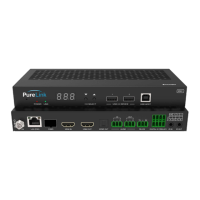
The PureLink VIP-400 is a versatile AV/USB over IP transport solution system, designed for extension, distribution, switching, and matrixing applications. It supports up to 4K60 4:4:4 HDMI signals, along with USB 2.0, RS232, and Infrared. The VIP-400 offers layered switching, videowall capabilities up to 8x8, image rotation, and can transport signals via copper (CAT) or fiber (SFP). Audio insertion (embedding) and extraction (de-embedding) functionalities are also available.

Technical Specifications:

  • Input Video Support (HDMI 2.0 with HDR):
    • 4K60 4:4:4
    • 4K60 4:2:0
    • 4K30 4:4:4
    • 1080P60
    • 1080P30
    • 1080P24
    • 720P60
    • 720P30
  • Input Audio Support:
    • HDMI Input: Supports typical HDMI 2.0 audio formats including Dolby TrueHD, DTS-HD Master, LPCM Audio, and up to 7.1 channels at 192 KHz.
    • Analog Stereo Input
  • HDCP Support:
    • HDCP 1.4 and 2.2 input
    • HDCP 1.4 output with HDCP 2.2 inputs (supports legacy 4K HDMI 1.4 displays)
  • Data Rate: 50-850 Mbps range, dependent on the incoming video signal. Features an installer-settable variable rate throttle option.
  • Latency: Approximately 17 milliseconds.
  • Distance:
    • Max. 150M using CAT6a
    • SFP Multi-mode
    • SFP Single-mode
  • Network Connectivity: 1G LAN Port (PoE compatible), 1G SFP Fiber Slot.
  • Default IP Address: Static IP addresses in the 169.254.nnn.nnn range with a subnet mask of 255.255.0.0.
  • Power: 12V DC Input, also supports PoE 802.3af via the RJ45 port.

Usage Features:

  • Front Panel (Encoder/Transmitter):
    • Recessed Reset: For system reset.
    • Power LED: Indicates power status.
    • Link Light:
      • On: Encoder is linked to at least one Decoder with a video signal.
      • Flashes: Encoder is linked to at least one Decoder with no video signal.
      • Off: Encoder is not linked to any Decoder.
    • Display: Three-digit display for channel information.
    • Channel Select: Buttons for selecting channels.
    • USB 2.0: Connects to USB 2.0 devices (keyboard, mouse, camera, etc.).
    • USB Host: Connects to a laptop or similar device.
  • Rear Panel (Encoder/Transmitter):
    • HDMI In/Out: For video signal input and output.
    • SPDIF Out: For digital audio output.
    • Stereo Input (unbalanced): Can embed audio onto the output stream signal.
    • Stereo Output (unbalanced): Can extract audio from the HDMI input (PCM) or output from the audio input of a single connected Decoder in Unicast mode only.
    • RS-232 Transmitter and Receiver: For serial communication.
    • Digital IO Relays: For digital input/output control.
    • IR Receiver/Transmitter Input and Output: For infrared control.
  • Front Panel (Decoder/Receiver): Similar to the Encoder, with a Recessed Reset Switch, Power Green LED Indicator, Link Red LED Indicator, Three Digit Display, Channel Select Buttons, USB 2.0, and USB Host.
  • Rear Panel (Decoder/Receiver):
    • HDMI Out: For video signal output.
    • SPDIF In: For digital audio input.
    • Stereo Input (unbalanced): For analog audio input.
    • Stereo Output (unbalanced): Unicast mode only.
    • RS-232 Tx/Rx: For serial communication.
    • Digital IO Relays: For digital input/output control.
    • IR Receiver Input/Output: For infrared control.
  • Network Functions:
    • Built-in Web Server: Provides informational data (firmware version, state of operation, detailed diagnostics via API commands) and settings (EDID, data rate, scaler output, IP settings, Multicast/Unicast mode).
    • API: A rich API allows for settings and diagnostics via the network.
  • AV over IP Solutions:
    • Extension (Point-to-Point): Direct connection via CAT or Fiber, or over a network for API control.
    • Distribution (One ENCODER to multiple DECODERS): Requires a compatible network switch. Decoders are set to look at the same encoder.
    • Switching (More than one ENCODER to one DECODER): Requires a compatible network switch. Decoder control is necessary to set which encoder it connects to.
    • Matrix (Multiple ENCODERS to multiple DECODERS): Requires a compatible network switch. Decoder control is necessary. Encoder channel settings should be set during installation and not changed during operation.
  • Layered Switching (Free Routing): Allows breaking away and routing HDMI, analog audio, USB, IR, and RS232 layers separately to other receivers.
  • RS-232 Transport: Defaults to follow video mode. Can be broken away for separate routing. Provides API control for sending/receiving commands to third-party devices over the network.

Maintenance Features:

  • Checking IP Address (Encoder):
    • Front Panel: Press and hold CH SELECT UP Button for 5 seconds to toggle through IP address octets.
    • Via Decoder: If connected to a Decoder on the same channel with no video input, the Decoder's splashscreen will display the 'Remote IP'.
    • Via another VIP-400 endpoint: Use the node_list API command in the web interface of a known endpoint.
    • Advance IP Scanner: Scan the 169.254.1.1 <> 169.254.1.254 range.
  • Checking IP Address (Decoder):
    • Front Panel: Press and hold CH SELECT UP Button for 5 seconds.
    • Via Display: When connected to a display, the Decoder's splashscreen will show the 'Local IP'.
  • Changing Channel (Encoder): Press and hold up/down buttons for 5 seconds until "CFN" appears, then use up/down buttons to change the channel (0-999). Hold up/down buttons again for 5 seconds to save.
  • Changing Channel (Decoder): Press up or down button to change the channel (0-999).
  • Reset to Factory Defaults: Press and hold the recessed Reset button until the Power and Link LEDs flash simultaneously, then release.

Network Switch Requirements:

  • 1G BaseT Port speeds.
  • Backplane data rate performance exceeding the total system data rate.
  • IGMP Snooping V2 and IGMP Querier support.
  • Jumbo Frame of 8K or greater.
  • VLAN management is recommended to isolate multicast traffic.

Warranty:

  • PureLink Three (3) Year Limited Warranty for PureStream™ branded products.
  • Covers defects in workmanship and materials under normal use and service.
  • Requires prior authorization and an RMA number for returns.
  • Advance replacement service is available for products purchased less than one year prior to the warranty claim.

PureLink VIP-400 Specifications

General IconGeneral
BrandPureLink
ModelVIP-400
CategoryReceiver
LanguageEnglish

Related product manuals