3
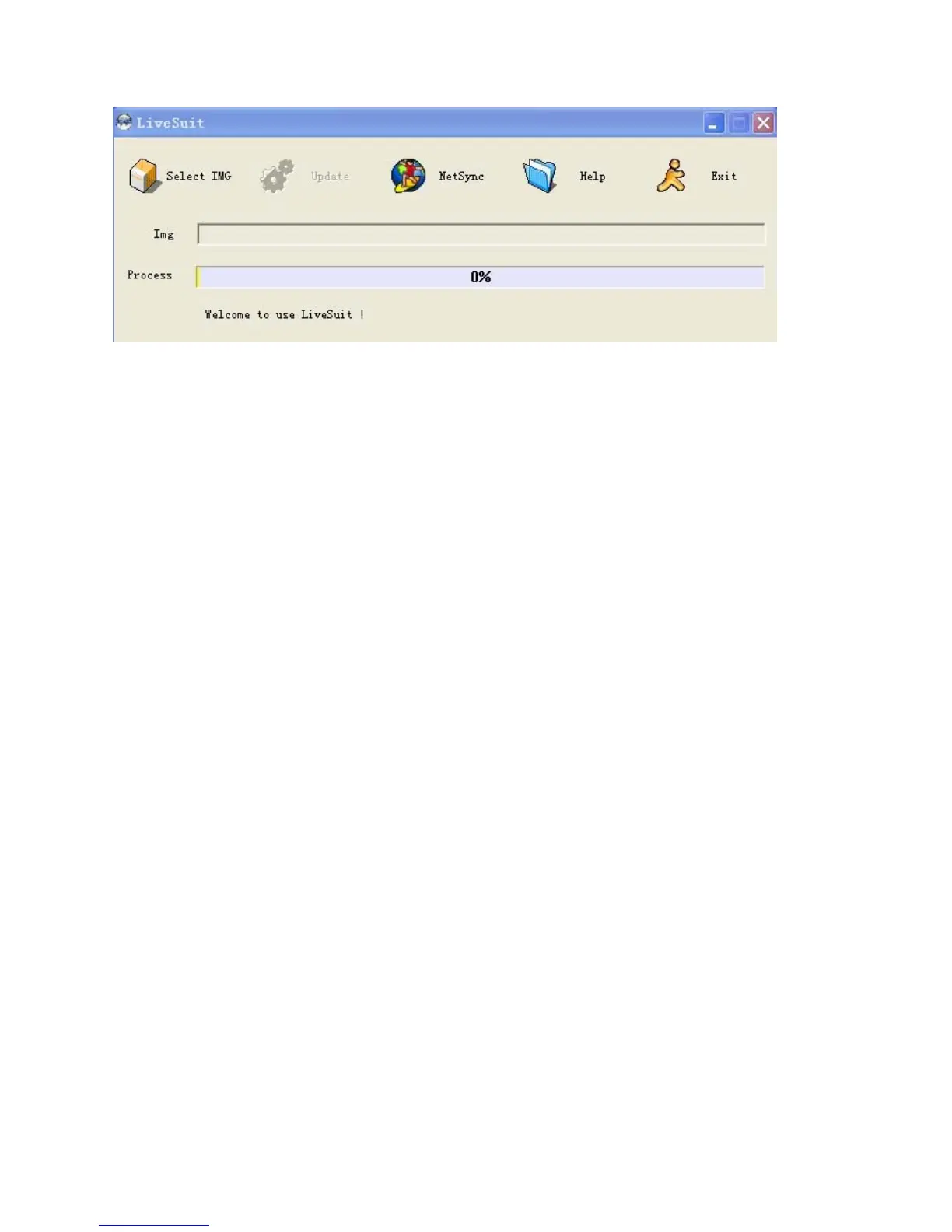
Picture1: Software interface
4.3. Buttons
4Select IMG:Click the button to select the firmware used for upgrade.
Update:Click the button to start upgrade after identifying U disk once you insert.
NetSync:After the device has been inserted to PC, and recognized as U disk. Click the button to start
upgrade,
Help:Click the button for help.
Exit:Click the button to end and exit. Don't click the button when you are upgrading or inquiring the
information.
Minimize:click the button, LiveSuit will enter into the minimize window.
x:click the button to enter system tray mode
4.4. Lables
5Img:on the right side is the file path of firmware.
Progress:on the right side is the upgrading progress bar.
Welcome to LiveSuit:display the system state and result. The content will change in time.
4.5. File path
6Display the firmware path information you selected.
4.6. Progress bar
7Indicating the current upgrade progress
5. Installing the update tool
15.1. Steps
81 open the LiveSuit software.
2 select the firmware. (*.img)
3 the machine must be closed, press any key for a long time (except the power button, volume button and
HOME button),then connect the machine to PC, press the power button several times constantly for a long time
until the computer indicate that it find new equipment(the first time) or appear the window of clear machine
internal documents , then loosen any keys, according to the tips of the PC operation
Note: before connect the MID to the computer,press any keys(except the power button, volume button and HOME


 To Next Page
 Loading...