the upper left corner and the station's address number in the upper right corner as
"M**" (the number represents the station's address number). After completing one
round of scanning, the device will automatically stop the search and start playing the
first stored station.
*This device can store up to 20 AM stations, 30 FM stations, and 60 SW stations, for
a total of 110 radio stations.
Note: The number of stored radio stations may vary based on the local signal
strength and environment.
6.4: Manual Station Storage Method:
In the radio broadcast mode, after using the methods described in 6.3.1 & 6.3.2 to
search for your desired station frequency, do the following: Light press [ ] to
enter the station storage mode. The LCD will display the station address as " M **,"
with the "**" station address number flashing. At this point, press [▲ or ▼] to
select the station address number. Press [ ] again to confirm your selection, and
the "**" station address will stop flashing. After 5 seconds, the " M**" station
address display will exit, indicating that the manual station storage operation is
complete.
6.5: Method for Removing Radio Station
In the radio broadcast mode, after storing radio stations using the methods described
in sections 6.3.3 and 6.4, light press [▲&▼] to select station numbers. Each light
press of [▲ or ▼] will change to the next stored radio station.
Note: If the LCD displays 'M **----,' it means there are no preset radio stations.
7: Bluetooth Playback:
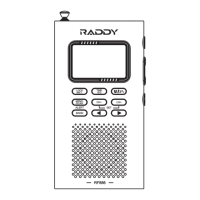
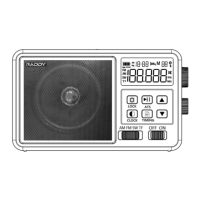
7.1 The Bluetooth pairing name for this product is: RF206.
7.2 In the power-on working mode, light press [ ] to switch to the " " mode.
The " " symbol will blink, indicating that it's waiting to connect to a Bluetooth
device. Once the connection is successful, the " " symbol will stop blinking.
7.3 Light press [▲] to skip to the next song, light press [▼] to go back to the
previous song, and light press [ ] to toggle between pause and play. You can also
use your mobile device for corresponding controls.
8: Using TF Card/USB Card Playback
Properly insert the TF card. Properly insert the USB playback card.
8.1: Turn the switch [ ] to the TF position, light press [ ] to switch to " TF
" card mode/USB mode, and music will play automatically. Light press [ ] to
pause/play.
8.2: Light press [▲] to skip to the next song, light press [▼] to go back to the
previous song, long press [▲] for fast-forward, and long press [▼] for fast rewind
down
8.3: Supports a maximum of 256GB.
8.4: Supports MP3, WMA, WAV, APE, and FLAC formats for music playback.
9: Time Settings
In the power-on or power-off mode, long press [ ] for 2 seconds to initiate the
runtime setting. The hours "**" will start flashing as a prompt. Light press or long
press [▲, ▼] to adjust the hour time upwards or downwards. Then, light press [ ]
to move to the minute time, which will also start flashing. Light press or long press
[▲, ▼] to adjust the minute time upwards or downwards. Light press [ ] to
confirm the time adjustment or simply stop the operation. The device will
automatically confirm the last adjusted time within 10 seconds.
Note: The time format for this product is the 12-hour clock system (LCD displaying
"AM" represents morning time, and "PM" represents afternoon time).


 To Next Page
 Loading...