EasyManua.ls Logo

Radio Shack TRS-80 X-PAD GT-116 - Page 14

Radio Shack TRS-80 X-PAD GT-116
65 pages
Print Icon
To Next Page IconTo Next Page
To Previous Page IconTo Previous Page
Loading...
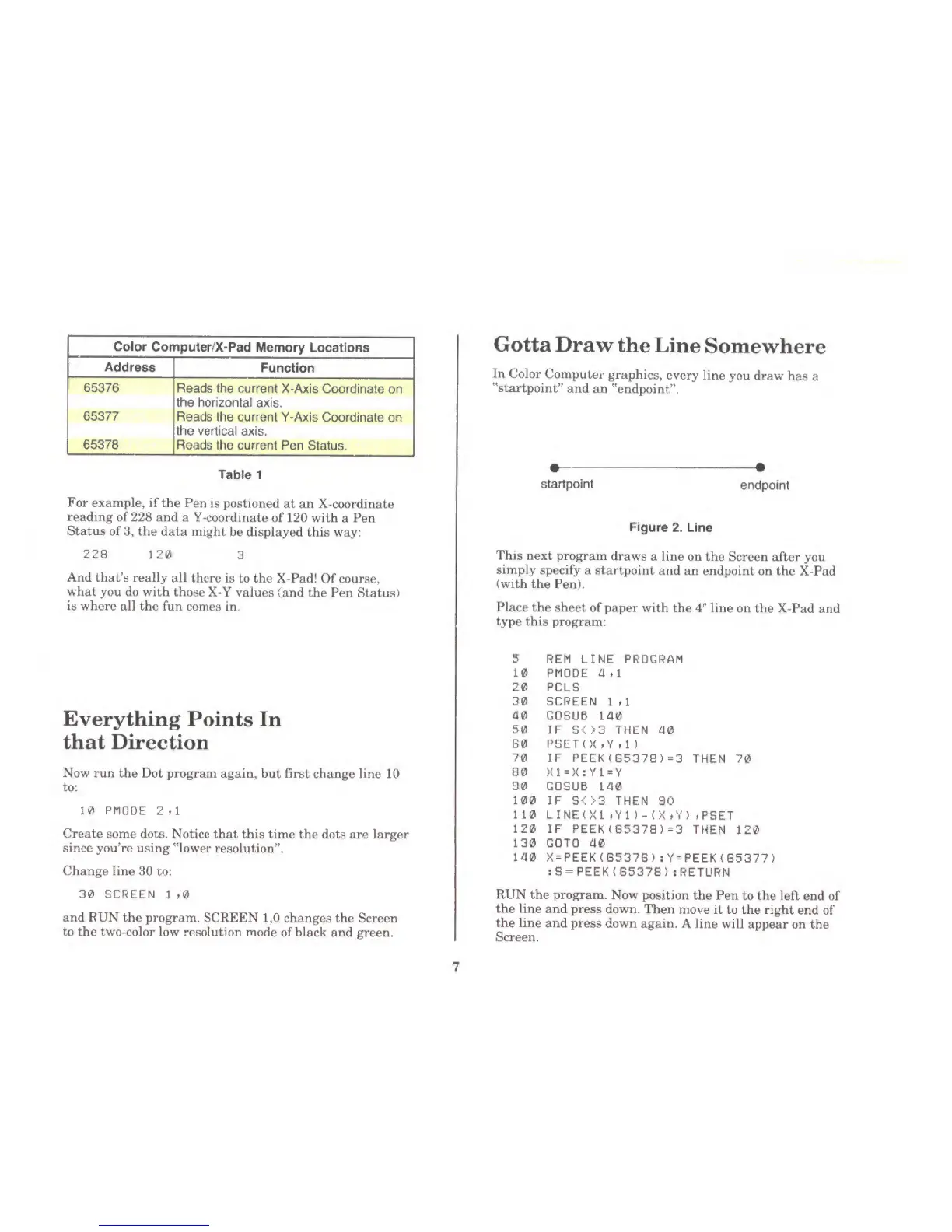
Color
Computer/
X- Pad
Memory
Locations
Address
Function
65376
Reads the
current
X-Axis Coordinate on
the horizontal
axis.
65377
Reads
the current Y-Axis
Coordinate on
the
vertical
axis.
65378
Reads
the
current
Pen Status.
Table 1
For example, if
the
Pen
is postioned
at an
X-coordinate
reading
of 228 and
a Y-coordinate of 120 with
a Pen
Status of
3,
the data
might
be displayed this
way:
18
120
And that's really
all there is to the
X-Pad!
Of course,
what you do with
those
X-Y values
(and
the
Pen Status)
is
where all the fun
comes
in,
Everything
Points
In
that
Direction
Now run the Dot program again,
but
first
change line
10
to:
10
PMQDE
2 >1
Create some dots.
Notice
that
this time the dots are larger
since you're using "lower
resolution".
Change
line
30 to:
30 SCREEN
1
,0
and RUN the program. SCREEN
1,0
changes the Screen
to
the
two-color low resolution
mode of
black
and green.
Gotta
Draw
the
Line
Somewhere
In
Color
Computer
graphics,
every
line
you draw
has
a
^startpoint"
and
an "endpoint"
startpoint
endpoint
Figure
2. Line
This next program
draws a line on
the
Screen after you
simply
specify a
startpoint
and an endpoint
on
the X-Pad
(with
the
Pen).
Place
the sheet
of
paper with the
4"
line
on the X-Pad and
type
this program:
5
REM
LINE PROGRAM
10
PMODE
4,1
20 PCLS
30 SCREEN
1 ,1
40 GDSUB 140
50 IF
S<>3 THEN 40
B0
PSET(XtY»l)
70 IF
PEEK(S537S)-3
80 X1=X:Y1~Y
90
GDSUB 140
100
IF S<>3 THEN
90
110
LINE(X1
tYl)-<X *Y)
120 IF
PEEK(G537B)=3
130 GOTO 40
140
X=PEEK(G5376)
: Y=PEEK < 65377
)
:S= PEEK
(65378) RETURN
RUN the program.
Now
position the Pen
to
the
left end of
the line
and press down.
Then
move it to the
right
end of
the line
and press down
again,
A line will appear
on
the
Screen.
THEN
70
>PSET
THEN
120