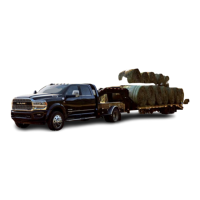
For Gooseneck trailers, the connection from the rear
fascia goes to the rear chassis inline.
NOTE:
•
When the 12-way connector goes to the rear chas-
sis, there is a black cap on the bumper receptacle
for protection.
•
In order to make the connection from the rear chas-
sis to the bumper, the cap must be unplugged from
the bumper and put on the rear chassis after mak-
ing the 12-way connection and vice versa.
Once the Trailer Surround View Module and cameras
are installed and the trailer is connected to the vehicle
via the 12-way connector, the Trailer Surround Camera
settings can be accessed. The Trailer Surround Camera
settings can be accessed through Uconnect Settings by
pressing the Trailer button in the Trailer Settings or the
Camera Settings. The system requires input of the
trailer dimensions prior to use of the system.
NOTE:
•
If a trailer is connected but the trailer dimensions
have not been entered in the Trailer Surround set-
tings page, the system will default to the settings
page.
•
If a trailer is not connected and any button is
selected, a message will appear: “Connect Trailer
Equipped With Trailer Surround View System”.
Inputting Trailer Values
For the Trailer Surround View Camera system to func-
tion, all fields must be entered. When a value is needed
the screen will display “Required”.
Setting Description
Trailer Length
Input the total length of the
trailer
Trailer Width
Input the total width of the
trailer
Camera Height
Input the height of the
mounted camera
Trailer Type
Choose the trailer type
from menu
When the Trailer Type button is selected two options are
available: Conventional or Gooseneck/Fifth Wheel.
Activation
The Trailer Surround Camera can be activated through
the Uconnect system when the vehicle is in PARK, NEU-
TRAL, or DRIVE.
When the vehicle is shifted into REVERSE, Surround
View Camera showing the Top View and Back Up Cam-
era is the default view of the system. Press the More
Cams button and press the Trailer tab to access the
Trailer Cameras. Press Trailer Surround Camera button
to access Top View and Rear View of the trailer.
If the camera delay is turned on, the camera image will
display for up to 10 seconds after shifting out of
REVERSE. The camera image will not display for 10 sec-
onds if the vehicle speed exceeds 8 mph (13 km/h),
the vehicle is shifted into PARK, or the ignition is placed
in the OFF position. The touchscreen X button disables
the display of the camera image.
If the camera delay is turned off, the camera image will
close and display the previous screen after shifting out
of REVERSE.
Modes Of Operation
The Trailer Surround View Camera system offers two
different camera displays:
•
Top View split screen with one selected mounted
camera
•
Full screen view of a selected mounted camera
Press the More Cams button on the Surround View
screen and select the Trailer tab to access the Trailer
Cameras. Press Trailer Surround Camera button to
access the default Top View and Rear View of the
trailer.
Gooseneck Trailer Connection
1 — Rear Chassis Inline
2 — Rear Fascia Connector
152 STARTING AND OPERATING



 To Next Page
 Loading...