EN - 12
Wireless Keyboard
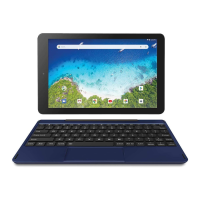
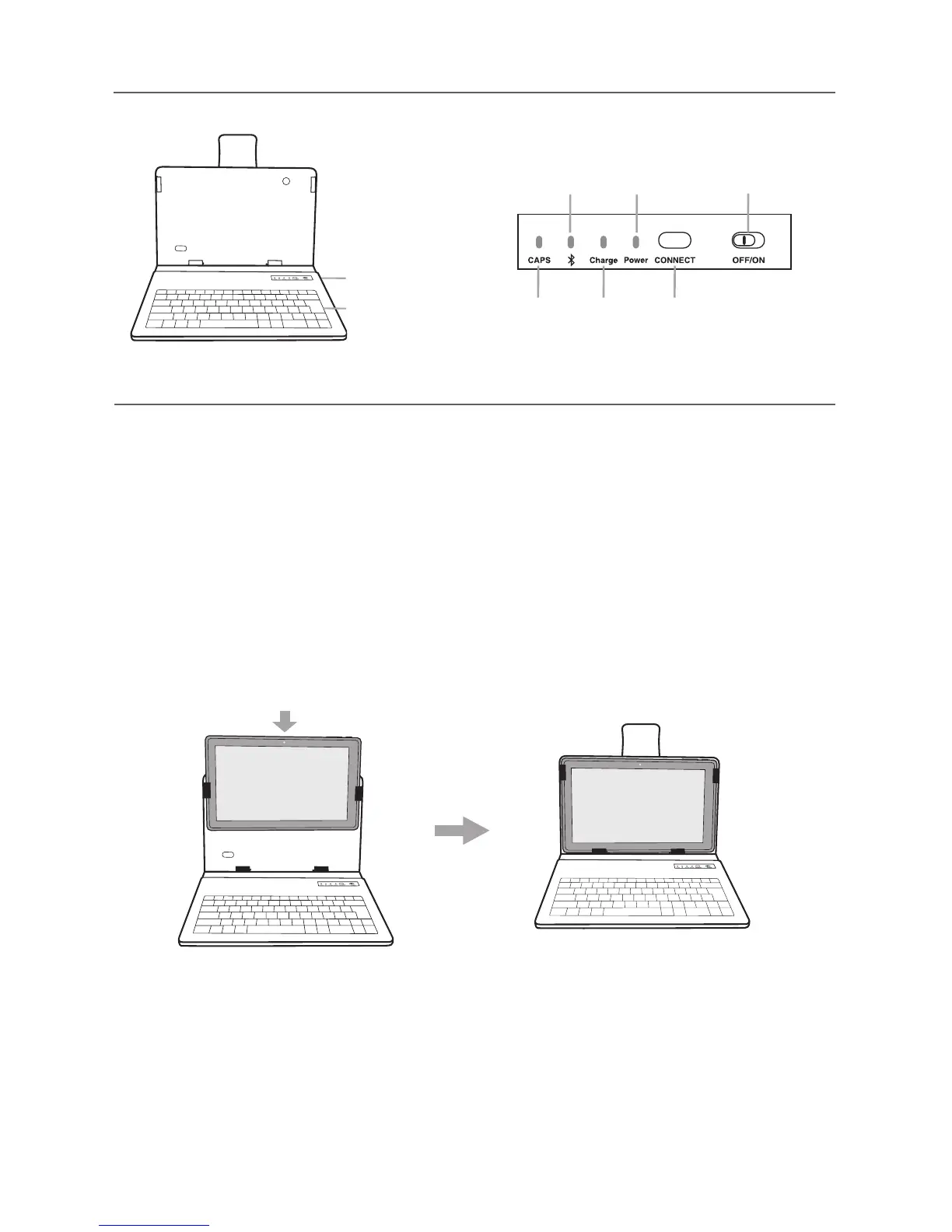
Installing tablet into keyboard case
Keyboard Overview
Micro-USB port
Keys
Bluetooth/Low
battery indicator
Power
indicator
OFF/ON
switch
CAPS
indicator
Charge
indicator
CONNECTkey
Item Description
Micro-USB port UsetochargetheKeyboardbattery.
CAPS indicator LightsupwhenCapsislocked.
Bluetooth/Low battery indicator Blinkswhilepairingorlowbattery.
Charge indicator LightsupwhilechargingtheKeyboardbattery.
The indicator will be off when it is fully charged.
Power indicator LightsupwhenyoupowerontheKeyboardoryouare
usingtheBluetoothKeyboard.
CONNECT key For initial pairing to Bluetooth-enabled tablet or other
device.
OFF/ON switch TurnON/OFFtheKeyboard.
1. Slide the OFF/ON switchat the upper rightcorner of the Keyboardto the ON position
to turn it on and the POWER indicator will glow red.
2. Press and hold the CONNECT key at the upper right corner of the Keyboard until the
bluebluetoothindicatorblinks.
3. From the Settings Menu on your tablet, turn on Bluetooth. Tap SEARCH FOR
DEVICES at the upper right corner of the unit screen to scan and find the BT
Keyboard-RCA 10.1" Tablet device name.
Connecting the Keyboard



 To Next Page
 Loading...