This document provides training material for the realme 4K Smart Google TV Stick, covering its design, parameters, features, service policy, and frequently asked questions.
ID Design
The realme 4K Smart Google TV Stick is a compact device with a sleek black design. It features an HDMI Port at one end for connecting to a TV and a Micro-USB Port on the side for power. A power indicator light is also present on the device. The "realme" logo is subtly embossed on the top surface.
The accompanying remote control is also black with a grey directional pad and a "realme" logo at the bottom. Key buttons on the remote include:
- Power Key: To turn the device on/off.
- Mute Key: To mute/unmute audio.
- OK Key: For selection.
- Direction Key: For navigation (up, down, left, right).
- Back Key: To go back to the previous screen.
- Setting Key: To access settings.
- Home Key: To return to the home screen.
- Apps Keys: Dedicated buttons for popular streaming services like Netflix, YouTube, Amazon Prime Video, and Music.
- Volume Key: To adjust volume (+/-).
- Google Assistant: A dedicated button for voice commands.
Packing List
The retail package for the realme 4K Smart Google TV Stick includes:
- TV Stick
- Remote control
- Micro-USB cable
- HDMI extension cable
- QSG (Quick Start Guide, without warranty card)
Notably, the package does not include a power adapter or batteries for the remote.
Technical Specifications (Parameters)
Product Information:
- Product Name (Marketing name): realme 4K Smart Google TV Stick
- Product Model (Internal name): RMV2105
- Color: Black
- Material: Black Plastic
Display & Audio:
- Support Resolution: Max 3840 x 2160 (4K)
- HDR10: Support
- HDR10+: Support
- HLG: Support
Hardware:
- CPU: Quad core ARM Cortex-A35
- GPU: ARM G31 MP2
- RAM: 2GB
- ROM: 8GB
Connectivity:
- Wifi: WIFI 5 (802.11 a/b/g/n/ac) 2.4GHz/5GHz
- Bluetooth: BT 5.0
- HDMI: HDMI2.1, Support CEC
- USB: USB2.0, Micro-USB, OTG support
Other Features:
- DLNA: Support
- Bluetooth file transfer: Not Support
- NFC: Not Support
- ChromeCast: Support
- Remote control protocol: BT
- Adapter Power: 5W 5V/1A
Physical Dimensions:
- Size (LengthHeightBase width): 9029.814.5 mm
- Net Weight: About 36.5g
Usage Features
Quad-Core Processor:
The realme Smart TV Stick is equipped with a powerful Quad-core ARM Cortex-A35 processor and 2GB of RAM, along with 8GB of ROM and a Dual-core GPU. This configuration ensures a smooth display and operation experience.
4K Output:
The device supports up to 4K output at 60 frames per second (4Kp60), HDR10+, and HDMI 2.1 connectivity. This provides high picture quality for an excellent viewing experience. It's important to note that the actual output resolution depends on the TV's resolution.
Google Assistant:
With a built-in intelligent Google Assistant, users can interact with their Smart TV using voice commands. This allows for asking questions, setting reminders, checking weather forecasts, and more. A Google account login is required to use this feature.
ChromeCast Built-in:
The integrated ChromeCast functionality allows users to cast content from their phone or tablet to the TV screen. This makes sharing pictures and videos with friends easier and more enjoyable through the Google Home App. The "How to Cast" app on the device can guide users through the screen casting operation.
Bluetooth Voice Control Remote:
The realme Smart TV Stick is compatible with all realme Smart TV remotes. The included remote features a built-in microphone, enabling quick access to the voice assistant for convenient control.
Operation
Initial Setup:
- Connect the TV Stick:
- Plug the USB port of the TV stick into the power supply through the USB power cord and adapter (not included).
- Plug the HDMI end of the TV stick into the HDMI connector of the TV.
- Select Input Source: Start the TV and select the correct HDMI input source (e.g., "4K Google TV S HDMI 3").
- Pair Remote Control: Press and hold the "OK" and "Back" buttons together for 5 seconds while keeping the remote control within 50cm of the device to pair it.
- Select System Language: Choose your preferred language from the "Welcome from Google" screen.
- Set Up Google Home App or Remote: Use the Google Home app on your phone (by scanning a QR code) or the remote control to complete the setup.
- Connect to WiFi: Connect to an available WiFi network.
- Log in to Google Account: Sign in with your Google account.
- Accept Google Service Agreement: Review and accept the Google service terms.
- Select Subscriptions: Choose your preferred streaming service subscriptions (e.g., YouTube, Netflix, Hulu, Apple TV).
- Install Applications: The device will proceed to install necessary applications.
- Google TV Ready: Once applications are installed, the Google TV experience is ready.
- Google TV Main Interface: The main interface will display various sections:
- Search: Use Google Assistant to search.
- Apps: Access the Google App Store to download applications.
- Google ID: Your Google account identifier.
- Your Apps: List of installed applications.
- Continue watching: History of watched content, allowing you to resume viewing.
- Content recommendation: Suggested content.
For more information, users can log in to the Google TV website: https://tv.google.
How to Cast (Method 1 - Google Home App):
- Download the Google Home app from the Google Store and complete the application guide.
- Ensure your mobile phone or tablet is on the same WiFi network as your Chromecast device.
- Open the Google Home App.
- Tap the device you want to cast your screen to.
- Tap "Cast my screen" and then "Cast screen."
How to Cast (Method 2 - Chromecast-enabled App):
- Open a Chromecast-enabled app (e.g., YouTube).
- Tap the "Cast" button (usually a rectangle with a WiFi-like symbol) to activate the cast extension. Note that the Cast button's location may vary across different Chromecast-enabled apps.
- Tap the device you'd like to cast to (e.g., "AI PONT" or "Android TV").
- Once connected, the Cast button will change color, indicating a successful connection.
FAQ
1. What are the pre-installed apps on realme 4K Smart Google TV Stick?
YouTube, Netflix, Google Play Movies/TV Shows, Disney+, Prime Video, and Google Play Store are pre-installed.
2. What are the different output resolutions supported on realme 4K Smart Google TV Stick?
Output resolution depends on your TV resolution. The realme 4K Smart Google TV Stick can support up to Max 4K resolution at 60Hz.
3. What are the video decoders supported on realme 4K Smart Google TV Stick?
The realme 4K Smart Google TV Stick supports:
- 4K AV1 VP9 Profile-2 up to 4Kx2K@60fps
- H.265 HEVC MP-10@L5.1 up to 4Kx2K@60fps
- AVS2-P2 Profile up to 4Kx2K@60fps
- H.264 AVC HP@L5.1 up to 4Kx2K@30fps
- MPEG-4 ASP@L5 up to 1080P@60fps (ISO-14496)
- WMV/VC-1 SP/MP/AP up to 1080P@60fps
- AVS-P16(AVS+) / AVS-P2 JiZhun Profile up to 1080P@60fps
- MPEG-2 MP/HL up to 1080P@60fps (ISO-13818)
- MPEG-1 MP/HL up to 1080P@60fps (ISO-11172)
- and *.mkv, *.wmv, *.mpg, *.mpeg, *.dat, *.avi, *.mov, *.iso, *.mp4, *.rm file formats
4. Does the realme 4K Smart Google TV Stick have a Chromecast option?
Yes, the realme 4K Smart Google TV Stick comes with Chromecast built-in. You can cast content from all your favorite apps across multiple devices (mobiles/tablets/laptops).
5. Does realme 4K Smart Google TV Stick support voice search?
Yes, the realme 4K Smart Google TV Stick comes with Google Assistant built-in. You can press the voice button on the realme Remote and search various queries like: "Control entertainment - Show me English action movies."
6. Does realme 4K Smart Google TV Stick support Data Saver?
No, Data Saver is not supported.
7. Can I use my TV remote to control my realme 4K Smart Google TV Stick?
Yes, you can. You just have to enable the CEC function on both the realme TV Stick and your TV.
- For TV Stick: Settings → Device Preferences → HDMI CEC → Enable CEC Switch
- For TV: Check your TV Guide Manual for instructions.
8. What are the audio decoders supported on realme 4K Smart Google TV Stick?
The document states "realme 4K Smart Google TV Sticker comes with Chromecast built-in. You can cast content from all their favourite apps across multiple devices (mobiles/tablets/laptops)." This appears to be a copy-paste error from question 4 and does not list audio decoders.
9. How to turn on/off/standby/wake up the realme 4K Smart Google TV Sticker?
- Turn on: In the off state, press the power button once on the TV stick remote control, and the TV stick will start up.
- Shut Down: In the power-on state, long press the power button of the TV stick remote control for more than 3 seconds; a shutdown prompt appears; select OK to shut down.
- Standby: In the power-on state, press the power button once on the TV stick remote control; the TV stick is in standby and returns to the input source interface of the TV.
- Wake up: In standby state, press the power button once on the TV stick remote control; the TV stick will wake up.
10. What does the status of the TV stick indicator mean?
- White light is always on: Turn on
- The white light is dim and always bright: Standby
- The white light is not on: Shut down

 Need help?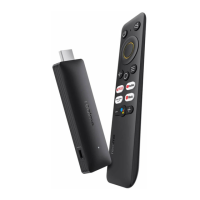

 To Next Page
 General