Operating menu
First connecting
(1)
Plug the receiver into the device, and open the device, the device will identify the receiver
(2)
Press HOME to start the gamepad
(3)
4 LED Indicator flash , gamepad is pairing with the wireless receiver automatically
(4)
When the pairing is successful, Will be one of the three Xinput , Directinput mode
(Note:If the pairing is unsuccessful, unplug the wireless receiver , turn off the gamepad and Repeat the above steps)
Automatic reconnect
gamepad is turned off under normal connection, but the wireless receiver is still working properly , Press HOME key to
start the gamepad to quick connect automatically
Specification
PC(Windows XP/7/8/8.1/10)
Suggestion: Based on the characters of Li-ion battery, please charge the battery at least once every
6 months to achieve the maximum battery life span.
Bursts
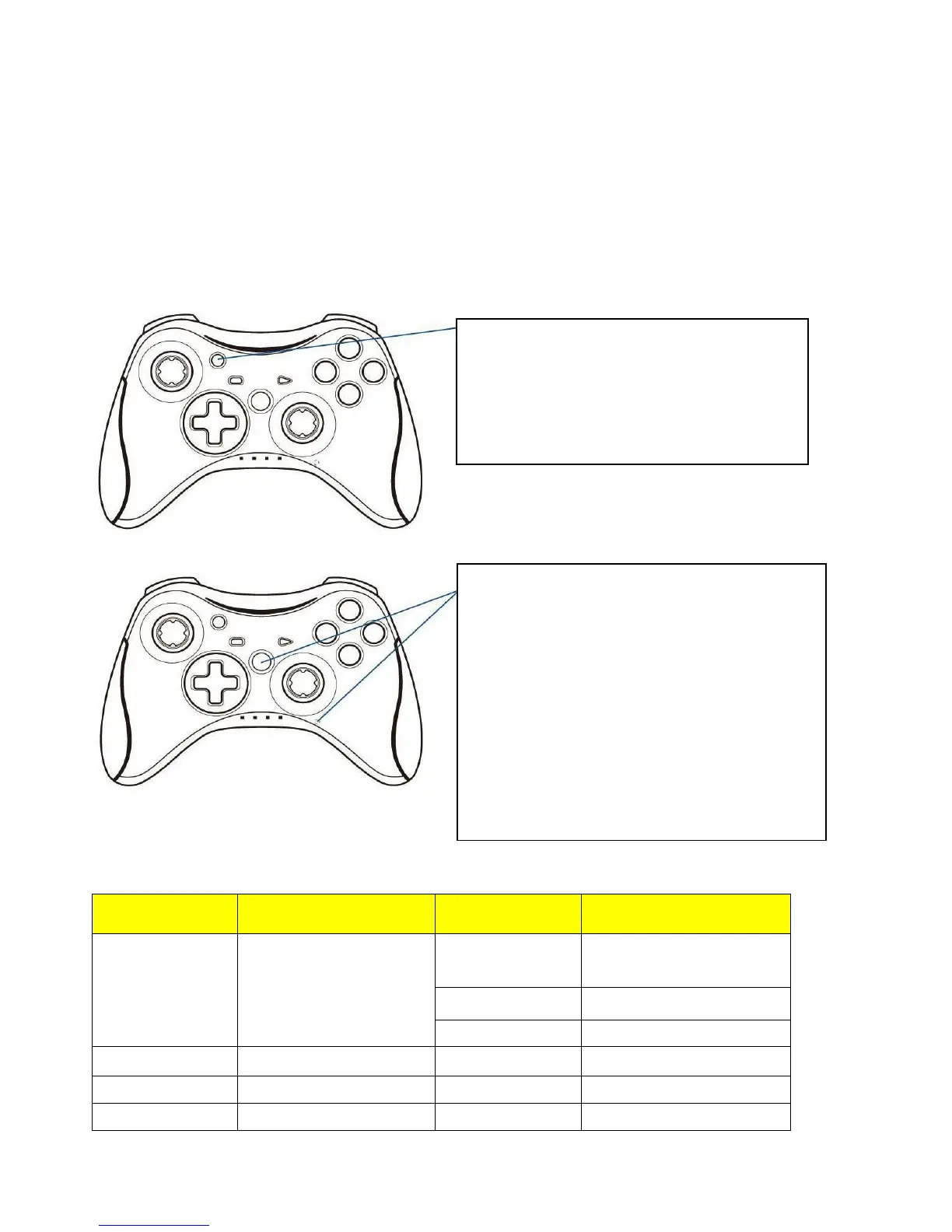
Press and hold the "TURBO" while pressing the
button you want to bursts, such as: "TURBO"+"A",
then A key feature is enabled bursts. to repeat
above steps to cancel the bursts.
JD-Switch Function
(Press the BACK + LS(left stick), the function of
D-pad and LS stick will be exchanged
Reset gamepad
When an exception occurs gamepad, such as Keys
disorder, or crash, Unable to connect. Try to restart
the device、gamepad or select Reset gamepad
Reset mode:Insert into the hole on the back of
gamepad with sharp article, Press the RESET button
to reset the gamepad


 To Previous Page
 Loading...