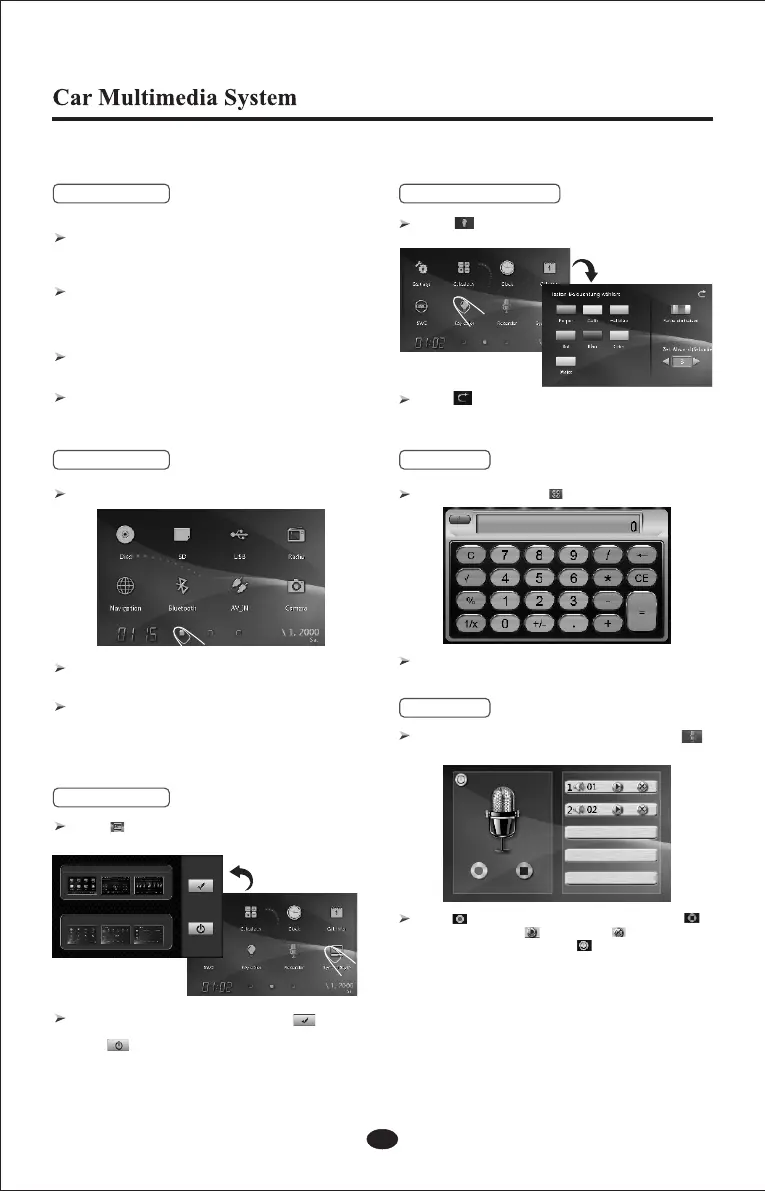
4. 7 illumination colour light
Touch icon to enter the light setting, you can
choose the color which you like. ( see as below).
Touch icon to exit the light setting.
Notice: Pls. see the practicality device according
detail model for this function.
5. Calculator
In the main menu, touch to enter calculator interface.
Touch the numeric key and the mathematical
operator to calculate.
6. Recorder
Enter recorder function as below , when touch
icon on main menu.
Touch icon enter to record function and feel
icon to stop. Touch to play, feel icon to
delete record file and touch icon for exit.
2
Power on
If the unit turned off last time by stopping the engine,
when you start the engine again, the unit will power
on automatically.
If the unit turned off last time by pressing the power
button on the front panel, press the power button
again, the unit will power on.
Power off
After pull out the vehicle’s key, the unit will power
off automatically.
Press and hold the power button more than 2
seconds,the unit will turn off.
1. Power on/off
Basic Operations
Enter main menu as below for first power on device
2. Main Menu
Touch the second key, the screen will slide left
horizontally, by parity of reasoning.
If you want to return to the previous main menu,
touch the second key or the first key, the
screen will slide right horizontally.
Note: Touch the different function touch key to enter
different mode accordingly.
3. System style
Touch icon to enter system style setting,
You can change the GUI style by this function.
Touch picture and then touch icon
for confirm to change the GUI style which you like.
touch icon to exit system style setting.
the GUI



 To Next Page