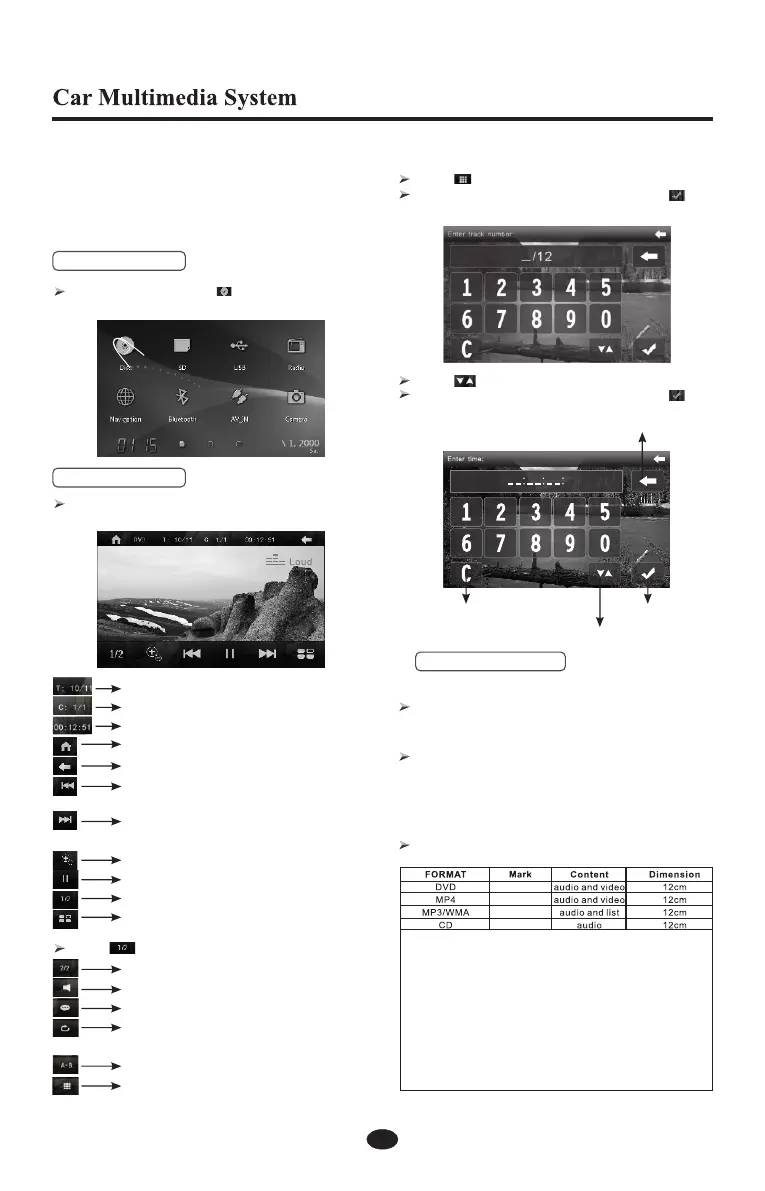
Touch to enter track selecting menu.
Touch the numeric key to select, then touch to
confirm and play.
Touch to enter time selecting menu.
Touch the numeric key to select, then touch to
confirm and play.
Back
Confirm
Enter Chapter No./title No./play time to change.
Cancel
3. Load/Eject a Disc
In any mode, insert the disc into the slot with the
printed side facing upward. The disc will be loaded
and read automatically.
After the disc is ejected but not taken out within 8
seconds, the disc will be loaded again but not be
read. Only the disc is loaded manually can be read
automatically.
Load a Disc
Eject a Disc
Press the key on the front panel to eject
Note:
1.The unit can support disc formats:DVD,DVD-R,
CD-R,CD-RW, DVD±RW,MP3.
2.When you watch DVD, CD-R, or MP3,
corresponding disc format will appear on the screen.
If not, the probably the format is not supported,
please select other functions.
3.MP4 common format: ASF,MP4, etc.
4.No support for 3GP/WMV format disc.
6
DVD/VCD Operations
The unit can playback DVD/VCD/CD/MP3/WMA/JPEG/
MPEG4/CD-R/CD-RW/DVD±RW/DVD±R/DVD-5/9/10/
18/DIVX3.0-6.0/SVI and other discs (only 12cm stand-
ard discs compatible); The unit can’t playback 3GP/
WMA Discs (the AVI discs can display can not playback).
When Disc in, then touch icon on the main menu
to enter DVD/VCD mode.
1. Mode Selecting
Touch anywhere on the screen, the control bar will
appear, as below.
Current track/Total track
Current chapter/Total chapter
Current playback time
Return to main menu
Return
Short press to skip to the previous track
Long press to fast reverse
Short press to skip to the next track
Long press to fast forward
Zoom(1.3,1.5,2.0,off)
Play/Pause
Playback control switch
Return to root menu
Touch to enter next control bar.
Playback control switch
Switch audio channel
Subtitle Language
Repeat ( Single repeat, Repeat , or
Repeat OFF)
Repeat A-B
Track selecting (Chapter, Title, or Time)
2. Menu Operating



 To Next Page