6.1.6. Library Function (LIB)
The LIB Function allows you to create libraries or
subroutines, which can be used in other programs.
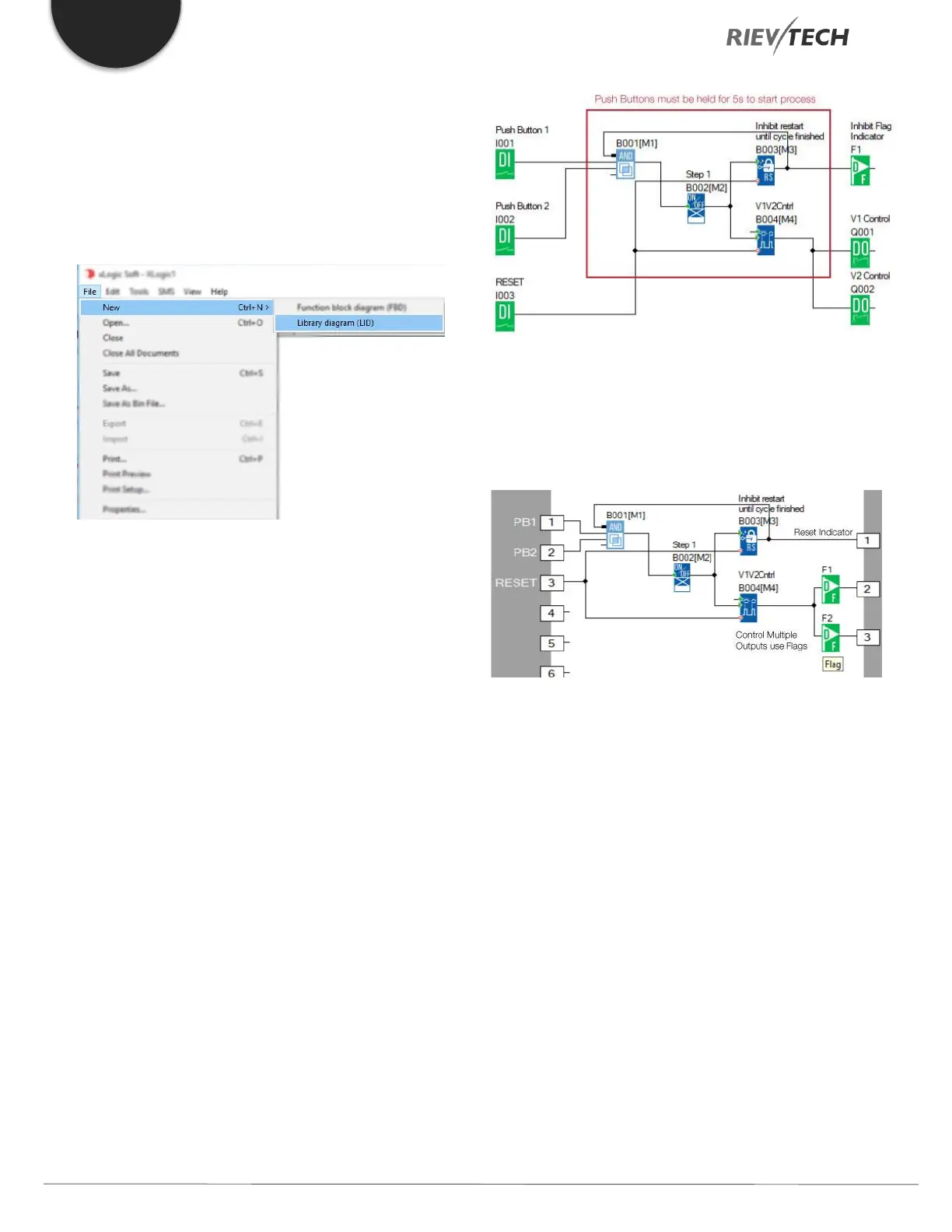
To create a new library, select ‘File….New…Library diagram’
from the main menu bar.
Figure 36 - New Library Diagram (LID)
A new workspace will open, which has 16-input
connections and 8-outputs connections. Simply drop the
blocks onto the work area that you wish your library
function to use and connect them together as you would
for a standard program.
For example, you may need something like this 2-Button
Start with Inhibit, which switches on two outputs after two
push button inputs have been held on for 5-seconds.
Pushing the buttons again has no effect as a latching relay
inhibits a restart until the Reset input has been switched
On. If you need this feature multiple times in your
program, you will see it uses a lot of space and may
become a little untidy to read, the answer is, save it as a
Library and reuse the Library block as often as you need!
The above scenario can be achieved as follows:
Figure 37 - Library Example Code
The section circled in Red contains the logic blocks to
achieve the control scenario required – These would be
used to create the Library function:
Figure 38 - LID Blocks
As you can see from the above, a block can only be
connected to ONE output tab in a Library, so we have had
to use two digital flags for the connection from B004 as
we need two outputs to be On when it is On.
Library Function Options
There are a number of other features you can configure
when creating your LID blocks, from password protection
to naming your tabs.
LID Password Protection
As with all of your xLogicsoft programs, you are able to
password protect your LID too. Simply select
‘File…Properties’ from the main menu or click on the ‘Page
Layout’ icon:


 To Next Page
 Loading...


