Configuration with Ethernet Device
Manager
Most people prefer to change the settings of the Ethernet
xLogic CPU rather than their PC settings. To do this
download our Device Manager for Ethernet CPU software
from the website. Unpack the software to a location on
your hard drive and open the location using Windows
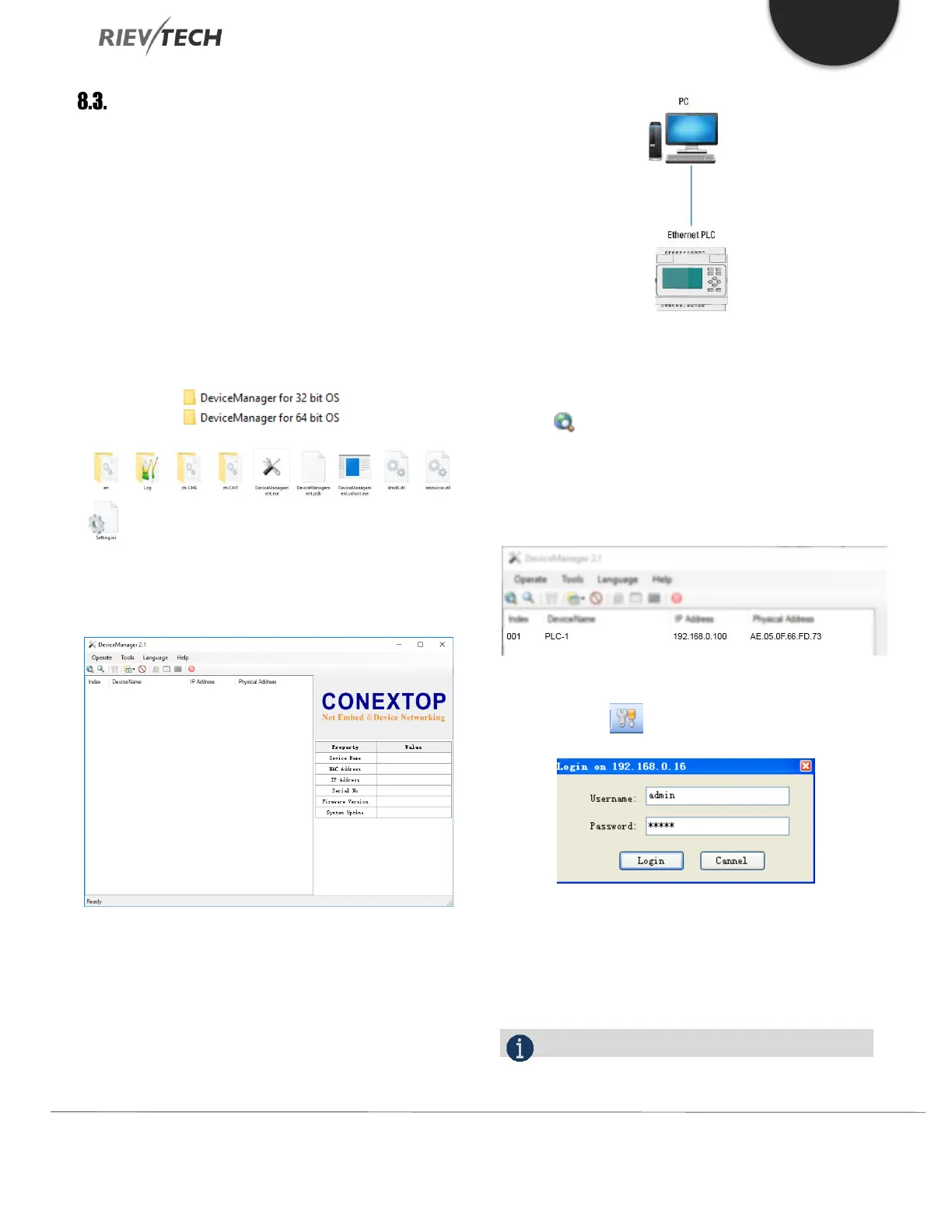
Explorer. There are two versions of the software, a 32-bit
and a 64-bit. Select the version which matches your
Windows OS system.
a: Select “DeviceManagement.exe” file and start it by
double-clicking with the left mouse button.
b: Connect your xLogic Ethernet CPU to your network,
either via a router/switch or directly to your PC. In our
following example, we will use a direct connection to our
PC.
Connect diagram:
c: Apply power to the xLogic Ethernet CPU and follow the
instruction below carefully.
d: Click in the Device Manager software to search
for the xLogic Ethernet CPU. Once the search is complete
the software will list all devices found with their IP
address and MAC address.
e. Double-click the device in the list or highlight it and
click the toolbar button.
f. Input the username and password to log in. The default
is Username: admin; Password is admin. Click the Login
button to continue and the configuration dialogue box will
appear.
NOTICE:


 To Next Page
 Loading...


