If the update
process
is very
short,
only a few
minutes
then
probably
something
went
wrong
Check your Maps version in the engineering menu, if its still the old maps version You will have to follow
The user defined way:
Enter green menu (CAR + SETUP for a few seconds)
If the update process is very short, only a few minutes then probably something went wrong
Check
your
Maps
version in the engineering menu, if its still the old maps version You will have to follow
The user defined way:
Enter green menu (CAR + SETUP for a few seconds)
If the update
process
is very
short,
only a few
minutes
then
probably
something
went
wrong
Check
your
Maps
version
in the
engineering
menu,
if its still the
old maps
version You will
have to follow
The user defined way:
Enter green menu (CAR + SETUP for a few seconds)
If the update process is very short, only a few minutes then probably something went wrong
Check
your
Maps version
in the engineering menu, if its still the old maps version You will have to follow
The user defined way:
Enter green menu (CAR + SETUP for a few seconds)
If
the
update
process
is
very
short,
only
a
few
minutes
then
probably
something
went
wrong
Check
your
Maps version in
the
engineering
menu,
if its still
the old
maps version You
will have
to follow
The user
defined
way:
Enter green menu (CAR + SETUP for a few seconds)
If
the
update
process
is
very
short,
only
a
few
minutes
then
probably
something
went
wrong
Check your Maps version in the engineering menu, if its still the old maps version You will have to follow
The user defined way:
Enter green menu (CAR + SETUP for a few seconds)
If
the
update
process
is
very
short,
only
a
few
minutes
then
probably
something
went
wrong
Check your Maps version in the engineering menu, if its still the old maps version You will have to follow
The user
defined
way:
Enter green menu (CAR + SETUP for a few seconds)
If
the
update
process
is
very
short,
only
a
few
minutes
then
probably
something
went
wrong
Check your Maps version in the engineering menu, if its still the old maps version You will have to follow
The
user
defined
way:
Enter green menu (CAR + SETUP for a few seconds)
If
the
update
process
is
very
short,
only
a
few
minutes
then
probably
something
went
wrong
Check your Maps version in the engineering menu, if its still the old maps version You will have to follow
If the update process is very short, only a few minutes then probably something went wrong
Check
your Maps version
in the engineering menu, if its still the old maps version You will have to
follow
The user defined way:
Enter green menu (CAR + SETUP for a few seconds)
If
tIf the update process is very short, only a few minutes then probably something went
wrong
Check your Maps version in the engineering menu, if its still the old maps version You will
have to follow
The user defined way:
Enter green menu (CAR + SETUP for a few seconds)
he
update
process
is
very
short,
only
a
few
minutes
then
probably
something
went
wrong
Check
your Maps
version
in the
engineering
menu,
if its
still
the old maps
version
You
will have to follow
The user defined way:
If the update process is very short, only a few minutes then probably something went wrong
Check
your Maps
version
in the
engineering
menu,
if its
still the old maps
version
You will have to follow
follow
The user defined way:
Enter green menu (CAR + SETUP for a few seconds)
If
the update
process
is very
short,
only a few
minutes
then
probably
something
went
wrong
CIf the update process is very short, only a few minutes then probably something went wrong
hCheck your Maps version in the engineering menu, if its still the old maps version You will have to
follow
eThe user defined way:
cEnter green menu (CAR + SETUP for a few seconds)k your Maps version in the engineering
menu, if its still the old maps version You will have to
The user defined way:
Enter green menu (CAR + SETUP for a few seconds)
If the
update
process
is very
short, only a few minutes
then
probably
something
went
wrong
Check your Maps version in the engineering menu, if its still the old maps version You will have to follow
The user defined way:
Enter green menu (CAR + SETUP for a few seconds)
/SOFTWAREMAP UPDATE INSTRUCTIONS FOR VW RNS 850
Written Q1 9201 – Version 1
6 | P a g e
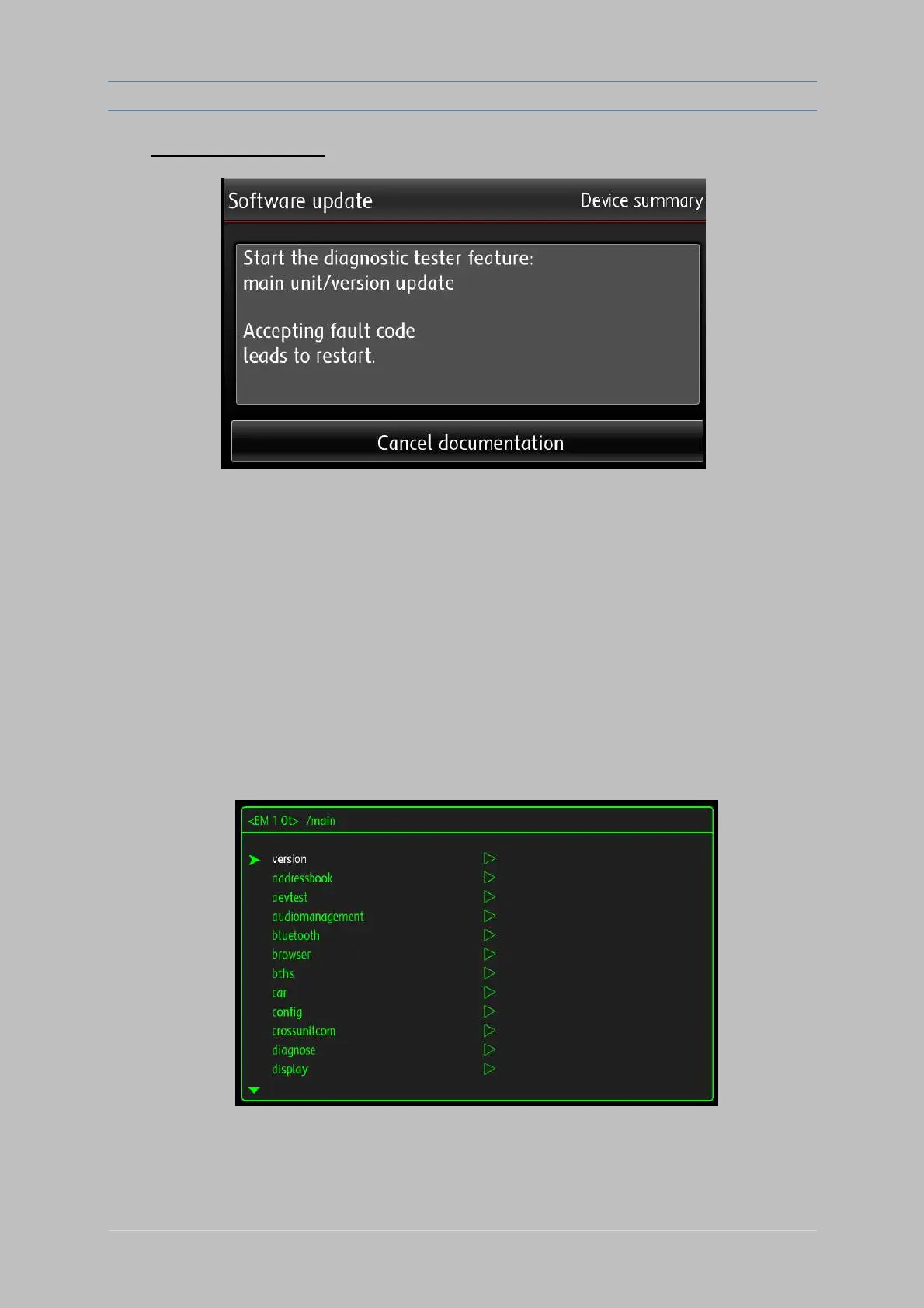
Press “Cancel documentation” here
After the reboot RNS 850 will with have software updated version -
Check it by pressing the "SETUP" button, then "System"
and find in the menu - "Version
Now
update. map the for procedure same the exactly repeat
Information"
If the update process is very short, only a few minutes then probably something went wrong
Check your Maps version in the engineering menu, if its still the old maps version You will have to follow
The user defined way:
Enter green menu (CAR + SETUP for a few seconds)


 To Next Page
 Loading...