EasyManua.ls Logo

RockJam 5061 - User Manual

RockJam 5061
29 pages
Print Icon
To Next Page IconTo Next Page
Loading...
61 Key Multi-function Keyboard
User Guide
Question and Answer IconNeed help?

Do you have a question about the RockJam 5061 and is the answer not in the manual?

Summary

Important Information

General Safety and Usage Guidelines

Covers power adapter, handling, environment, and maintenance for safe operation.

Product Specifications Overview

States that specifications are subject to change without notice.

Controls and Connections

Front Panel Layout

Identifies and describes the controls and indicators on the front panel.

External Connection Ports

Details the available external connection jacks on the keyboard.

LED Display Indicator

Explains the function of the 3-digit LED display.

Initial Setup and Preparation

Keyboard Stand Assembly

Step-by-step instructions for assembling the keyboard stand.

Powering the Keyboard

AC;DC Adapter and Battery Usage

Guide on using the power adapter and inserting batteries for operation.

Auto Power Off Function

Explains the automatic power saving feature and how to reactivate the keyboard.

Audio Input and Output

Connecting External Amplifiers

Instructions for connecting the keyboard to external audio equipment.

Playing Music via AUX Input

How to play music from phones or audio devices using the AUX IN port.

Accessory Connections

Microphone Connection

Details how to connect a microphone to the keyboard.

USB MP3 Playback

Guide on playing MP3 music files from a USB memory stick.

Keyboard Operation Basics

Power and Volume Control

How to turn the keyboard on/off and control the main volume level.

Tone Selection and Change

Instructions for selecting and changing instrument tones.

Effect and Control Features

Split Keyboard Mode

How to split the keyboard into two sections with different tones.

Sound Modulation Effects

Sustain and Vibrato Effects

Explains how to use the Sustain and Vibrato sound effects.

Transpose Functionality

How to adjust the musical scale up or down.

Rhythm and Timing Tools

Metronome and Percussion Instruments

Using the metronome and playing percussion sounds.

Pitch and Expression Control

Using the Pitch Wheel

How to use the pitch bend wheel for pitch variation.

Rhythm and Accompaniment

Rhythm Selection and Playback

How to choose, start, stop, and sync rhythms.

Accompaniment Control Adjustments

Accompaniment Volume and Tempo

Adjusting accompaniment volume and tempo settings.

Chord Accompaniment Modes

Single Finger and Fingered Chords

Guide to playing chords using single finger or fingered modes.

Chord Tone Selection

How to select different chord tones.

Performance Recording and Structure

Intro;Ending and Recording Functions

Using intro/ending sections and the recording function.

Programming and Memory Features

Rhythm Programming and Demo Songs

Programming rhythms and playing demo songs.

Saving Settings to Memory (M1;M2)

How to store and recall user settings using M1/M2 memory.

Teaching and Learning Modes

Teaching Mode Guide

Instructions for the Beginner, Intermediate, and Advanced teaching modes.

Learning and Reference Materials

Progressive Learning Path

Recommended sequence for mastering songs.

Appendix I: Percussion Instruments

Table listing percussion instruments and their key assignments.

Appendix II: Rhythm Table

Appendix III: Tone Table

A table listing all available instrument tones and their corresponding numbers.

Appendix IV: Demo Song Table

Appendix V: Troubleshooting Guide

Appendix VI: Chord Tables

Single Finger Chord Patterns

Visual guide to finger patterns for single finger chords.

Fingered Chord Patterns

Visual guide to finger patterns for fingered chords.

Appendix VII: Technical Specifications

Regulatory and Disposal Information

FCC Compliance Statement

FCC rules and compliance information for the device.

European Union Product Disposal

Guidelines for environmentally friendly disposal of electronic equipment.

Summary

Important Information

General Safety and Usage Guidelines

Covers power adapter, handling, environment, and maintenance for safe operation.

Product Specifications Overview

States that specifications are subject to change without notice.

Controls and Connections

Front Panel Layout

Identifies and describes the controls and indicators on the front panel.

External Connection Ports

Details the available external connection jacks on the keyboard.

LED Display Indicator

Explains the function of the 3-digit LED display.

Initial Setup and Preparation

Keyboard Stand Assembly

Step-by-step instructions for assembling the keyboard stand.

Powering the Keyboard

AC;DC Adapter and Battery Usage

Guide on using the power adapter and inserting batteries for operation.

Auto Power Off Function

Explains the automatic power saving feature and how to reactivate the keyboard.

Audio Input and Output

Connecting External Amplifiers

Instructions for connecting the keyboard to external audio equipment.

Playing Music via AUX Input

How to play music from phones or audio devices using the AUX IN port.

Accessory Connections

Microphone Connection

Details how to connect a microphone to the keyboard.

USB MP3 Playback

Guide on playing MP3 music files from a USB memory stick.

Keyboard Operation Basics

Power and Volume Control

How to turn the keyboard on/off and control the main volume level.

Tone Selection and Change

Instructions for selecting and changing instrument tones.

Effect and Control Features

Split Keyboard Mode

How to split the keyboard into two sections with different tones.

Sound Modulation Effects

Sustain and Vibrato Effects

Explains how to use the Sustain and Vibrato sound effects.

Transpose Functionality

How to adjust the musical scale up or down.

Rhythm and Timing Tools

Metronome and Percussion Instruments

Using the metronome and playing percussion sounds.

Pitch and Expression Control

Using the Pitch Wheel

How to use the pitch bend wheel for pitch variation.

Rhythm and Accompaniment

Rhythm Selection and Playback

How to choose, start, stop, and sync rhythms.

Accompaniment Control Adjustments

Accompaniment Volume and Tempo

Adjusting accompaniment volume and tempo settings.

Chord Accompaniment Modes

Single Finger and Fingered Chords

Guide to playing chords using single finger or fingered modes.

Chord Tone Selection

How to select different chord tones.

Performance Recording and Structure

Intro;Ending and Recording Functions

Using intro/ending sections and the recording function.

Programming and Memory Features

Rhythm Programming and Demo Songs

Programming rhythms and playing demo songs.

Saving Settings to Memory (M1;M2)

How to store and recall user settings using M1/M2 memory.

Teaching and Learning Modes

Teaching Mode Guide

Instructions for the Beginner, Intermediate, and Advanced teaching modes.

Learning and Reference Materials

Progressive Learning Path

Recommended sequence for mastering songs.

Appendix I: Percussion Instruments

Table listing percussion instruments and their key assignments.

Appendix II: Rhythm Table

Appendix III: Tone Table

A table listing all available instrument tones and their corresponding numbers.

Appendix IV: Demo Song Table

Appendix V: Troubleshooting Guide

Appendix VI: Chord Tables

Single Finger Chord Patterns

Visual guide to finger patterns for single finger chords.

Fingered Chord Patterns

Visual guide to finger patterns for fingered chords.

Appendix VII: Technical Specifications

Regulatory and Disposal Information

FCC Compliance Statement

FCC rules and compliance information for the device.

European Union Product Disposal

Guidelines for environmentally friendly disposal of electronic equipment.

Overview

This document is a user guide for the RockJam 61 Key Multi-function Keyboard, covering its operation, features, and technical specifications.

Function Description:

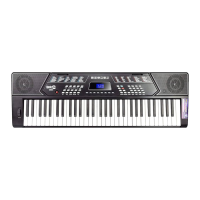
The RockJam 61 Key Multi-function Keyboard is a versatile electronic musical instrument designed for both beginners and advanced users. It features a 61-key keyboard (C2-C7) and offers a wide range of functions including tone selection, rhythm accompaniment, recording, programming, and teaching modes. It can be powered by an AC/DC adapter or 6 x 1.5V AA alkaline batteries, making it suitable for both home and portable use. The keyboard includes a built-in speaker system but can also be connected to external amplifiers, headphones, or audio devices for varied listening experiences. It supports playing MP3 music files from a USB memory stick, allowing users to play along with their favorite tracks. A microphone input is also available for singing along.

Important Technical Specifications:

  • Display: 3-Digit LED Display
  • Tones: 200 unique tones
  • Rhythms: 200 unique rhythms
  • Demo Songs: 40 different demo songs
  • Recording and Programming:
    • 46 Note record memory
    • Playback
    • 46 Beat rhythm programming
  • Percussion: 12 different instruments
  • Diapason (Range of Keyboard): C2-C7 (61 keys)
  • Intonation: <3 cent
  • Weight: 3.2 kg
  • Power Adapter: DC9V, 500mA
  • Output Power: 2 W x 2
  • External Jacks:
    • Power input
    • Headphone output (3.5mm)
    • Microphone Input (Electret, 3.5mm)
    • AUX Input (3.5mm)
    • USB MP3 playback input
  • Accessories Included: Power adapter, Sheet music stand, Keyboard stand, Stool, Headphones, User guide, Key stickers.

Usage Features:

  • Power and Volume Control: The keyboard can be turned on/off using the [POWER] button. Master volume is adjustable from V00 (off) to V15 using [VOLUME ▲ /▼] buttons, with a default of V10.
  • Auto Power Off: A power-saving function automatically switches the keyboard off after 4-5 minutes of inactivity.
  • Tone Selection: Users can select from 200 unique tones by pressing the [TONE] button and entering a 0-9 digit code or using the +/- buttons. The default tone is 't00' Grand Piano.
  • Rhythm Selection: 200 built-in rhythms are available. Rhythms can be selected by pressing the [RHY] button and entering a number code or using the +/- buttons. Rhythms can be started/stopped with the [START/STOP] button.
  • Sync Accompaniment: The [SYNC] button activates sync accompaniment, where playing any of the first 19 keys on the left side of the keyboard starts the rhythm.
  • Fill In: During rhythm playback, pressing the [FILL IN] button inserts an interlude.
  • Accompaniment Volume Adjustment: The accompaniment volume can be adjusted from 000-015 using [ACCOMP VOLUME ▲ /▼] buttons, with a default of 010.
  • Tempo Adjustment: The tempo for rhythms, metronome, and demo songs can be adjusted from 30-240 bpm using [TEMPO ▲ /▼] buttons. The default tempo is 120 bpm.
  • Effect & Control:
    • Split Keyboard: The [SPLIT] button divides the keyboard into two at the 24th key from the left, allowing different tones for each section. The left-hand keys are raised by one octave, and the right-hand keys are lowered by one octave.
    • Sustain: The [SUSTAIN] button prolongs the sound of notes played.
    • Vibrato: The [VIBRATO] button adds a trembling effect to notes.
    • Transpose: The [TRANSPOSE ▲ /▼] buttons adjust the musical scale by 6 levels upwards or downwards.
    • Pitch Wheel: A pitch bend wheel allows continuous pitch variation for expressive playing.
  • Metronome: The [METRONOME] button activates a tick-tock beat with four patterns, adjustable in tempo.
  • Panel Percussion Instruments: Tone number 128 transforms the keyboard keys into percussion instruments.
  • Chord Accompaniment:
    • Single Finger Chords: The [SINGLE] button activates this mode, allowing chords to be played by pressing specific keys in the chord area (keys 1-19).
    • Fingered Chords: The [FINGERED] button activates this mode, requiring correct finger patterns in the chord area (keys 1-19) to produce sound.
    • Chord Tone: In either chord mode, the [CHORD TONE] button selects from 7 chord tones (00-06).
  • Intro / Ending: The [INTRO / END] button enables an intro section before the main accompaniment and an ending section to conclude.
  • Recording Function: The [REC] button enters recording mode, allowing up to 46 notes to be recorded. [PLAY] button plays back recorded notes.
  • Rhythm Programming: The [PROG] button activates Rhythm Program mode, enabling users to record a percussion track (up to 46 beats) and play along.
  • Demo Songs: The [DEMO] button plays 40 pre-recorded demo songs, selectable via the numerical keypad or +/- buttons.
  • Setting Memories (M1 and M2): Two memory slots (M1, M2) allow users to save preferred tone, rhythm, and tempo settings by holding [MEM] and pressing [M1] or [M2]. Settings are cleared upon power off.
  • Teaching Modes: Three teaching modes are available to assist learners:
    • Beginner Course (TEACH 1): Helps familiarise users with rhythm and tempo. The LED display shows the desired key to press, and the keyboard plays the main melody regardless of key presses.
    • Intermediate Course (TEACH 2): For intermediate users. The LED display shows the desired key, and the song progresses only when the correct key is pressed.
    • Advanced Course (TEACH 3): For advanced users. The LED display shows the desired key, and the song continues playing even if an incorrect key is pressed.
  • External Connectivity:
    • Headphones: Connects to the [PHONES] jack, automatically muting internal speakers.
    • Amplifier/Hi-Fi: Connects to the [PHONES] jack using a stereo audio cable (not included) to external audio equipment.
    • AUX Input: Connects to a phone or audio device via the [AUX IN] socket to play music through the keyboard's speakers, with volume controlled by the external device.
    • Microphone: Connects an electret or condenser microphone (not supplied) to the [MIC] jack.
    • USB Input: For playing MP3 music files from a USB memory stick, with control buttons for playback and volume.

Maintenance Features:

  • Cleaning: The keyboard body should be wiped with a dry, soft cloth only.
  • Battery Care: Do not mix old and new batteries. Remove batteries if the keyboard will not be used for an extended period to prevent damage from leakage.
  • Power Cord Care: Avoid placing heavy objects on the power cord or subjecting it to stress/bending. Regularly check the power plug for dirt and avoid handling with wet hands.
  • Environmental Considerations: Do not place the keyboard in dusty environments, direct sunlight, or areas with extreme temperatures. Avoid placing liquids on the keyboard to prevent spillage.
  • Speaker Protection: When connecting peripheral devices, adjust their volume to the lowest setting first and gradually increase to an appropriate level.
  • General Safety: Do not open or disassemble the keyboard. If not functioning correctly, seek repair from a qualified service agent. Packaging should be opened by an adult, and plastic packaging disposed of appropriately. Avoid using the keyboard at the loudest volume for prolonged periods or placing heavy objects on it.


RockJam 5061 Specifications

General IconGeneral
BrandRockJam
Model5061
CategoryMusical Instrument
LanguageEnglish

Related product manuals