59
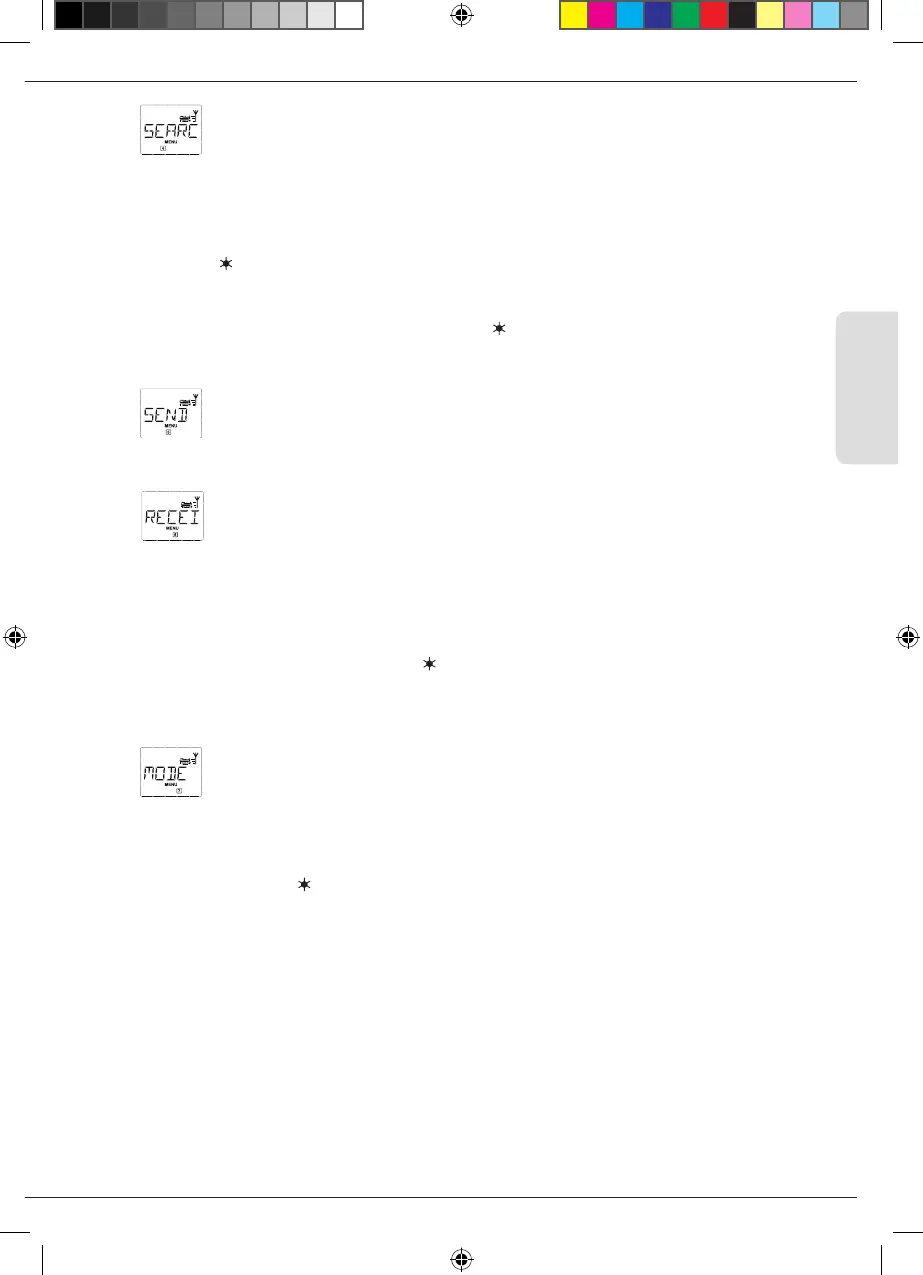
1.4 “SEARCH“
This could be one of the most important functions of your WLANmaus You can use this menu item
to assign a locomotive address to the corresponding locomotive in the library.
Simply enter a locomotive address using the function keys and the WLANmaus will nd the corre-
sponding locomotive in the library.
– Press the OK-key to conrm the entry. The WLANmaus returns directly to locomotive mode and
display the assigned locomotive.
If the WLANmaus does not nd the corresponding locomotive for the address, “LOCO NOT FOUND”
appears in the display. You can use the STOP-key or OK-key to return to the start level “SEARCH.”
1.5
“SEND“
+
1.6 “RECEIVE“
You require both of these menu items when you wish to transfer the locomotive library from one
WLANmaus to another WLANmaus (or several WLANmaus devices). To do so, you set the transmit-
ting WLANmaus to “SEND” and the other WLANmaus or WLANmaus devices to “RECEIVE.” The
receiver units must be activated rst.
You start the transmission by pressing the OK-key on the transmitting WLANmaus. When the trans-
fer is complete, the receiver WLANmaus/ WLANmaus devises is/are in library mode, the transmitting
WLANmaus is at the start level “SEND.”
1.7
“MODE“
You can either control a locomotive from library mode as set in the factory or simply using the loco-
motive address. You can select which of the settings you prefer using this menu item.
You select the respective mode using one of the arrow keys. The modes are displayed in scrolling text.
▪
To conrm, press the OK-key. You return to the start level “MODE.”
Menus
8010813920.indd 59 13.07.2017 10:27:49


 To Next Page
 Loading...