81
1. ensure the phone is properly connected to the computer using the
steps above.
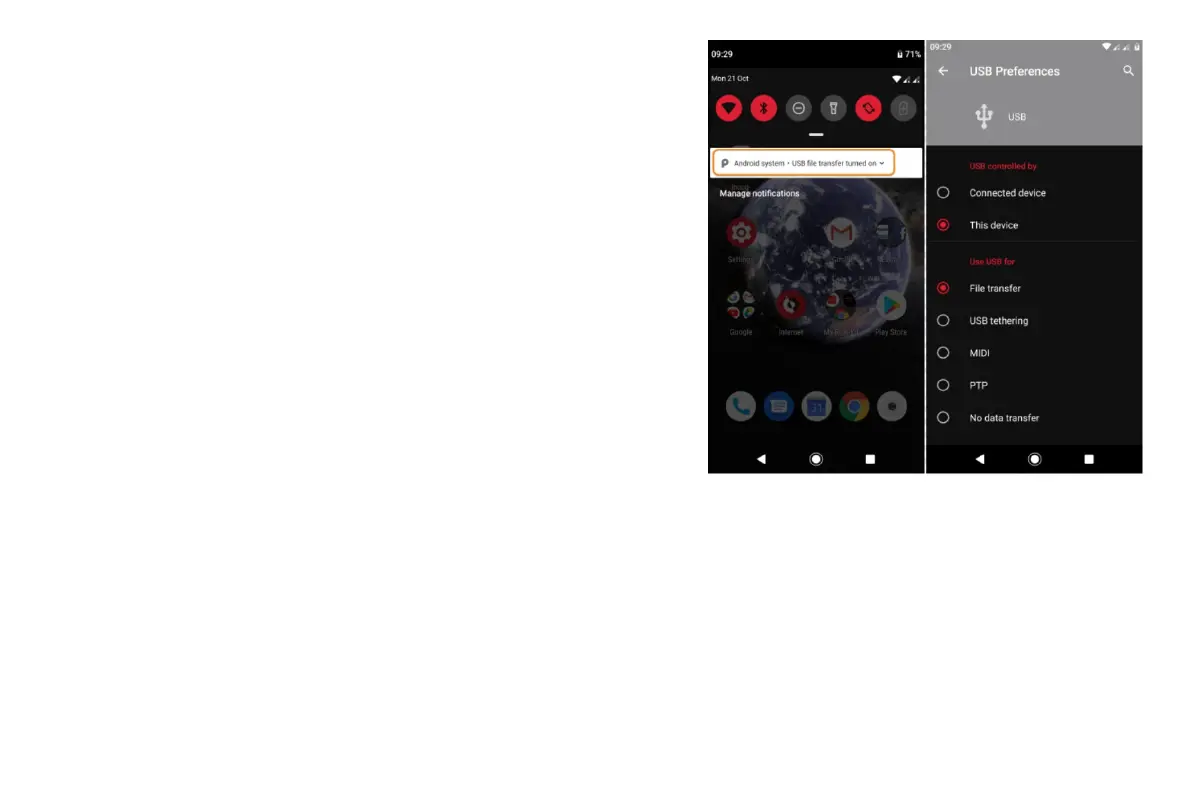
If you don't unlock the phone and change the USB connection to allow
file transfers, you won't see any files on your phone.
2. On your computer, open File Explorer, click the name of your phone and
navigate to its internal storage or SD card.
3. If you selected PTP when you connected the phone, in File Explorer
choose whether to import pictures and videos automatically or
manually.
4. Open a second File Explorer window to see your computer folders.
5. Navigate to the folders or files to transfer, then drag and drop them to
and from the open phone storage and computer folders.
On a Mac:
1. Ensure the phone is properly connected to the computer using the
steps above.
If you don't unlock the phone and change the USB connection to allow file transfers, you won't see any files on your phone.
2. On your computer, download the Android File Transfer application from www.android.com/filetransfer and follow the onscreen
instructions.
Connect phone to transfer files
1. With the phone and computer turned on, connect the phone and computer with a USB cable.


 To Next Page
 Loading...