23
Feb. 2005 BR-1200CD
SYSTEM SOFTWARE
UPDATING INSTRUCTIONS
Updating from CD-R
Required Items
• Updater CD-ROM (#17041569)
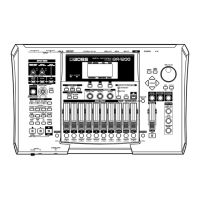
1. Simultaneously hold Procedures down the [STOP] and [PLAY] buttons
and press the [POWER] button.
* Continue to hold down the [STOP] and [PLAY] switches until the updater
screen is displayed.
2. When “Insert Disk” is displayed, press the CD-R/RW drive’s [EJECT]
button to open the CD-R/RW drive tray.
3. Place the updater CD in the CD-R/RW drive.
4. Close the CD-R/RW drive tray; the contents are read from the CD, and
the version is displayed.
5. Confirm the content shown. “Update OK?” appears in the display; press
the [ENTER/YES] button of the update is to be performed.
(Press the [EXIT/NO] button if abandoning the update.)
6. The update begins.
* Do not turn off the power while the update is in progress.
When the update is finished, the message “Completed” is displayed, and
the CD-R/RW drive tray automatically opens.
7. When “Power Off” appears in the display, press the [POWER] button to
turn off the power.
When you file the update procedure, please retry the update procedure.
(from 1st procedure)
Updating for SMF
Required Items
• Update data CD-ROM for service (#17041569)
• Sequencers(MC-80 etc.)
Please use if from CD-R, changing in to media for sequencers.
* The SMF data contents of 64 files.
1. Press the [POWER] button while pressing the [STOP], [PLAY] and [REC]
buttons.
Current version number is displayed.
2. When “Waiting SMF” is displayed, send the SMF data (64 files) from the
sequencer, etc.
3. This work is repeated 64 times.
NOTE: Whe you sent the next file, please wait about 5 seconds.
4. When “Complete” is displayed, press the [POWER] button and turn off
the unit’s power.


 To Next Page
 Loading...