4
It’s important to understand that the input effect is separate from the MFX
processors available in Patch and Performance modes. This means you
can apply a specially optimized input effect first, and then send the input
signal on to an MFX processor for additional processing.
The INPUT SETTING Screen Parameters
Here’s what each of the INPUT SETTING parameters does.
• Input Select—This parameter instructs the Fantom-Xa
to accept a signal from a specific input or inputs, and
configures the input(s) for your signal. Select:
• LINE IN L/R—to use both the L and R inputs with a
device such as a stereo mixer.
• LINE IN L—to use only the L input with a device such as
a mono mixer.
• MICROPHONE—to use a mic, mic-level device, or an
instrument such as an electric guitar connected to the
L input.
• In FX Type—Select this parameter and turn the VALUE dial
to select the desired input effect. You can customize the
effect on the INPUT FX SETUP screen, described in the next
section.
Note that selecting the desired effect type doesn’t actually turn on the
effect. That’s the job of the In FX Sw, described below.
• MixIn Output Asgn—This parameter determines where
the input signal goes once it leaves the entire input area,
including the input effect. It can be sent:
• to an MFX processor—by setting the parameter to
MFX, pressing
4, and then dialing in the desired MFX
processor’s number.
• straight into the Fantom-Xa’s main mix as is—by
selecting DRY.
• MixIn Output Level—This parameter sets the final volume
of the input signal. Use this parameter to mix the input
signal in with your Fantom-Xa sounds.
• MixIn Cho Send Level—You can add a chorus effect to the
final input signal by setting this parameter to a level other
than 0. The higher the setting, the greater the amount of
chorusing.
If you turn up MixIn Cho Send Level and no chorusing is added to your
input signal, the chorus master switch is probably turned off. See “Adding
Effects” in the Fantom-Xa Owner’s Manual for details.
• F5 (In FX Sw)—This switch turns the dedicated input effect
on or off. When the input effect is turned on, F5 (In FX Sw)
is checkmarked.
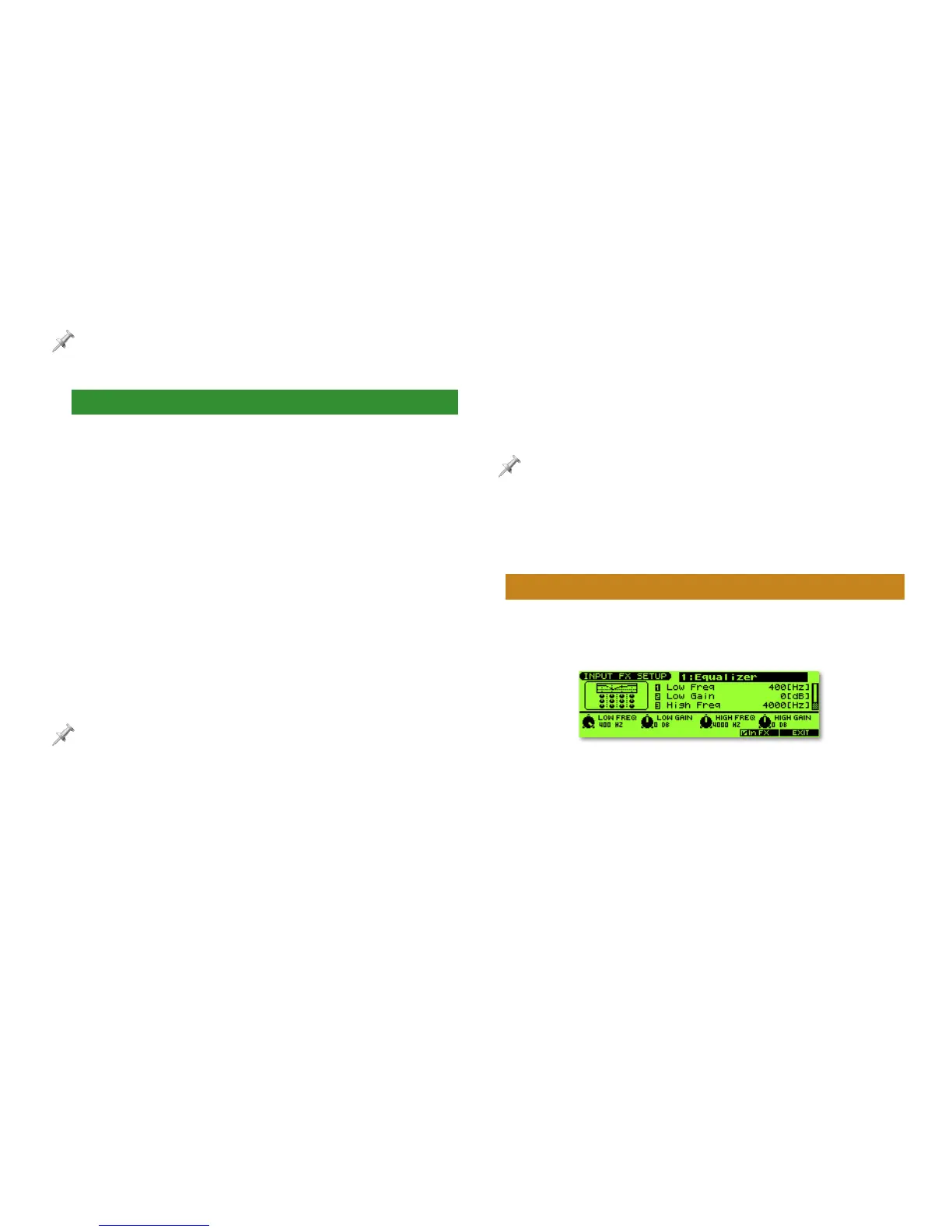
The INPUT FX SETUP Screen
When you’re using the dedicated input effect, press the INPUT
SETTING screen’s F6 (In FX SETUP) button to display the INPUT
FX SETUP screen.
What you’ll see on this screen depends on the selected input
effect. In each case, you’ll see parameters that allow you to
customize the effect for your use.


 To Next Page
 Loading...