EasyManua.ls Logo

Roland Go:Livecast - User Manual

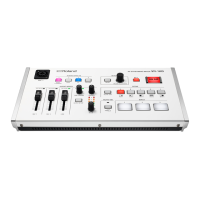
Roland Go:Livecast
44 pages
Print Icon
To Next Page IconTo Next Page
Loading...
Before using this unit, carefully read “USING THE UNIT SAFELY.
After reading, keep the document(s) where it will be available for
immediate reference.
© 2020 Roland Corporation
01
GO:LIVECAST
Owners Manual
Question and Answer IconNeed help?

Do you have a question about the Roland Go:Livecast and is the answer not in the manual?

Summary

Connecting the Equipment

About the Included USB Cables

Details the types of USB cables provided with the unit.

Connecting a USB Power Adaptor

Instructions on powering the unit using a USB power adaptor.

Outdoor Use

Guidance on powering the unit with a mobile battery outdoors.

Connecting a Smartphone

Connecting an iPhone or iPad

Steps for connecting an iPhone or iPad to the GO:LIVECAST.

Connecting an Android Smartphone

Steps for connecting an Android smartphone to the GO:LIVECAST.

Connecting a Headphones

Connecting a Mic

Adjusting the Mic Sensitivity

How to adjust the microphone input level using the MIC knob.

Connecting an Audio Player or Keyboard

Supplying Power to Your Smartphone During Use

Supplying power to your iPhone or iPad during use

How to charge an iPhone or iPad while using the GO:LIVECAST.

Supplying power to your Android smartphone during use

How to charge an Android smartphone while using the GO:LIVECAST.

Opening Screen

Main Screen

Using the Pads

Playing Background Music or Sound Effects

Instructions on using pads for audio clips like music or sound effects.

Showing Video or Photos in the Screen

Instructions on using pads for video clips or still images.

Showing Text in the Screen

Instructions on using pads for displaying text overlays.

Changing the Clip Assigned to a Pad

Changing the Type of Clip Assigned to a Pad

Assigning Photos or Videos

Steps to assign photo or video clips to the pads.

Assigning Text

Steps to assign text clips to the pads.

Assigning a Sound Effect

Steps to assign sound effect clips to the pads.

Assigning Background Music

Steps to assign music clips to the pads.

Using the Mic Effect

Using the Beauty Filter

Live Broadcasting

Specifying the Screen Orientation

How to set the broadcast to portrait or landscape mode.

Selecting the Broadcast Destination

Broadcasting on Facebook Live

Detailed steps for broadcasting on Facebook Live.

Broadcasting on YouTube

Detailed steps for broadcasting on YouTube.

Broadcasting on Twitch

Detailed steps for broadcasting on Twitch.

Broadcasting on TwitCasting

Detailed steps for broadcasting on TwitCasting.

Manually Specifying the Broadcast Destination

How to configure custom RTMP streaming destinations.

Viewing Comments

Stopping a Broadcast

Recording Video

Making Settings for the App

Using as a Satellite Camera

Using Live Sets

Recalling a Live Set

How to load saved pad configurations.

Creating a Live Set

How to save current pad configurations as a new set.

Main Specifications

Summary

Connecting the Equipment

About the Included USB Cables

Details the types of USB cables provided with the unit.

Connecting a USB Power Adaptor

Instructions on powering the unit using a USB power adaptor.

Outdoor Use

Guidance on powering the unit with a mobile battery outdoors.

Connecting a Smartphone

Connecting an iPhone or iPad

Steps for connecting an iPhone or iPad to the GO:LIVECAST.

Connecting an Android Smartphone

Steps for connecting an Android smartphone to the GO:LIVECAST.

Connecting a Headphones

Connecting a Mic

Adjusting the Mic Sensitivity

How to adjust the microphone input level using the MIC knob.

Connecting an Audio Player or Keyboard

Supplying Power to Your Smartphone During Use

Supplying power to your iPhone or iPad during use

How to charge an iPhone or iPad while using the GO:LIVECAST.

Supplying power to your Android smartphone during use

How to charge an Android smartphone while using the GO:LIVECAST.

Opening Screen

Main Screen

Using the Pads

Playing Background Music or Sound Effects

Instructions on using pads for audio clips like music or sound effects.

Showing Video or Photos in the Screen

Instructions on using pads for video clips or still images.

Showing Text in the Screen

Instructions on using pads for displaying text overlays.

Changing the Clip Assigned to a Pad

Changing the Type of Clip Assigned to a Pad

Assigning Photos or Videos

Steps to assign photo or video clips to the pads.

Assigning Text

Steps to assign text clips to the pads.

Assigning a Sound Effect

Steps to assign sound effect clips to the pads.

Assigning Background Music

Steps to assign music clips to the pads.

Using the Mic Effect

Using the Beauty Filter

Live Broadcasting

Specifying the Screen Orientation

How to set the broadcast to portrait or landscape mode.

Selecting the Broadcast Destination

Broadcasting on Facebook Live

Detailed steps for broadcasting on Facebook Live.

Broadcasting on YouTube

Detailed steps for broadcasting on YouTube.

Broadcasting on Twitch

Detailed steps for broadcasting on Twitch.

Broadcasting on TwitCasting

Detailed steps for broadcasting on TwitCasting.

Manually Specifying the Broadcast Destination

How to configure custom RTMP streaming destinations.

Viewing Comments

Stopping a Broadcast

Recording Video

Making Settings for the App

Using as a Satellite Camera

Using Live Sets

Recalling a Live Set

How to load saved pad configurations.

Creating a Live Set

How to save current pad configurations as a new set.

Main Specifications

Roland Go:Livecast Specifications

General IconGeneral
BrandRoland
ModelGo:Livecast
CategoryTV Tuner
LanguageEnglish

Related product manuals