164
Modifying the Sound in Real Time
3. Press [8 (Close)] to close the Switch window.
Realtime controller settings are saved independently for each
patch/performance as part of the patch/performance settings.
This lets you create patches/performances that make effective
use of controller settings.
Using a Pedal to Modify the
Sound (Control Pedal)
You can modify the sound by pressing a pedal that is connected to
the rear panel CTL 1/CTL 2 PEDAL jack.
Pedal such as expression pedals (EV-5; available separately), pedal
switches (DP-2/6; available separately), or foot switches (BOSS FS-U;
available separately) can be connected to the Fantom.
1. Access the PATCH PLAY screen (p. 31).
2. While playing the keyboard to produce sound, operate a
pedal.
The sound will change according to the function that is assigned
to the control pedal.
Making Control Pedal Settings
1. Press [MENU] to access the Menu window.
2. Use or to select “System Edit,” and then press [8
(Select)].
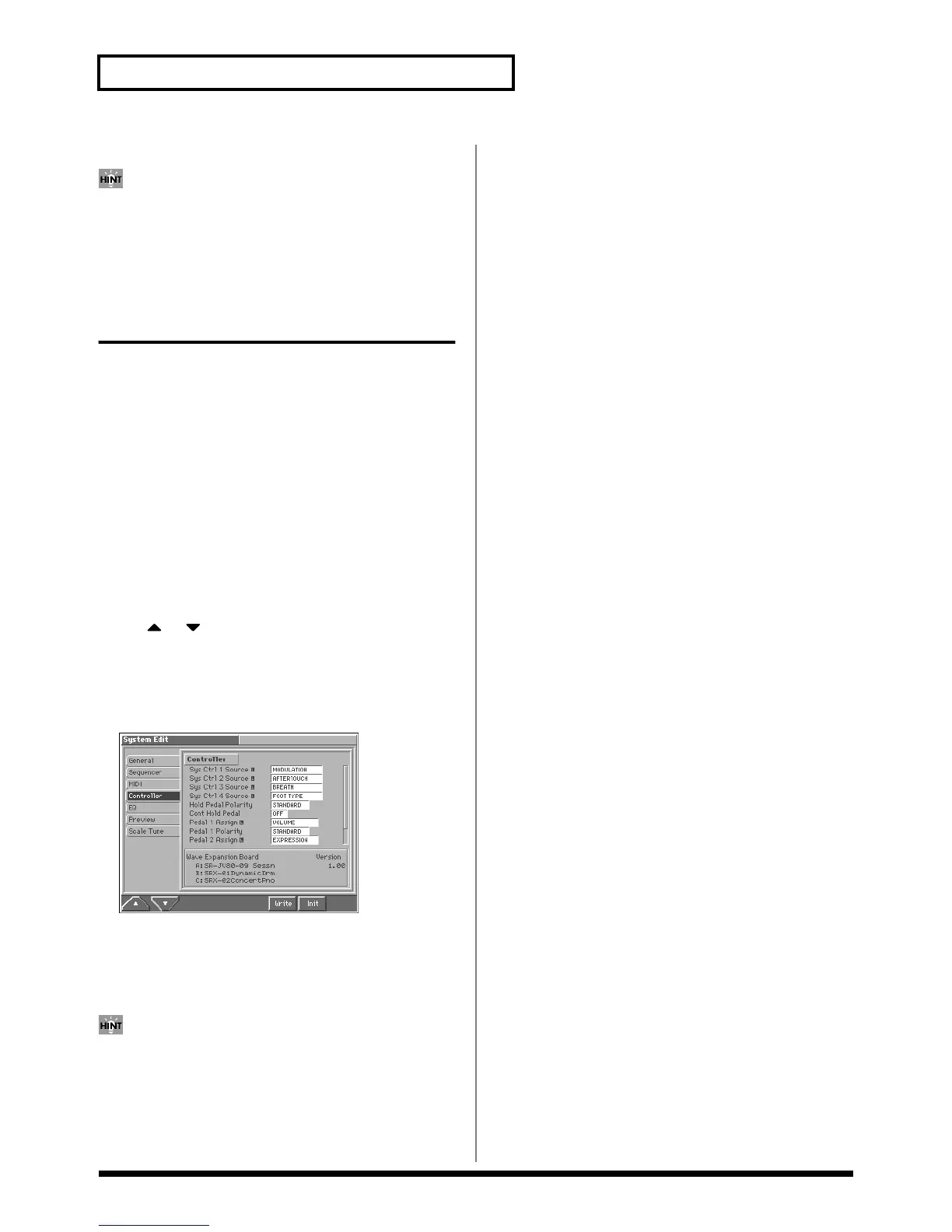
The System Edit screen appears.
3. Press [1 (▲)] or [2 (▼)] to select the “Controller” tab.
A screen like the following appears.
fig.15-06_50
In this screen you can set the following parameters for the
control pedals.
Pedal 1, 2 Assign: Specify the function that will be controlled
by a pedal connected to the CTL 1 or CTL 2 PEDAL jack.
Pedal 1, 2 Polarity: Switch the polarity of the pedal.
For details on each parameter, refer to “Controller Settings
(Controller)” (p. 184).
4. Turn the VALUE dial or press [INC]/[DEC] to make the
setting.
5. Press [EXIT] to return to the PATCH PLAY screen.


 To Next Page
 Loading...