36
Appendices
Deleting the USB Audio Device driver
■ If re-installing the USB Audio Device driver
■ If installation of the USB Audio Device driver was
terminated before completion
Use the following procedure to delete the driver that is already installed.
1
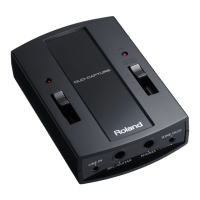
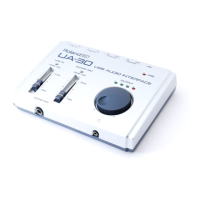
Use a USB cable to connect the UA-30 to your computer.
2
Delete the USB Audio Device driver. In the Windows Control Panel,
double-click System.
The System Properties dialog box will appear.
3
Click the Device Manager tab.
4
Double-click Sound, video and game controllers to see a list of the
devices.
5
From the list, select USB Audio Device, and click [Remove]. In the Confirm
Device Removal dialog box, click [OK].
6
Make sure that USB Audio Device is not in the Sound, video and game
controllers list, and click [Close].
7
In steps 1.–3., click the Device Manager tab in System Properties, and
double-click Universal serial bus controller to display the list of devices.
If is displayed for the USB-compatible device icon:
Select the USB Composite Device icon, and click [Remove]. In response
to Confirm Device Removal? click [OK]. In step 6., close System
Properties.
If there is no USB-compatible device icon, or if is not displayed:
Simply close System Properties.
The explanation provided
here is for an average
Windows system.
Depending on your
computer, some of the
folder names may be
different.
If a dialog box suggesting
that you restart Windows
appears at this point,
follow the suggestion and
restart.


 To Next Page
 Loading...