47
Troubleshooting
■ Audio playback stops
On some computers, the Power Management settings in the Control Panel
may cause audio playback to stop.
The Power Management Properties that are displayed when you double-click
Power Management will differ depending on your computer system. One
example is given below, but you should consult the owner’s manual for your
computer as well. Some computers may not have the following settings.
1
In the Windows Control Panel, double-click System. The System
Properties dialog box will appear.
2
Click the Device Manager tab.
3
Double-click System devices to see the list of devices.
4
From the list, select Advanced Power Management support, and click
[Properties] to access the Advanced Power Management support
Properties dialog box.
5
Click the Settings tab, and in Troubleshooting, check the “Disable power
supply status polling” check box. Then click [OK].
6
In the System Properties dialog box, click [OK].
7
Restart Windows.
• When using a computer whose USB host controller was not manufactured
by Intel Corporation
If you are using a computer whose USB host controller was manufactured by
a company other than Intel, there may be cases in which the sound is not
heard while using game software etc.
* Checking the USB host controller
1. Start up [Start]-[Settings]-[Control Panel]-[System]-[Device Manager].
2. Double-click the Universal serial bus controller icon, and the name of the
USB host controller will be displayed.
■
Digitally recorded sound is distorted or contains noise
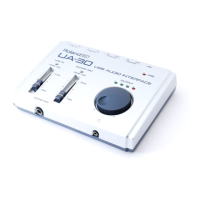
• Is the Sample rate select switch set correctly?
Set the recording sample rate of your recording software to the same setting
as the “Sample rate select switch” of the UA-30.


 To Next Page
 Loading...