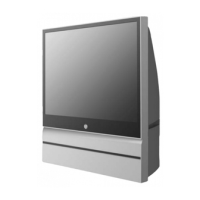
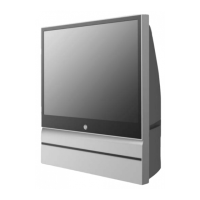
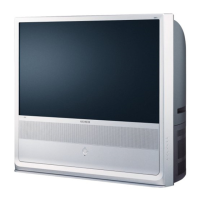
This document is a Quick Setup Guide for a Samsung projection device, likely a portable projector given its compact size and the illustrations showing flexible placement options.
Function Description
The Samsung device is a projector designed for displaying images and videos onto a surface. Its primary function is to project content, offering various screen sizes depending on the projection distance and installation environment. The guide illustrates its use in different orientations and setups, suggesting versatility in how it can be positioned to achieve the desired display.
Important Technical Specifications
The manual provides a detailed projection distance chart, linking specific distances to corresponding screen sizes. This is crucial for users to understand how to achieve a desired screen size based on their available space.
The projection distances and corresponding screen sizes are:
- A: 100 inches / 2540 mm / 254.0 cm screen at 2.66 m (8.7 ft) projection distance.
- B: 90 inches / 2286 mm / 228.6 cm screen at 2.39 m (7.8 ft) projection distance.
- C: 80 inches / 2032 mm / 203.2 cm screen at 2.13 m (7.0 ft) projection distance.
- D: 70 inches / 1778 mm / 177.8 cm screen at 1.86 m (6.1 ft) projection distance.
- E: 60 inches / 1524 mm / 152.4 cm screen at 1.59 m (5.2 ft) projection distance.
- F: 50 inches / 1270 mm / 127.0 cm screen at 1.33 m (4.4 ft) projection distance.
- G: 40 inches / 1016 mm / 101.6 cm screen at 1.06 m (3.5 ft) projection distance.
- H: 30 inches / 762 mm / 76.2 cm screen at 0.80 m (2.6 ft) projection distance.
These specifications indicate that the projector is capable of producing screen sizes ranging from a compact 30 inches up to a large 100 inches, making it suitable for various viewing environments, from small rooms to larger spaces. The short throw capabilities (e.g., 30 inches at 0.80 m) suggest flexibility in placement, even in confined areas.
Usage Features
The guide highlights several key usage features through its illustrations:
- Flexible Placement:
- Horizontal Projection: The device can be placed on a flat surface and project horizontally onto a wall.
- Angled Projection: It can be tilted or angled to project onto a wall at a higher position, or even onto a ceiling. This is demonstrated by the ability to rotate the projector within its stand or base.
- Ceiling Projection: One illustration clearly shows the projector angled upwards to project onto a ceiling, suggesting a feature for comfortable viewing while lying down.
- Power Connection: The setup involves connecting the device to a power source using a cable and adapter. This is a standard feature for most projectors, ensuring continuous operation.
- Keystone Correction (Implied): The illustration showing the projector projecting onto a wall at an angle, and another showing it projecting onto a ceiling, strongly implies the presence of automatic or manual keystone correction. This feature is essential for correcting distorted images that occur when the projector is not perfectly perpendicular to the projection surface, ensuring a rectangular image even from an angled position. The "no-go" zone indicated by the crossed-out image of a person blocking the projection path suggests the importance of an unobstructed projection path for optimal viewing.
- User Interface (Implied): The image of a hand interacting with a button on the projector, possibly a power button or a menu button, suggests an intuitive on-device control interface. The remote control icon in the top right of the first page also implies the availability of a remote control for convenient operation from a distance.
- Portability: The compact, cylindrical design of the projector, as depicted in the setup diagrams, suggests a high degree of portability. This makes it easy to move the projector between different rooms or even take it on the go.
- Connectivity (Implied): While not explicitly detailed, the presence of a power input and the general nature of a projector imply that it would have various input ports (e.g., HDMI, USB) for connecting to external devices like laptops, smartphones, or streaming sticks. The small box-like accessories shown in the initial overview could represent power adapters, cables, or even small dongles for wireless connectivity.
- Environmental Adaptability: The note stating that "The screen sizes for each projection distance may differ depending on the installation environment" indicates that the device is designed to adapt to different room conditions, though users should be aware that factors like ambient light and wall color can influence the perceived image quality.
Maintenance Features
The guide does not explicitly detail maintenance features. However, based on the typical design of such devices, implied maintenance aspects would include:
- Lens Cleaning: Like all projectors, regular cleaning of the projection lens would be necessary to ensure clear image quality.
- Ventilation: The design likely incorporates ventilation systems to prevent overheating. Keeping these vents clear of obstructions would be a crucial maintenance step, as suggested by the compact form factor and the need for proper airflow.
- Firmware Updates: Modern Samsung devices often receive firmware updates to improve performance, add features, or fix bugs. This would be a software-based maintenance aspect.
- Dust Management: Depending on the internal design, occasional cleaning of internal components (e.g., air filters, if present) might be required to maintain optimal performance and longevity.
In summary, the Samsung projector is a versatile, portable device designed for flexible projection in various environments, offering a range of screen sizes based on projection distance, and likely incorporating features like keystone correction for ease of use.

 Need help?
 General

 To Next Page