Apps and features
213
Controlling the Samsung DeX screen
Controlling with an external keyboard and mouse
You can use a wireless keyboard/mouse. Refer to the respective device’s manual for more
information.
•
You can set the mouse pointer to flow from the external display to the
smartphone’s screen. Launch the
Settings
app, select
Samsung DeX
→
Mouse/trackpad
, and then select the
Flow pointer to phone screen
switch to
activate it.
•
You can also use the external keyboard on the smartphone’s screen.
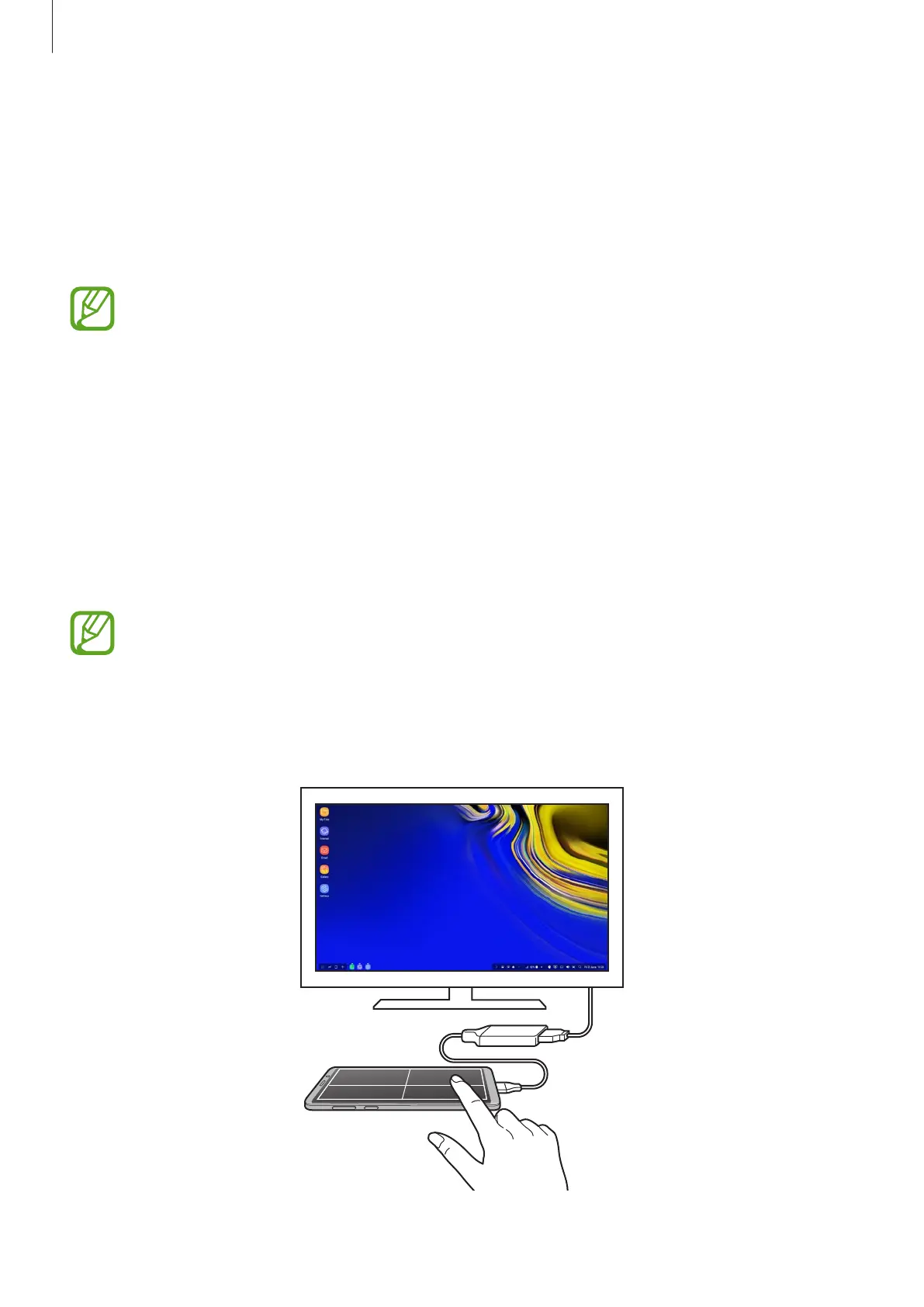
Using your smartphone as a touchpad
You can use your smartphone as a touchpad and operate it with your fingers or the S Pen.
On your smartphone, drag downwards from the top of the screen to open the notification
panel and tap
Use your phone as a touchpad
.
•
You can use the touchpad only when using Samsung DeX mode.
•
If your smartphone’s case has a front cover, open the front cover to use your
smartphone as a touchpad. If the front cover is closed, the touchpad may not work
properly.
•
If your smartphone’s screen turns off, press the Power key to turn on the screen.






 To Next Page