EasyManua.ls Logo

Samsung Galaxy Tab A 8.0 (2019) - User Manual

Samsung Galaxy Tab A 8.0 (2019)
10 pages
Print Icon
To Next Page IconTo Next Page
Loading...
USB/Charger port
Camera
Internet Camera
Power/Lock
Volume
microSD card slot
Camera
About your device
Device features
Samsung Care
Quick
Reference
Guide
Contact us for support:
For hardware or software support, visit
samsung.com/us/support/contact or
call us at 1.800.SAMSUNG
Find a service location near you, at
samsung.com/us/support/service/
locations/
Get to know your product:
Access user manuals, tips and more at
samsung.com/us/support
Ask the community:
Ask questions and get solutions from
Samsung customers, at
us.community.samsung.com
Customize your device
Tap Settings to customize, connect or turn on
options to personalize your device.
Wallpaper
Change the look of the Home
and Lock screens.
Accounts and backup
Tap Users to add
additional users for the device.
Printed in Vietnam
JM19-T290-B005
Expandable storage Expand storage
with a microSD™ card.
Family share Connect with your loved
ones by sharing photos, events, reminders
and notes.
Multiuser Allows multiple users for one
device.
Display Customize the Home screen and
display brightness.
Sound Set device volume and sounds.
Lockscreen Select a screen lock type and
set security options.
Get more than just protection for your device. Pick the time and
place, and a team member will meet you to setup, troubleshoot,
repair or replace your product.
Enroll, at samsung.com/us/support/premium-care
©2019 Samsung Electronics America, Inc.Samsung
and Galaxy Tab are both trademarks of Samsung Elec-
tronics Co., Ltd. Android, Google, Google Play, and
other marks are trademarks of Google LLC. Other
company and product names mentioned herein may
be trademarks of their respective owners. Screen
images simulated. Appearance of tablet may vary.
Connections Connect to Wi-Fi network,
Bluetooth device and other connection
options.
WiFi Tab A 8inch IBG.indd 1-4 7/8/2019 5:33:36 PM
Question and Answer IconNeed help?

Do you have a question about the Samsung Galaxy Tab A 8.0 (2019) and is the answer not in the manual?

Summary

Samsung Care

Contact support

Get hardware or software support via the Samsung website or by calling 1.800.SAMSUNG.

Device features

Expandable storage

Expand your device's storage capacity by using a microSD™ card.

Customize your device

Screen lock security

Select a screen lock type and set up security options for your device.

Set up your device

Install microSD card

Insert an optional microSD card into the device's tray.

Charge the battery

Fully charge the device battery using the provided charger before use.

Using your device

Samsung Kids

Overview

This document serves as a Quick Reference Guide for the Samsung Galaxy Tab A and Tab A Kids Edition, providing essential information for setting up, customizing, and using the device, along with details on Samsung support services.

Samsung Care and Support

Samsung Care offers comprehensive protection for your device, including setup assistance, troubleshooting, repair, or replacement services. You can enroll in Samsung Care at samsung.com/us/support/premium-care.

To get to know your product better, access user manuals, tips, and more at samsung.com/us/support. For community support, where you can ask questions and find solutions from other Samsung customers, visit us.community.samsung.com.

For direct support, whether for hardware or software issues, you can visit samsung.com/us/support/contact or call 1.800.SAMSUNG. If you need in-person assistance, find a service location near you at samsung.com/us/support/service/locations/.

About Your Device

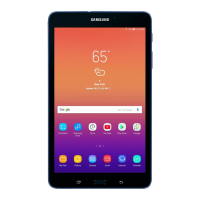
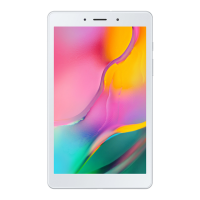
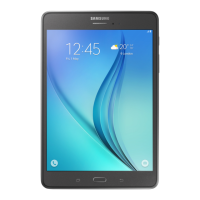
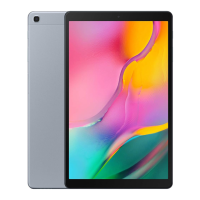
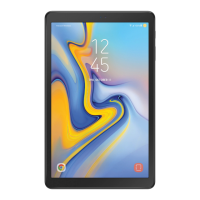
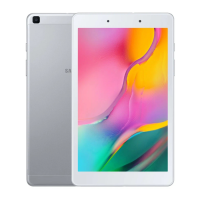
The Samsung Galaxy Tab A features a sleek design with various components for its functionality. On the front, you'll find a camera, and the display shows the time and date (e.g., 12:45 Fri, August 23). The device includes a Power/Lock button and Volume buttons on the side for easy control. At the bottom, there's a USB/Charger port for power and data transfer, and another camera. The rear of the device also houses a camera and a microSD™ card slot for expandable storage.

Device Features

The Galaxy Tab A offers several key features to enhance your user experience:

  • Expandable storage: You can expand the device's storage capacity using a microSD™ card, allowing you to store more photos, videos, and apps.
  • Family share: This feature enables you to connect with your loved ones by sharing photos, events, reminders, and notes, fostering a shared digital experience.
  • Multiuser: The device supports multiple user profiles, allowing different individuals to use the same tablet with their personalized settings and data.

Customize Your Device

Personalizing your Galaxy Tab A is straightforward through the Settings menu. Tap the Settings icon to access various options:

  • Wallpaper: Change the background image for your Home and Lock screens to reflect your style.
  • Accounts and backup: Manage user accounts and add additional users to the device.
  • Connections: Configure your network settings, including Wi-Fi, Bluetooth, data usage, and airplane mode.
  • Lockscreen: Select a screen lock type (e.g., PIN, pattern, password) and set security options to protect your device.
  • Display: Customize the Home screen layout and adjust the display brightness for optimal viewing comfort.
  • Sound: Control device volume and various sound settings for notifications, media, and calls.

Set Up Your Device

Before you start using your Galaxy Tab A, there are a few initial setup steps:

  • Install an optional microSD card:
    1. Use the tray removal tool to open the microSD™ card tray.
    2. Insert the microSD card (sold separately) into the tray with the gold contacts facing down.
  • Charge the battery: Before turning on your device for the first time, ensure it is fully charged using the provided charger. The display will show the charging progress (e.g., 80%).

Important Note on Maintenance: Use only Samsung-approved charging devices and batteries. Samsung accessories are designed to maximize battery life. Using other accessories may void your warranty and could cause damage to your device.

Using Your Device

  • Turning your tablet on/off:
    • To turn your tablet on, press and hold the Power/Lock button.
    • To turn it off, press the Power/Lock button again.
  • Locking/unlocking the screen:
    • To turn on your screen, press the Power/Lock button, then swipe up on the screen to unlock it.
    • To turn off your screen and prevent accidental key presses, press the Power/Lock button.

Galaxy Store

The Galaxy Store is your hub for essential and exclusive content for your device.

  1. From the Home screen, tap the Galaxy Store icon.
  2. Follow the prompts to complete the setup process.
  3. Once set up, you can enjoy:
    • Premium offers and special benefits.
    • Decorate your Galaxy with various themes.
    • Change device fonts to personalize your text.
    • Add new effects and stickers for customizing photos. Visit samsung.com/global/galaxy/apps/galaxy-store for more information.

Samsung Kids

Samsung Kids provides a kid-friendly and parent-controlled environment on your tablet. Parents can monitor screen time, set play time limits, and add apps from Galaxy Apps for Kids. To set up Samsung Kids, tap the Samsung Kids icon from the Home screen and follow the prompts. You can sign in using your Google or Samsung account. This feature ensures a safe and engaging digital experience for children while giving parents control over content and usage.

Samsung Galaxy Tab A 8.0 (2019) Specifications

General IconGeneral
RAM2GB
Rear Camera8 MP
Front Camera2 MP
Battery5100 mAh
Dimensions210 x 124.4 x 8 mm
ColorsBlack, Silver
Display8.0 inches, 1280 x 800 pixels
ProcessorQualcomm Snapdragon 429
Storage32GB, expandable via microSD
Operating SystemAndroid 9.0 (Pie)
Weight345 g
ConnectivityWi-Fi 802.11 a/b/g/n, Bluetooth

Related product manuals