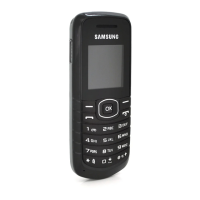
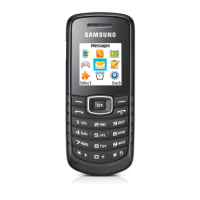
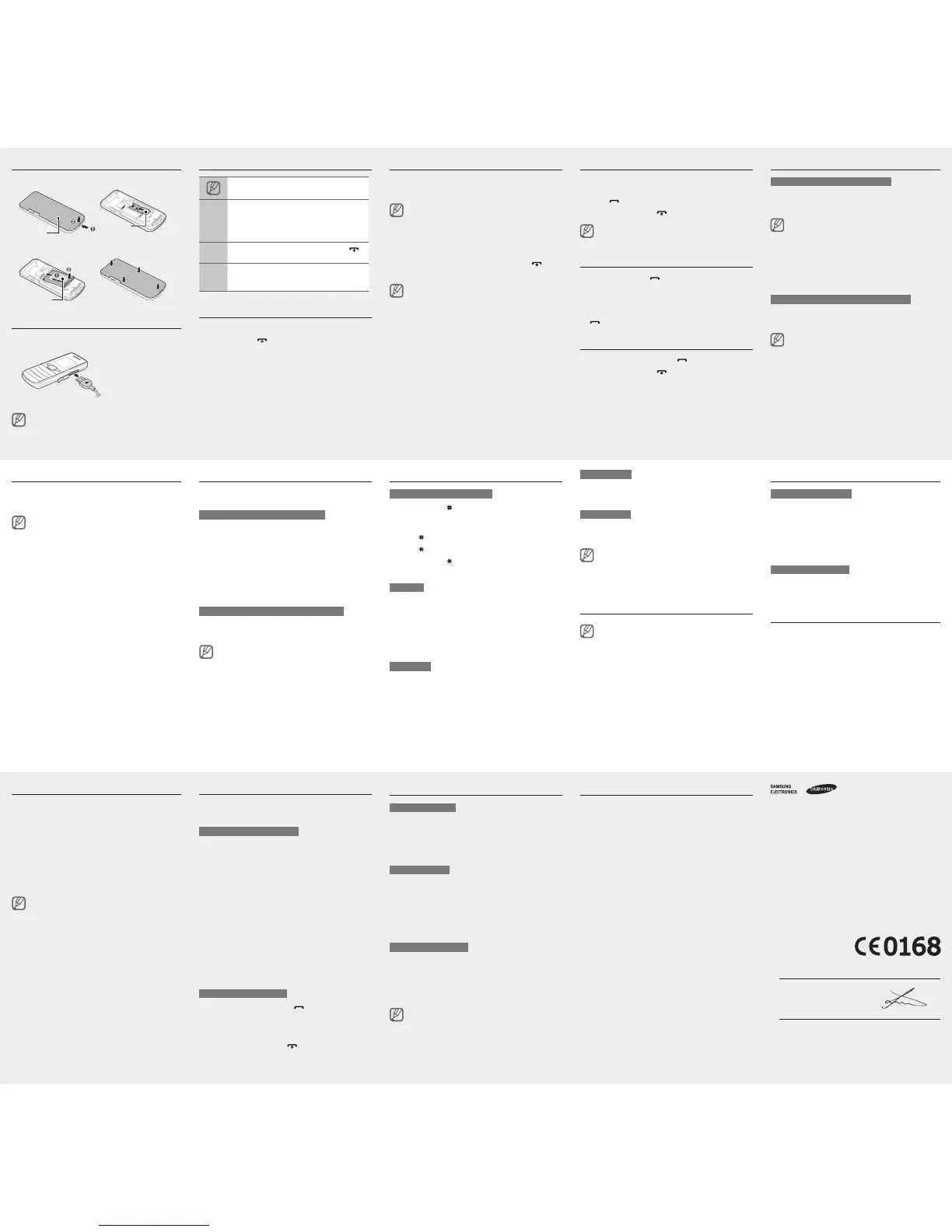
Install the SIM card and battery
1. Remove the back cover and insert the SIM card.
2. Insert the battery and replace the back cover.
Charge the battery
1. Plug the supplied travel
adapter.
2. When charging is
nished,unplugthe
travel adapter.
Do not remove the battery before removing the travel
adapter. Doing this may cause damage to the device.
Instructional icons
Note: notes, usage tips, or additional information
→
Followed by: the order of options or menus you
must select to perform a step; for example: In
Menu mode, select Messages→Create message
(represents Messages, followed by Create
message)
[ ]
Square brackets: phone keys; for example: [
]
(represents the Power/End key)
< >
Angled brackets: softkeys that control different
functions at each screen; for example: <OK>
(represents the OK softkey)
Turn your phone on or off
To turn your phone on,
1. Press and hold [
].
2. Enter your PIN and press <OK> (if necessary).
To turn your phone off, repeat step 1 above.
Access menus
To access your phone's menus,
1. In Idle mode, select <Menu> to access Menu mode.
YoumayneedtopresstheConrmkeytoaccessMenu
mode depending on your region or service provider.
2. Use the Navigation key to scroll to a menu or option.
3. Press <Select>, <OK>,ortheConrmkeytoconrm
the highlighted option.
4. Press <Back> to move up one level; Press [
] to
return to Idle mode.
When you access a menu requiring the PIN2, you •
must enter the PIN2 supplied by the SIM card. For
details, contact your service provider.
Samsung is not responsible for any loss of passwords •
or private information or other damages caused by
illegal software.
Make a call
1. In Idle mode, enter an area code and a phone
number.
2. Press [
] to dial the number.
3. To end the call, press [
].
The volume through mono earphones is very low or
virtually inaudible. Use stereo earphones only.
Call a recently dialled number
1. In Idle mode, press [ ].
2. Scroll left or right to a call type.
3. Scroll up or down to a number or name.
4.PresstheConrmkeytoviewdetailsofthecallor
[
] to dial the number.
Answer a call
1. When a call comes in, press [ ].
2. To end the call, press [
].
Adjust the volume
To adjust the volume of the ringtone
1. In Menu mode, select Settings→Proles.
2.Scrolltothephoneproleyouareusing.
Ifyouareusingthesilentprole,youarenotallowedto
adjust the volume of the ringtone.
3. Press <Options>→Edit.
4. Select Volume and scroll to Call alert.
5. Scroll left or right to adjust the volume level.
6. Press <Save>.
To adjust the volume of voice during a call
While a call is in progress, press the Navigation key up
or down to adjust the volume.
Innoisyenvironments,youmayhavedifcultyhearing
the calls while using the speakerphone feature. For
better audio performance, use the normal phone mode.
Change your ringtone
1. In Menu mode, select Settings→Proles.
2.Scrolltotheproleyouareusing.
Ifyouareusingthesilent,meeting,orofineprole,you
are not allowed to change the ringtone.
3. Press <Options>→Edit.
4. Select Call ringtone.
5. Select a ringtone.
Toswitchtoanotherprole,selectitfromthelist.
Use the shortcut toolbar
You can use the shortcut toolbar to access your favourite
menus.
To add menus on the shortcut toolbar
1. In Menu mode, select Settings→Display→
Shortcuts toolbar.
2. Press <Options>→Edit.
3. Select your favourite menus.
4. Press <Options>→Open to select submenus
(if necessary).
5. Press <Save>, or press <Options>→Save.
To access a menu from the shortcut toolbar
In Idle mode, scroll left or right to the menu you want and
presstheConrmkey.
When the shortcut toolbar is activated, the Navigation
key does not work as shortcuts depending on your
region.
Enter text
To change the text input mode
Press and hold [• ] to switch between T9 and ABC
modes. Depending on your country, you may be able
toaccessaninputmodeforyourspeciclanguage.
Press [•
] to change case or switch to Number mode.
Press [•
] to switch to Symbol mode.
Press and hold [•
] to select an input mode or change
the input language.
T9 mode
1. Press the appropriate alphanumeric keys to enter an
entire word.
2. When the word displays correctly, press [0] to insert
a space. If the correct word does not display, press
the Navigation key up or down to select an alternate
word.
ABC mode
Press an appropriate alphanumeric key until the
character you want appears on the display.
Number mode
Press an appropriate alphanumeric key to enter a
number.
Symbol mode
Press an appropriate alphanumeric key to enter a
symbol.
To move the cursor, press the Navigation key.•
To delete characters one by one, press <• Clear>. To
delete all of the characters, press and hold <Clear>
To insert a space between characters, press [• 0].
To enter punctuation marks, press [• 1].
Add a new contact
The memory location to save new contacts may be
preset depending on your service provider. To change
the memory location, in Menu mode, select Settings
→Application→Contacts→Save new contact to
→amemorylocation.
1. In Idle mode, enter a phone number and press
<Options>.
2. Select Create contact.
3. Select a number type (if necessary).
4. Enter contact information.
5.PresstheConrmkeytoaddthecontacttomemory.
Send and view messages
To send a text message
1. In Menu mode, select Messages→Create
message.
2. Enter a destination number and scroll down.
3. Enter the message text.
► Enter text
4.PresstheConrmkeytosendthemessage.
To view text messages
1. In Menu mode, select Messages→Inbox.
2. Select a text message.
Make fake calls
You can simulate an incoming call when you want to get
out of meetings or unwanted conversations.
To make a fake call
Press and hold the Navigation key down in Idle •
mode.
Press the Navigation key down four times when the •
keys are locked.
Activate the mobile tracker
This feature helps track your phone when it is stolen
or when someone tries to use your phone using other
SIM card, the phone will automatically send the preset
tracking message to family or friends. This feature may
be unavailable due to certain features supported by
your service provider.
1. In Menu mode, select Settings→Security→
Mobile tracker.
2. Enter your password and select OK.
ThersttimeyouaccessMobiletracker,youwillbe
promptedtocreateandconrmapassword.
3. Scroll left or right to On.
4.ScrolldownandpresstheConrmkeytoopenthe
recipient list.
5.PresstheConrmkeytoopenyourcontactlist.
6. Select a contact.
7. Select a number (if necessary).
8. Press <Options>→Save to save the recipients.
9. Scroll down and enter the sender's name.
10.PresstheConrmkey→<Accept>.
Activate and send an SOS message
In an emergency, you can send SOS messages to your
family or friends for help.
To activate the SOS message
1. In Menu mode, select Messages→Settings→
SOS messages→Sending options.
2. Scroll left or right to On.
3.ScrolldownandpresstheConrmkeytoopenthe
recipient list.
4.PresstheConrmkeytoopenyourcontactlist.
5. Select a contact.
6. Select a number (if necessary).
7.Whenyouarenishedselectingcontacts,press
<Options>→Save to save the recipients.
8. Scroll down and set the number of times to repeat the
SOS message.
9. Press <Save>→<Yes>.
To send an SOS message
1. With the keys locked, press [ ] four times to send
an SOS message to preset numbers.
The phone switches to SOS mode and sends the
preset SOS message.
2. To exit SOS mode, press [
].
Declaration of Conformity (R&TTE)
We,
Samsung Electronics
declare under our sole responsibility that the product
GSM Mobile Phone : GT-E1050
to which this declaration relates, is in conformity with the following standards and/or
other normative documents.
SAFETY EN 60950-1 : 2006+A11:2009
EMC EN 301 489-01 V1.8.1 (04-2008)
EN 301 489-07 V1.3.1 (11-2005)
SAR EN 50360 : 2001
EN 62209-1 : 2006
RADIO EN 301 511 V9.0.2 (03-2003)
We hereby declare that [all essential radio test suites have been carried out and that]
the above named product is in conformity to all the essential requirements of Directive
1999/5/EC.
The conformity assessment procedure referred to in Article 10 and detailed in Annex[IV]
ofDirective1999/5/EChasbeenfollowedwiththeinvolvementofthefollowingNotied
Body(ies):
BABT, Forsyth House,
ChurcheldRoad,
Walton-on-Thames,
Surrey, KT12 2TD, UK*
Identicationmark:0168
The technical documentation kept at :
Samsung Electronics QA Lab.
which will be made available upon request.
(Representative in the EU)
Samsung Electronics Euro QA Lab.
Blackbushe Business Park, Saxony Way,
Yateley, Hampshire, GU46 6GG, UK*
2010.11.18 Joong-Hoon Choi / Lab Manager
(place and date of issue) (name and signature of authorised person)
* It is not the address of Samsung Service Centre. For the address or the phone
number of Samsung Service Centre, see the warranty card or contact the retailer
where you purchased your product.
Set and use alarms
To set a new alarm
1. In Menu mode, select Alarms.
2. Select an empty alarm location.
3. Set alarm details.
4. Press <Save>, or press <Options>→Save.
To stop an alarm
When the alarm sounds,
Press <• OK>ortheConrmkeytostopthealarm
without snooze.
Press <• OK>ortheConrmkeytostopthealarmwith
snooze, or press <Snooze> to silence the alarm for
the snooze period.
To deactivate an alarm
1. In Menu mode, select Alarms.
2. Select the alarm you want to deactivate.
3. Scroll left or right to Off.
4. Press <Save>.
If the battery has been removed, the scheduled alarm
may not sound.
Activate the torch light
The torch light feature helps you see in dark places by
making the display and backlight as bright as possible.
To activate the torch light, press and hold the Navigation
key up in Idle mode.
To deactivate the torch light, press <Back>.
Battery
Back cover
SIM card
To AC power outlet



 To Previous Page
 Loading...