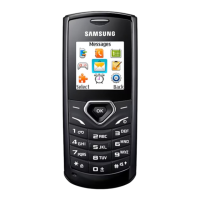
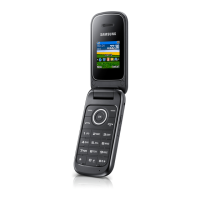
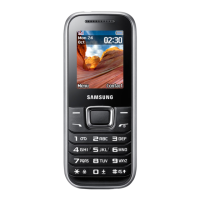
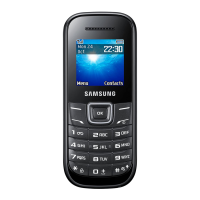
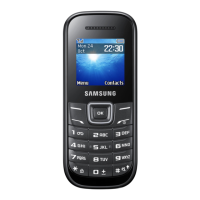
Phone layout
Turn your phone on or off
To turn your phone on,
1. Press and hold [
].
2. Enter your PIN and press <OK> (if necessary).
3. When the setup wizard opens, customize your
phone as desired by following the screen,
To turn your phone off, repeat step 1 above.
Access menus
To access your phone's menus,
1. In Idle mode, press <Menu> to access Menu mode.
You may need to press the Conrm key to access Menu
mode depending on your region or service provider.
2. Use the Navigation key to scroll to a menu or option.
3. Press <Select>, <Save>, or the Conrm key to
conrm the highlighted option.
4. Press <Back> to move up one level; Press [
] to
return to Idle mode.
When you access a menu requiring the PIN2, you •
must enter the PIN2 supplied with the SIM card. For
details, contact your service provider.
Samsung is not responsible for any loss of passwords •
or private information or other damages caused by
illegal software.
Make a call
1. In Idle mode, enter an area code and a phone
number.
2. Press [
] to dial the number.
3. To end the call, press [
].
The volume through mono earphones is very low or
virtually inaudible. Use stereo earphones only.
Answer a call
1. When a call comes in, press [ ].
2. To end the call, press [
].
Adjust the volume
To adjust the volume of the ringtone
1. In Menu mode, select Settings → Proles.
2. Scroll to the phone prole you are using.
If you are using the silent or ofine prole, you are not
allowed to adjust the volume of the ringtone.
3. Press <Options> → Edit → Volume.
4. Scroll left or right to adjust the volume level.
5. Press <Save> → <Back>.
To adjust the volume of voice during a call
While a call is in progress, press the Navigation key up
or down to adjust the volume.
In noisy environments, you may have difculty hearing
the calls while using the speakerphone feature. For better
audio performance, use the normal phone mode.
Change your ringtone
1. In Menu mode, select Settings → Proles.
2. Scroll to the prole you are using.
If you are using the silent or ofine prole, you are not
allowed to change the ringtone.
3. Press <Options> → Edit → Call ringtone.
4. Select a ringtone category → a ringtone → <Back>.
To switch to another prole, select it from the list.
Call a recently dialed number
1. In Idle mode, press [ ].
2. Scroll left or right to a call type.
3. Scroll up or down to select a number or name.
4. Press the Conrm key to view details of the call or
[
] to dial the number.
Number mode
Press an appropriate alphanumeric key to enter a
number.
Symbol mode
Press an appropriate alphanumeric key to enter a
symbol.
To move the cursor, press the Navigation key.•
To delete characters one by one, press <• Clear>. To
delete all of the characters, press and hold <Clear>.
To insert a space between characters, press [•
0].
To enter punctuation marks, press [• 1].
Add a new contact
Your phone is preset to save contacts to the phone
memory. To change the memory location, in Menu
mode, select Phonebook → Management → Save
new contact to → a memory location.
1. In Idle mode, enter a phone number and press
<Options>.
2. Select Create contact.
3. Select a number type (if necessary).
4. Enter contact information.
5. Press <Options> → Save to add the contact to
memory.
Charge the battery
1. Plug the supplied travel
adapter.
2. When charging is
nished, unplug the
travel adapter.
Do not remove the battery while the phone is connected
to the travel charger. Otherwise, the phone may be
damaged.
Instructional icons
Note: notes, usage tips, or additional information
→
Followed by: the order of options or menus you
must select to perform a step; for example: In Menu
mode, select Messages → Create new message
(represents Messages, followed by Create new
message)
[ ]
Square brackets: phone keys; for example: [
]
(represents the Power/Menu exit key)
< >
Angled brackets: softkeys that control different
functions at each screen; for example: <OK>
(represents the OK softkey)
Send and view messages
To send a text message
1. In Menu mode, select Messages → Create new
message.
2. Enter a recipient number and scroll down.
3. Enter your message text.
►
Enter text
4. Press the Conrm key to send the message.
To view text messages
1. In Menu mode, select Messages → Inbox.
2. Select a text message.
Make fake calls
You can simulate an incoming call when you want to get
out of meetings or unwanted conversations.
To make a fake call,
In Idle mode, press and hold the Navigation key •
down.
When the keys are locked, press the Navigation key •
down four times.
Activate the mobile tracker
When someone inserts a new SIM card in your phone,
the mobile tracker feature will automatically send the
contact number to two recipients to help you locate and
recover your phone. To activate the mobile tracker,
1. In Menu mode, select Settings → Security →
Mobile Tracker 2.0.
2. Press <OK> to set a phone lock password.
3. Enter a new 4-to 8-digit password and press <OK>.
4. Enter the new password again and press <OK>.
5. Select Settings.
6. Enter a new 8-digit password for the mobile tracker
and press <OK>.
7. Enter the new password againg and press <OK>.
8. Scroll left or right to On.
9. Scroll down and press the Conrm key to open the
recipient list.
10. Press the Conrm key to open your contact list.
11. Scroll to a contact and press the Conrm key.
12. Select a number (if necessary).
13. When you are nished selecting contacts, press the
Conrm key to return to the recipient list.
14. Press <Options> → OK to save the recipients.
15. Scroll down and enter the sender's name.
16. Press <Options> → Save → <Accept>.
To change the password for the mobile tracker, select
Change Mobile tracker 2.0 Password.
Activate and send an SOS message
In an emergency, you can send SOS messages to your
family or friends for help.
To activate the SOS message
1. In Menu mode, select Messages → Settings →
SOS messages → Sending options.
2. Scroll left or right to On.
3. Scroll down and press the Conrm key to open the
recipient list.
4. Press the Conrm key to open your contact list.
5. Select a contact.
6. Select a number (if necessary).
7. Press <Options> → Save to save the recipients.
8. Scroll down and set the number of times to repeat the
SOS message.
9. Press <Save> → <Yes>.
To send an SOS message
1. With the keys locked, press [ ] four times to send
an SOS message to preset numbers.
The phone switches to SOS mode and sends the
preset SOS message.
Enter text
To change the text input mode
Press and hold [• ] to switch between T9 and ABC
modes. Depending on your language, you may
be able to access an input mode for your specic
language.
Press [•
] to change case or switch to Number mode.
Press [•
] to switch to Symbol mode.
Press and hold [•
] to select an input mode or change
the input language.
T9 mode
1. Press the appropriate alphanumeric keys to enter an
entire word.
2. When the word displays correctly, press [0] to insert
a space. If the correct word does not display, press
the Navigation key up or down to select an alternate
word.
ABC mode
Press an appropriate alphanumeric key until the
character you want appears on the display.
2. To exit SOS mode, press [ ].
Set and use alarms
To set a new alarm
1. In Menu mode, select Alarms.
2. Select an empty alarm location.
3. Set alarm details.
4. Press <Save>, or press <Options> → Save.
To stop an alarm
When the alarm sounds,
Press <• OK> or the Conrm key to stop the alarm
without snooze.
Press <• OK> or the Conrm key to stop the alarm with
snooze, or press <Snooze> to silence the alarm for
the snooze period.
To deactivate an alarm
1. In Menu mode, select Alarms.
2. Select the alarm you want to deactivate.
3. Scroll left or right to Off.
4. Press <Save>.
Install the SIM card and battery
1. Remove the battery cover and battery then insert the
SIM card.
2. Insert the battery and replace the battery cover.
3. Press the battery cover rmly with your hand to seal
the battery cover.
Your phone displays the following status indicators on
the top of the screen:
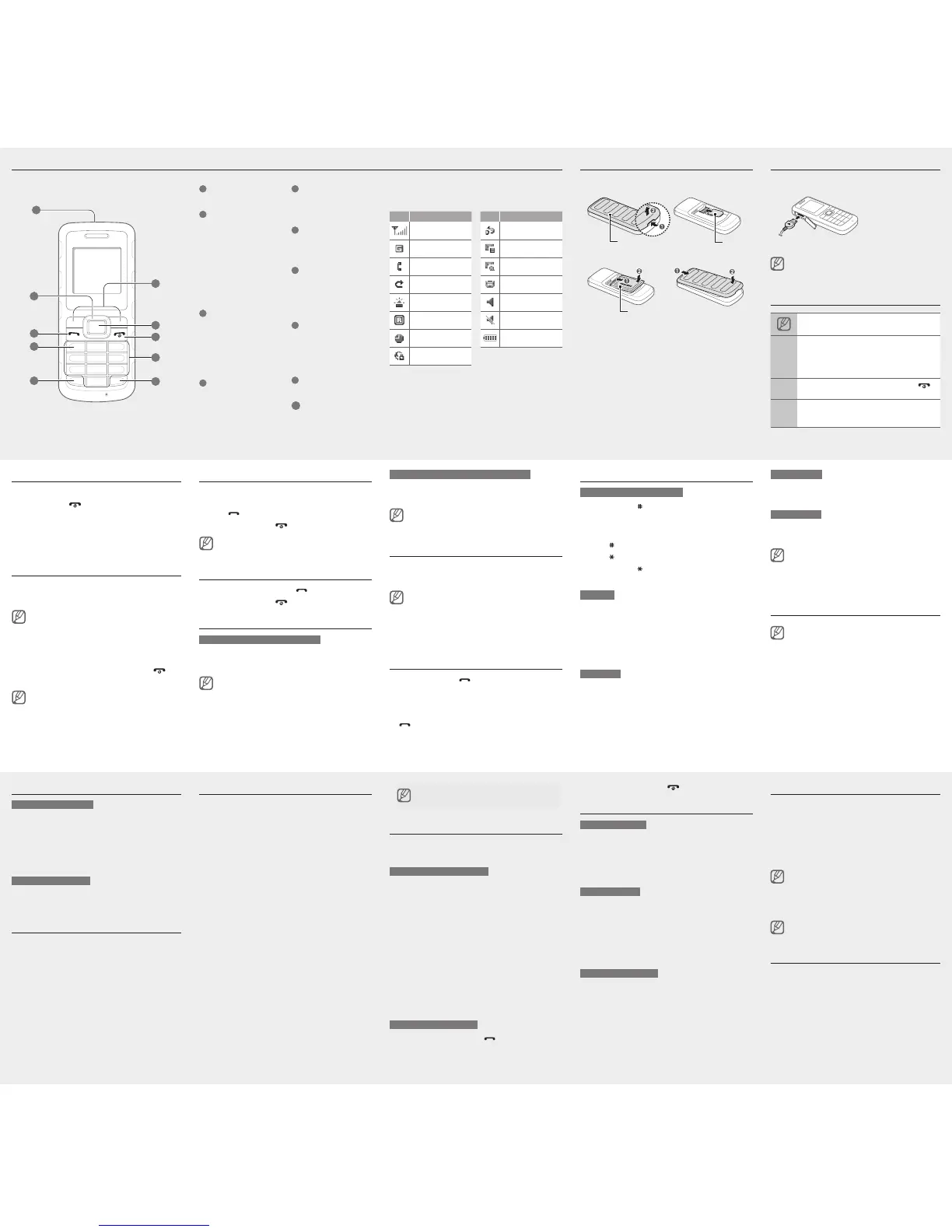
1
Flashbulb
2
4-way navigation key
In ldle mode, access user-
dened menus (depending
on your service provider,
pre-dened menus may differ),
activate the torch light (up),
and make a fake call (down);
In Menu mode, scroll through
menu options
►
Activate the torch light
►
Make fake calls
3
Dial key
Make or answer a call; In Idle
mode, retrieve recently dialed,
missed, or received numbers;
Send an SOS message
►
Activate and send an SOS
message
4
Voice mail service key
In ldle mode, access voice
mails (press and hold)
5
Keypad lock key
In Idle mode, lock or unlock
the keys (press and hold)
6
Softkeys
Perform actions indicated at
the bottom of the display
7
Conrm key
In Idle mode, access Menu
mode; In Menu mode, select
the highlighted menu option or
conrm an input
8
Power/Menu exit key
Turn the phone on and off
(press and hold); End a call;
In Menu mode, cancel input
and return to Idle mode
9
Alphanumeric keys
10
Silent prole key
In ldle mode, activate or
deactivate the silent prole
(press and hold)
Icon
Description
Signal strength
GPRS network
connected
Call in progress
Call diverting active
SOS message
feature activated
Roaming (outside of
normal service area)
Alarm activated
Connecting to
secured web page
Icon
Description
FM radio on
New text message
(SMS)
New multimedia
message (MMS)
New voice mail
message
Normal prole
activated
Silent prole activated
Battery power level
Battery
To AC power outlet
SIM cardBattery cover
6
2
5
9
3
10
7
4
8
1
Listen to the FM radio
1. Plug the supplied headset into the phone.
2. In Menu mode, select FM radio.
3. Press the Conrm key to start the FM radio.
4. Press <Yes> to start automatic tuning.
The radio scans and saves available stations
automatically.
The rst time you access FM radio, you will be prompted
to start automatic tuning.
5. Scroll left or right to tune a radio station.
6. To turn off the FM radio, press the Conrm key.
While listening to the radio, extend the headset wires to
get radio signals better.
Activate the torch light
The torch light feature helps you see in dark places by
making the display and backlight as bright as possible.
To activate the torch light, press and hold the Navigation
key up in Idle mode.
To deactivate the torch light, press and hold the
Navigation key up again.



 To Previous Page
 Loading...