Settings
111
Power saving mode
Activate power-saving mode and change the settings for power-saving mode.
•
CPU power saving
: Set the device to limit some system resource usage.
•
Screen power saving
: Set the device to decrease the brightness of the display.
•
Turn off haptic feedback
: Set the device to turn off the vibration when touching keys.
•
Learn about Power saving mode
: Discover how to reduce battery consumption.
Accessory
Change the accessory settings.
•
Audio output
: Select a sound output format to use when connecting your device to
HDMI devices. Some devices may not support the surround sound setting.
Accessibility
Accessibility services are special features for those with certain physical disabilities. Access
and alert the following settings to improve accessibility to the device.
•
Auto-rotate screen
: Set the interface to rotate automatically when you rotate the device.
•
Screen timeout
: Set the length of time the device waits before turning off the display’s
backlight.
•
Speak passwords
: Set the device to read aloud passwords you enter with Talkback.
•
Answering/ending calls
:
–
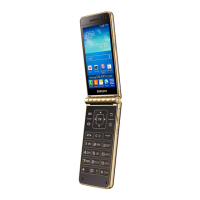
Answer/end calls using the outer screen
: Set the device to answer or end an
incoming call without opening the device, by using the external touch screen.
–
The home key answers calls
: Set the device to answer calls by pressing the Home
button.
–
Answer calls by tapping
: Set the device to answer an incoming call when tapping the
call accept button.
–
Open folder to answer
: Set the device to answer an incoming call when opening the
device.
–
The hold key ends calls
: Set the device to end a call when pressing the Lock button.
•
Show shortcut
: Add a shortcut to
Accessibility
on the quick menu that appears when
you press and hold the Power button.


 To Next Page
 Loading...