Using the NFC feature (Optional)
157
2. Using a Network-Connected Machine
For some mobile devices, NFC tag might not be located at the back of the
mobile device. Check the location of the NFC antenna on your mobile
device before tagging.
Registration from the mobile device
1
Check that NFC and Wi-Fi Direct enabled features are on your mobile
device and Wi-Fi Direct feature is enabled on your printer.
2
Open Samsung Mobile Print Pro app.
If you do not have Samsung Mobile Print Pro installed on your cellphone,
go to the application store (Samsung Apps, Play Store) on your mobile
device, and just search for download the app and try again.
3
Press the icon on the Samsung Mobile Print Pro screen.
4
Select On from the Phone login set as default menu.
5
Mobile device ID appears on the Samsung Mobile Print Pro screen.
Press Registration.
6
Type in the ID , Password, Domain and Password, then click OK.
• If you want to create a new user or change the password, see "Security
tab" on page 193.
• Passcode is for when the administrator chooses Two-Factor
Authentication method. You need to enter a passcode for
authentication. Password and passcode should be different. You can
select Two-Factor Authentication from the SyncThru™ Web Service,
select Security > User Access Control > Authentication >
Authentication Method > Options button > Login Method > Two-
Factor Authentication.
7
Tag your mobile device (usually located on the back of the mobile
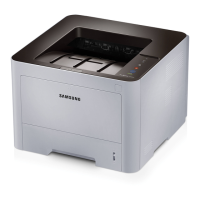
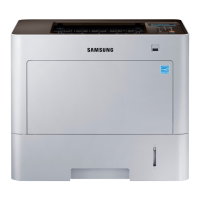
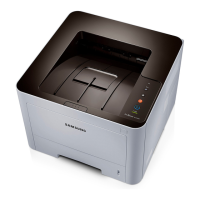
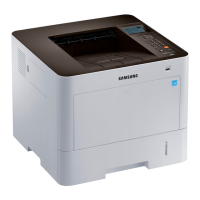
device) over the NFC tag( ) on your printer.
Wait few seconds for the mobile device to connect to the printer.



 To Next Page
 Loading...