4.Troubleshooting
NOTE
Whenyouusethedisplayscreen,useyourngeronly.Thescreenmaybedamagedwithasharppenoranythingelse.
4.1.1.Introducingthedisplayscreenandusefulbuttons
Displayscreen
NOTE
Formoreinformation,refertotheuserguide.
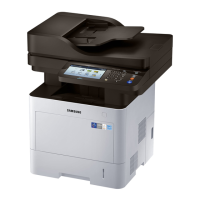
Thedisplayscreenonthecontrolpanelallowsuser-friendlyoperationofthemachine.Onceyoupressthehomeiconon
thescreen,itshowsthedisplayscreen.Thedisplayscreenimageinthisuser’sguidemaydifferfromyourmachine
dependingonitsoptionsormodels.
•Copy:EnterstheCopymenu.
•Fax:EnterstheFaxmenu.Faxisactivatedonthedisplayscreenbyinstallinganoptionalfaxkit.
•StoredDocument:EnterstheStoredDocumentmenu.
•SharedFolder:EnterstheSharedFoldermenu.
•ScantoEmail:EnterstheScantoEmailmenu.
•ScantoServer:EnterstheScantoServermenu.
•ScantoPC:EnterstheScantoPCmenu.
•ScantoSharedFolder:EnterstheScantoSharedFoldermenu.
•QuickCopy:EnterstheQuickCopymenu.
•IDCopy:EnterstheIDCopymenu.
•USB:EnterstheUSBmenu.WhenaUSBmemorydeviceisinsertedintotheUSBmemoryportonyourmachine,
USBisactivatedonthedisplayscreen.
•ScantoUSB:EnterstheScantoUSBmenu.WhenaUSBmemorydeviceisinsertedintotheUSBmemoryporton
yourmachine,ScantoUSBisactivatedonthedisplayscreen
•MachineSetup:Youcanbrowsecurrentmachinesettingsorchangemachinevalues.
•SamsungCloud:Inordertousethismenu,SamsungCloudPrintershouldberegistered.Formoreinformation,contact
yourlocalSamsungdealerortheretailerwhereyoupurchasedyourmachine
Copyright©1995-2013SAMSUNG.Allrightsreserved.4-2


 To Next Page
 Loading...