Configuring the SmartThings Station
16
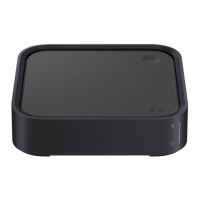
SmartThings Station information
You can check the software and legal information of the SmartThings Station.
1 On your mobile device, launch the
SmartThings
app and tap
Devices
.
2 Tap the SmartThings Station card.
3 Tap
→
Information
.
If there is a newer version of the software, it will be automatically updated during the
night.
Q
I want to register another Samsung account to the SmartThings Station.
A
On your mobile device, launch the
SmartThings
app and tap
Devices
. Tap and
hold the SmartThings Station card and tap
Edit
→
Remove device
to delete the
SmartThings Station card. All information that was registered at initial setup
will be deleted. The SmartThings Station and connected mobile device should
all be connected to the network to do this action.
Q
The Wi-Fi information has changed.
A
If the information changes for the Wi-Fi connected to the SmartThings Station,
a Wi-Fi disconnected notification window appears on the SmartThings Station
screen in the SmartThings app. Tap the notification window and follow the
on-screen instructions to update the SmartThings Station’s Wi-Fi information.



 To Next Page