Using the SmartThings Station
7
Installing the SmartThings app on your mobile device
Before using the SmartThings Station, you should install the SmartThings app on your
mobile device.
Depending on your mobile device, you can download the SmartThings app from the
following places:
•
Samsung Android mobile devices:
Galaxy Store
,
Play Store
•
Other Android mobile devices:
Play Store
•
iPhone:
App Store
•
You must register and sign in to your Samsung account to use the SmartThings
app.
•
Update to the latest version of the SmartThings app.
•
Supported features may vary depending on your mobile device and its operating
system.
Initial setup
1 When the hub indicator light flashes red
→
green
→
blue, bring your mobile device
near the SmartThings Station.
2 If the connection pop-up window appears on your mobile device, tap
Add now
.
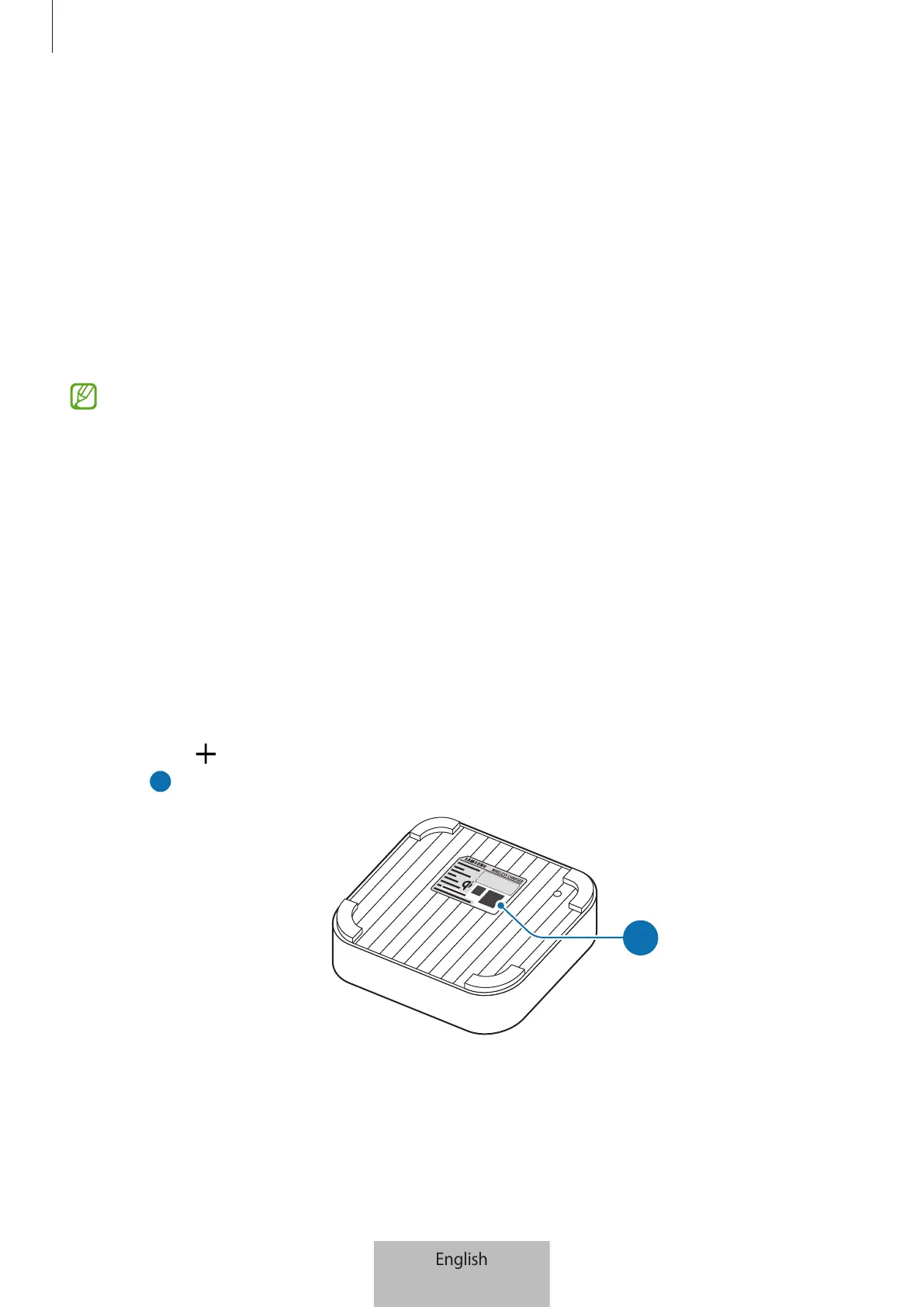
If the connection pop-up window does not appear, launch the
SmartThings
app, tap
Devices
→
→
Add device
, and then tap
Scan
under
Scan QR code
to scan the QR
code (
) at the bottom of the SmartThings Station.
a



 To Next Page