Automatic detect
Manual detect
Exit Program
Auto Detect
Picture Sett in g
F ull Screen
Highlig ht O ff
Other Features
Manual d etect
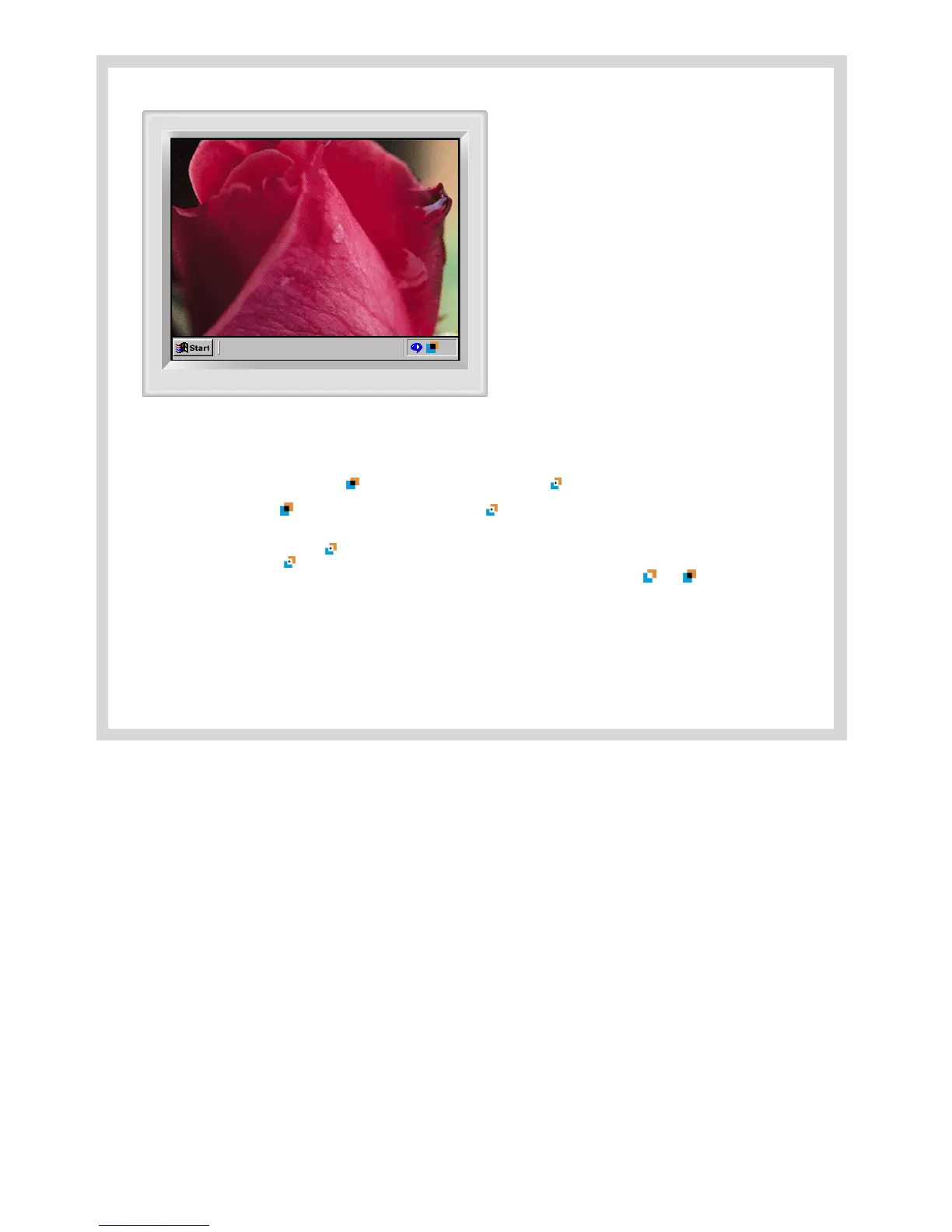
In Manual Detect mode, you can either select a window or use the Drag function to create a Highlight Zone.
1. Selecting a window: Click the Highlight icon( )on the W indows taskbar once to activate( )the cursor.
Move the cursor onto the window of your choice and click once to Highlight the window.
2. Drag: Click the Highlight icon( )on the W indows taskbar once to activate( )the cursor.
Click and hold the left mouse button, then drag the cursor to create a rectangle that covers the desired area. This rectangle bec o m es t h e H i g h li g ht Z on e .
Note 1 :
When the mouse cursor is activated( )and it is necessary to de-activate it to use it for other tasks, right click your mouse,
or put the activated cursor ( )on the taskbar and click. When de-activated, the icon on the screen changes back to the one shown before activation.
Note 2 :
You can determine whether the Highlight feature is on/off by the appearance of the icon on the taskbar. On( ), Off( )
Note 3 : When OSD is selected while the Manual Detect is running, Highlight Z one turns off temporarily, as it does when Auto detect is running.




 To Next Page