3-5 Using the Product
Application
MENU DESCRIPTION
Source List Use to select <PC>, <TV> or an external input source connected to the Monitor.Use to select the
screen of your choice.
You can use the [SOURCE] button on the remote control.
•<PC> → <TV> → <Ext.> → <AV or Component> → <HDMI> → <HDM2> → <USB>
<AV> and <Component> cannot be connected at the same time.
Edit Name Name the input device connected to the input jacks to make your input source selection easier.
• <VCR> - <DVD> - <Cable STB> - <Satellite STB> - <PVR STB> - <AV Receiver> - < Game> -
<Camcorder> - <PC> - <DVI PC> - <DVI Devices> - <TV> - <IPTV> - <Blu-Ray> - <HD DVD> -
<DMA>
When a PC with a resolution of 1920 x 1080 @ 60 Hz is connected to the [HDMI(DVI) IN] port,
you should set the <HDMI> mode to <DVI PC> in the <Edit Name> of the <Input> mode. In this
case, a separate sound connection is required.
MENU DESCRIPTION
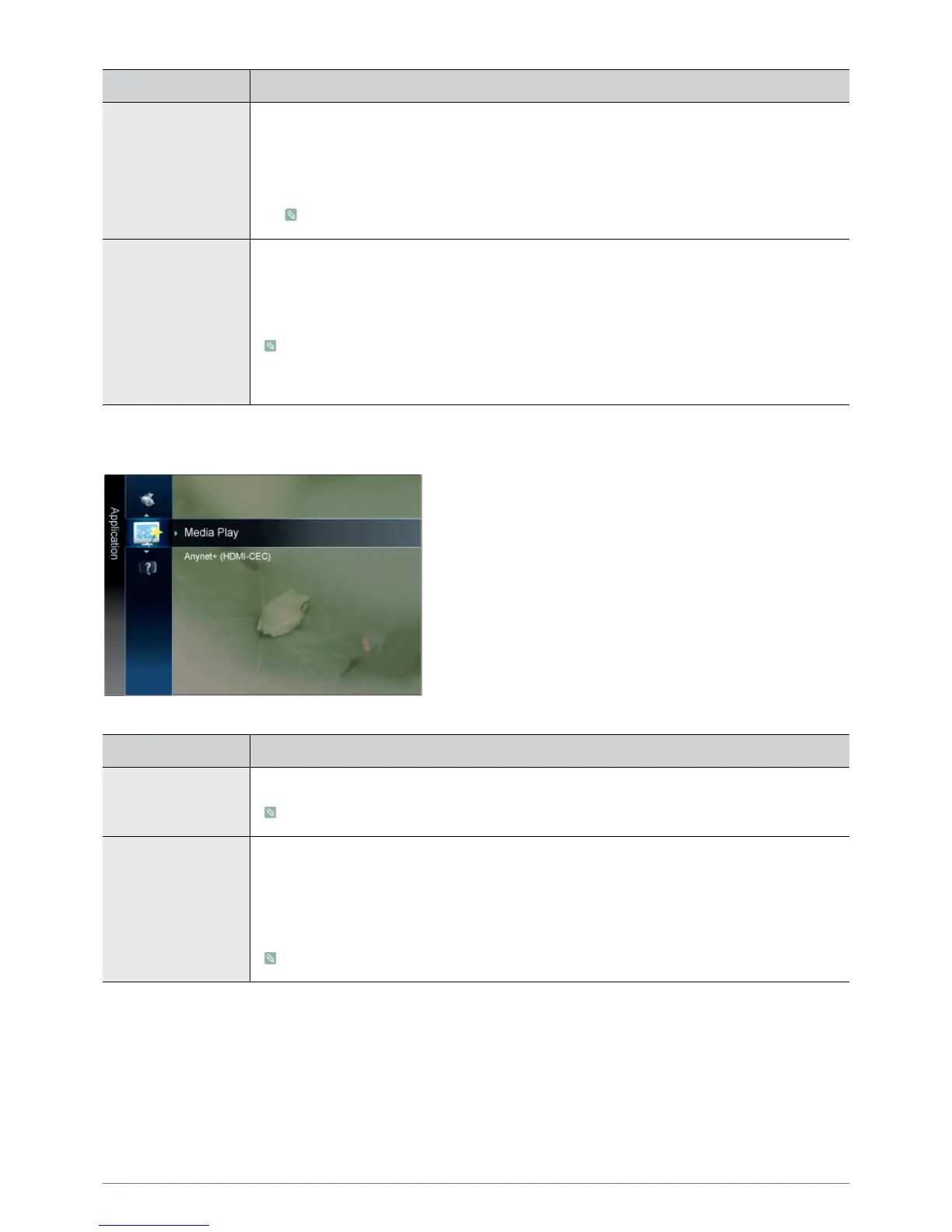
Media Play Enjoy photos, music and/or movie files saved on a USB Mass Storage Class (MSC) device.
See "3-6. Media Play" for details.
Anynet+ (HDMI-CEC) What is <Anynet+>?
<Anynet+> is a function that enables you to control all connected Samsung devices that support
<Anynet+> with your Samsung TV‘s remote. The <Anynet+ > system can be used only with Samsung
devices that have the <Anynet+> feature. To be sure your Samsung device has this feature, check if
there is an <Anynet+> logo on it.
See "3-7. Anynet+ (HDMI-CEC)" for details.



 To Next Page