1.保証期間内に正常な使用状態でご使用の場合に限り品質を保証しております。
万一保証期間内で故障がありました場合は、弊社所定の方法で無償修理いたしますので、保証書を製品に添えてお買い上げの販売店までお持ちください。
2.次のような場合は保証期間内でも有償修理になります。
(1)保証書をご提示いただけない場合。
(2)所定の項目をご記入いただけない場合、あるいは字句を書き換えられた場合。
(3)故障の原因が取扱い上の不注意による場合。
3.お客様ご自身による改造または修理があったと判断された場合は、保証期間内での修理もお受けいたしかねます。
4.本製品の故障、またはその使用によって生じた直接、間接の損害については弊社はその責を負わないものとします。
5.本製品を使用中に発生したデータやプログラムの消失、または破損についての補償はいたしかねます。
6.本製品は医療機器、原子力設備や機器、航空宇宙機器、輸送設備や機器などの人命に関わる設備や機器、及び高度な信頼性を必要とする設備や機器やシステムなどへの組込みや使用は意図されておりま
せん。これらの用途に本製品を使用され、人身事故、社会的障害などが生じても弊社はいかなる責任も負いかねます。
7.修理ご依頼品を郵送、またはご持参される場合の諸費用は、お客様のご負担となります。
8.保証書は再発行いたしませんので、大切に保管してください。
GSKBBT30BK
型番
保証期間 ご購入日から1年 ご購入日 年 月 日
Model number/
型号
シリアル番号
お客様のご住所・氏名・電話番号
Serialnumber/编号
CustomerAddress/Name/Telephonenumber
客户地址·姓名·电话
販売店名
Purchaselocation(storename)
Warrantyterm:1yearfromdateofpurchase PurchaseDate Year/Month/Date
经销商名称
保修期限 自购入起1年 购入日期 年 月 日
保証書
1.The warranty is limited to use within the term of warranty in accordance with the guidelines.In the event that the device is damaged within the term of warranty, repair will be carried out by
the company according to prescribed methods. Please take the device with the warranty card to the store where the device was purchased.
2. Repair not covered by warranty under the following conditions:
(1) When the warranty card is not presented.
(2) When the warranty card is not properly filled in, or when the information has been rewritten.
(3) When the reason for malfunction is a result of failure to follow warning information.
(4) When the reason for malfunction results from shock due to transport / movement by the customer.
(5) When the reason for malfunction is natural disasters, pollution, abnormal voltage, or other unforeseeable outside factors.
(6) When the ownership of the device has been transferred, or when the device has been purchased second-hand / via auction / resale (used) etc.
3. When it has been deemed that the device has been repaired or modified by the customer, repair will not be covered by the warranty even if the warranty period has not been over.
4. The company will not be liable for any direct or indirect damages caused by the failure of this device or its use.
5. No compensation will be issued for loss or damage of data or programs that may occur during use of the device.
6.
This device is not intended for use as a medical device, nuclear device, aerospace devices, shipping device, or any other device or device part in which human life is involved; nor as a device in which
a high level of responsibility is required. The company will accept no responsibility in cases in which the device is incorrectly used and which results in injury or damage to humans or society.
7. Expenses for shipping or bringing in the product for repair requests shall be the responsibility of the customer.
8. This warranty card may not be reissued. Please take care of this document.
GSKBBT30BK
BBluetooth Keyboard
ManualManual
/
取扱説明書
/
使用说明书
Accelerate Your Business
保証規定 (ConditionsofWarranty/保修政策)
(Warranty/保修卡)
(4)故障の原因がお客様による輸送・移動中の衝撃による場合。
(5)天変地異、ならびに公害や異常電圧その他の外部要因による故障及び損傷の場合。
(6)譲渡や中古販売・オークション・転売などでご購入された場合。
English
1.保修期间内仅限于保修正常使用状态下的产品。
倘若保修期间内产品出现故障,我司会按政策为您维修,请随身携带保修卡至经销商处处理。
2.以下情况,不在保修服务范围内。
(1)无法提供保修卡。
(2)没有记入所定项目、或改换字句。
(3)故障原因是由于个人使用不小心。
(4)因人为原因导致的产品故障。
(5)自然灾害等不可抗力导致的故障及损失。
(6)通过转让、二手销售、拍卖、转卖等方式购入。
3.经判断是由于客户擅自改造或修理导致的故障,我司可拒绝在保修期内为客户修理。
4.本品故障或使用过程中产生的直接、间接损失,恕我司概不负责。
5.使用本品过程中出现的数据、程序丢失或损失,恕我司概不负责。
6.本品不适用医疗器械、核能机器设备、航空航天设备、运输机器设备等与人身安全相关的机器、设备、系统。倘若将本品用于上述情境造成人身事故、社会损失,我司概不负责。
7.维修过程中产生的邮费,请客户自行承担。
8.由于保修卡无法再次发放,请妥善保管。
NOTE:
ThisequipmenthasbeentestedandfoundtocomplywiththelimitsforaClassBdigitaldevice,pursuanttopart15oftheFCCRules.Theselimitsare
designedtoprovidereasonableprotectionagainstharmfulinterferenceinaresidentialinstallation.Thisequipmentgeneratesusesandcanradiateradio
frequencyenergyand,ifnotinstalledandusedinaccordancewiththeinstructions,maycauseharmfulinterferencetoradiocommunications.However,
thereisnoguaranteethatinterferencewillnotoccurinaparticularinstallation.Ifthisequipmentdoescauseharmfulinterferencetoradioortelevision
reception,whichcanbedeterminedbyturningtheequipmentoffandon,theuserisencouragedtotrytocorrecttheinterferencebyoneormoreofthe
followingmeasures:
-Reorientorrelocatethereceivingantenna.
-Increasetheseparationbetweentheequipmentandreceiver.
-Connecttheequipmentintoanoutletonacircuitdifferentfromthattowhichthereceiverisconnected.
-Consultthedealeroranexperiencedradio/TVtechnicianforhelp
Changesormodificationsnotexpresslyapprovedbythepartyresponsibleforcompliancecouldvoidtheuser'sauthoritytooperatetheequipment.
ThisdevicecomplieswithPart15oftheFCCRules.Operationissubjecttothefollowingtwoconditions:
(1)thisdevicemaynotcauseharmfulinterference,and(2)thisdevicemustacceptanyinterferencereceived,includinginterferencethatmaycause
undesiredoperation.
1
Q&A8
The shortcut key will changed for the operation system setting as you
selected. It is recommended to choose the right operation system setting
after pairing.
Press Fn+Q/W/E
(
refer to
→⑭〜⑯)
at the same time.
・
Android:Press Fn+Q, and the system switching LED will flash once time.
・
Windows:Press Fn+W, and the system switching LED will flash twice.
・
iOS:Press Fn+E, and the system switching LED will flash three times.
WarrantyTerm9
1 year
Inquiries
10
EN
:
support-en@sanwa.com
home home ESC
search search F1
select all select all F2
copy copy F3
paste paste F4
cut cut F5
previous song previous song F6
play/pause play/pause F7
next song next song F8
volume down volume down F9
volume up volume up F10
no function no function F11
no function no function F12
switch systems no function no function
no function no function switch systems
no function
※
Status of system switching LED indicator
:
Android/once time
、
Windows/twice
、
iOS/three times
.
switch systems no function
iOSAndroid Windows iOSAndroid Windows
④Fn+
⑤Fn+
⑥Fn+
⑦Fn+
⑧Fn+
⑨Fn+
⑩Fn+
②Fn+
⑪Fn+
⑫Fn+
③Fn+
⑬Fn+
⑭Fn+
※
※
※
⑮Fn+
⑯Fn+
①
①
⑮⑭⑯
② ③ ④ ⑤ ⑥ ⑦ ⑧ ⑨ ⑩ ⑪ ⑫ ⑬
connection
button
connection
button
Userʼ sManual YouTube
●
Since this device is operated by electricity, there is a chance that it may
ignite. In the unlikely event that the device emits smoke or a strange
smell, turn off the power on the device and connected PC or other
items; contact the store where purchased or our offices.
●
Do not allow liquids, metals, or any foreign objects inside the device.
▲
This device may cause electric shock, fire, or malfunction.
●
Refrain from subjecting the device to strong vibration or impact.
▲
This device may cause breakage or damage.
●
Loss of data and programs that may occur while using this device are
not under warranty.
▲
Please take measures to protect data such as backing up data on a
periodic basis.
●
When cleaning this device, refrain from using products that contain
volatile organic solvents such as benzamine or thinner.
▲
To avoid damage to the surface or malfunction, wipe with a slightly
damp cloth.
●
This device is not intended for use as medical equipment, nuclear equipment,
aerospace equipment, transportation equipment, etc. in which people’s lives
are in danger or when a high degree of reliability is required. The company will
not assume responsibility for damage incurred involving personal injury, social
issues, etc. that may result even when the device is used properly.
Precautions2
Thank you for purchasing the Folding Bluetooth Keyboard.
Opening
●
This device used a 2.4GHz frequency bank.
Bluetooth is the same frequency band as 2.4 GHz radio equipment and
wireless LAN equipment and may affect other equipment that uses the
same frequency band.
Operating the mouse, trackball, and keyboard for long periods of time can
lead to pain or numbness in hands, arms, neck, shoulders, etc. Serious
damage may be incurred if such use is repeated.
If you feel pain or numbness while operating the mouse or keyboard, stop
use immediately and consult a doctor if necessary.
Take regular breaks from daily computer work to avoid strain on hands,
arms, neck, shoulders, etc.
Warnings Regarding Health3
Specifications4
※
Operation contents may differ depending iOS version.
iPhone/iPad
、
Apple Mac
※
1
、
Android smartphones, tablets
※
2
、
Windows PCs and tablets powered by (DOS/V
)※
3
iOS
、
Mac OS
、
Android
、
Windows
User's Manual
、
USB recharging cable×1
※
1
:
Models to which the Bluetooth adaptor is connected / installed.
※
2
:
Models compatible with the Bluetooth keyboard; check specifications of your model.
※
3
:
Models with built-in Bluetooth modules.
Compatible
Models
Compatible
Systems
Accessories
<
Keyboard Specifications
>
67keys, 17mm
Approx. 36 hours (continuous use)
W314×D93×H7mm
(
unfolded
)
/W157×D93×H15mm
(
folded
)
Approx. 126g
key number, key pitch
Battery life
Size
Weight
<
Bluetooth Specifications
>
Bluetooth Ver.3.0
Up to approx. 8m (depending on usage environment)
Class 2
Compliance standard
Transmission Distance
Transmission output
Name of each part /Table of Shortcut Keys5
5
power switch
power switch
Charging / Low Battery LED
Charging / Low Battery LED
pairing/system switching LED
pairing/system switching LED
Fn key(function key)
Pairing Method6 System Switching Method7
(1)Turn on the Bluetooth functiong on the PC, tablet or smartphone.
(2)Turn the power switch on this device to “on”.
(3)Press the Connect button to enter pairing mode.
When the device is in pairing mode, the Pairing LED will blink blue.
※
If a device was previously paired, it will be automatically paired at
this point.
※Itcanonlyautomaticallyconnecttothelastpaireddevice,
otherwiseyouhavetorepairthedevice.
(4)Choose “SANWA KBD BT30” when it is displayed on the setting
screen of the device to be connected.
※
If the devices are unable to be properly connected, try removing
any previously paired items from the device.
(5) Pairing is complete.
Q.I can’t enter using the keys.
A.Even if the power switch is “on”, the keyboard will enter sleep mode
unless it is manipulated regularly. The keyboard can be returned from
sleep mode by clicking any key. Operation may be unstable
immediately after returning from sleep mode.
Q.When using this device, the Bluetooth audio is interrupted.
A.When using Bluetooth-compatible headphones, headsets, or speakers
with this device, music and voices may by interrupted.
Q.Pairing failed.
A.In rare cases, pairing may fail. If this occurs, turn the power to “off” on
this device and perform pairing operations again.
If that is unsuccessful, try removing any previously paired items from
the device and reperform pairing operations.
Q. The keyboard won’t connect to a Mac.
A.Try the following method:
1.On the menu bar, delete SANWA KBD BT30: Bluetooth icon
→
Bluetooth settings window
→
SANWA KBD BT30.
2.Turn the power to “off” on the Bluetooth keyboard.
3.On the Apple menu, click: System preferred settings
→
Energy
Conservation.
4.Choose the battery tab, then uncheck all the checkboxes.
5.Choose the “Power adaptor” tab, then check the box for “Do not
allow the computer to sleep automatically when display is off”;
uncheck the other checkboxes.
6.Repeat pairing operations for the keyboard.
FCC ID: 2AMSUBT30BK
DID: D039338

 Need help?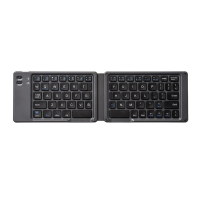

 To Next Page
 General