CC-SMART-4K Manual
Brief Introduction of CC-SMART-4K UI and Functions
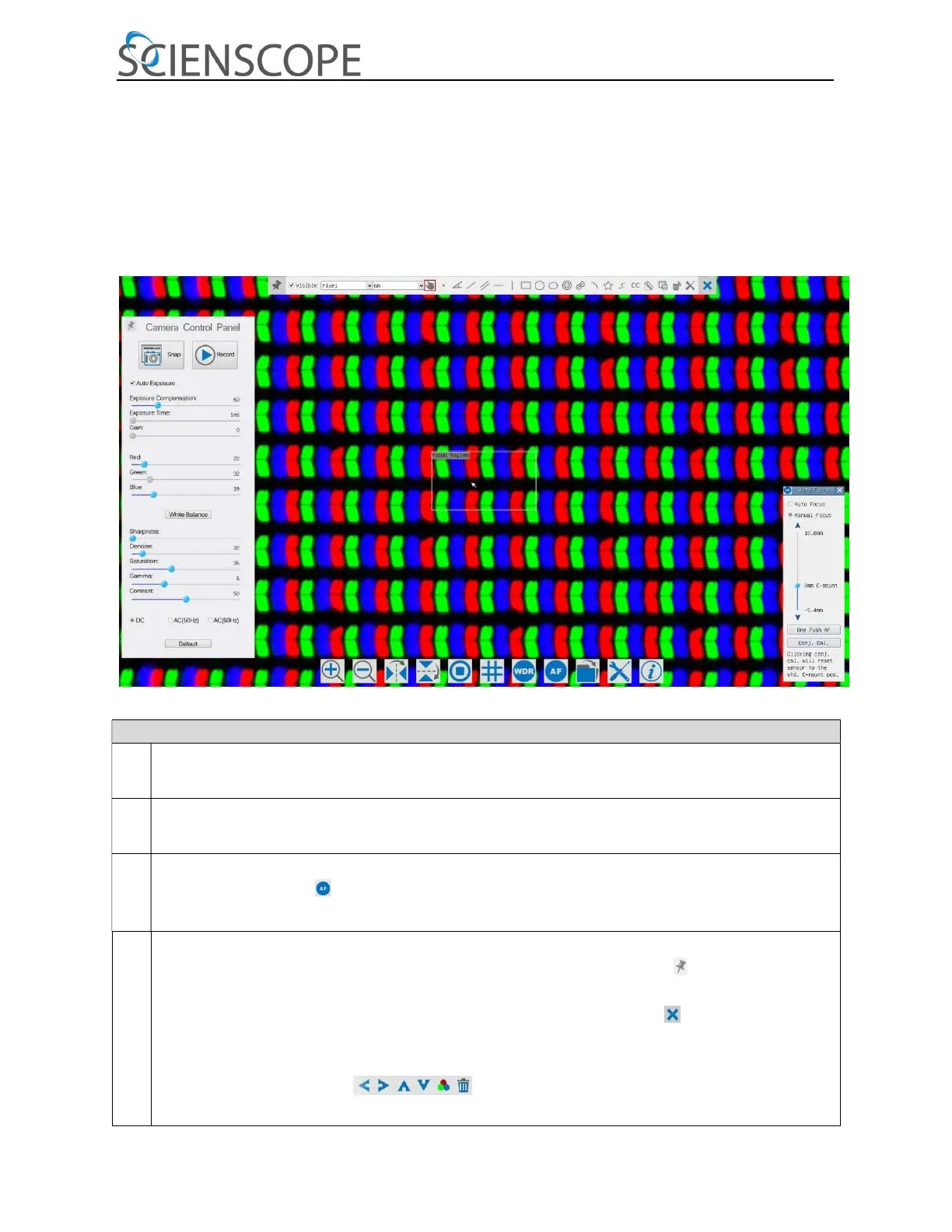
The CC-SMART-4K UI shown in Fig. 8 includes the Camera Control Panel on the left side of the video window, the Measurement
Toolbar on the upper side of the video window, the Synthesis Camera Control Toolbar on the bottom of the video window and
the Auto Focus Control Panel on right side of the video window.
Figure 3 The CC-SMART-4K Camera Control UI
Notes
1 When users move the mouse cursor to the left side of the video window, the Camera Control Panel will pop up
automatically;
2 When users move the mouse cursor to the bottom of the video window, the Camera Control Toolbar
will pop up automatically;
3 When user moves the mouse cursor to the bottom of the video window, the Camera Control Toolbar
automatically. Click the button and the Auto Focus Control Panel will appear for autofocus operation;
4 Move the mouse cursor to the upper side of the video window, the Measurement Toolbar will pop up for the
calibration and measurement operations. When user left-clicks the Float/Fixed button on the Measurement Toolbar,
the Measurement Toolbar will be fixed. In this case the Camera Control Panel will not pop up automatically even if users
move mouse cursor to left side of the video windows. Only when user left-clicks the button on the Measurement
Toolbar to exit from measuring procedure will they be able to do other operations on the Camera Control Panel, Auto
Focus Control Panel or Camera Control Toolbar. During the measuring process, when a specific measuring object is selected
an Object Location & Attributes Control Bar will appear for changing location and properties of the
selected objects.


 To Next Page
 Loading...