v1.0P. 5 P. 6
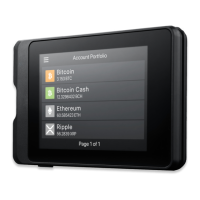
W10 Hardware Wallet
Quick Start Guide
Setup as a New Device: The device begins to generate your
unique 24 recovery words. Write each word down carefully
on your recovery sheets in the correct order. You will be
prompted to re-enter the words for confirmation.
How to Connect to Computer
USB
STEP 1 - Connect with USB
Unlock your wallet and connect to your
computer via the USB cable included.
STEP 2 - SecuXess Login
Go to SecuXess from SecuX Official
Website with one of the supported
browsers, choose your connection (USB)
then your device name.
For further instructions on how to manage your crypto,
please visit our website:
http://www.secuxtech.com/howitworks/
P. 7
STEP 5 - Getting Your Wallet Ready
The device generates your private key from your unique 12,
18 or 24 recovery words, do not turn off before the process
is complete.
Congratulations! Your wallet is set up successfully.
NOTE: If you failed to confirm recovery words for more
than 15 times, the device will automatically go back to
STEP 4 in order to generate a new set of 24 recovery
words.
Recover from an Existing Wallet: Enter your 12, 18 or 24
recovery words from an existing wallet in the correct order.
IMPORTANT: In the event of theft, loss or damage to the
device, you can always recover your digital assets with your
unique 24 recovery words. Make sure your recovery sheets
are stored in a safe and secure place away from potential
risks.
Need Help?
Email support@secuxtech.com
82-001-300010
Computer
W10
Need Help?
Email support@secuxtech.com


 To Previous Page
 Loading...