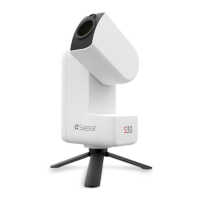
Seestar S30 Quick Guide
1.Preparation Before Use
1.1 Download and Launch the Seestar App
1.2 Setting Up the Seestar S30
Scan the QR code below with your phone or search Seestar
from App Store/Google Play.
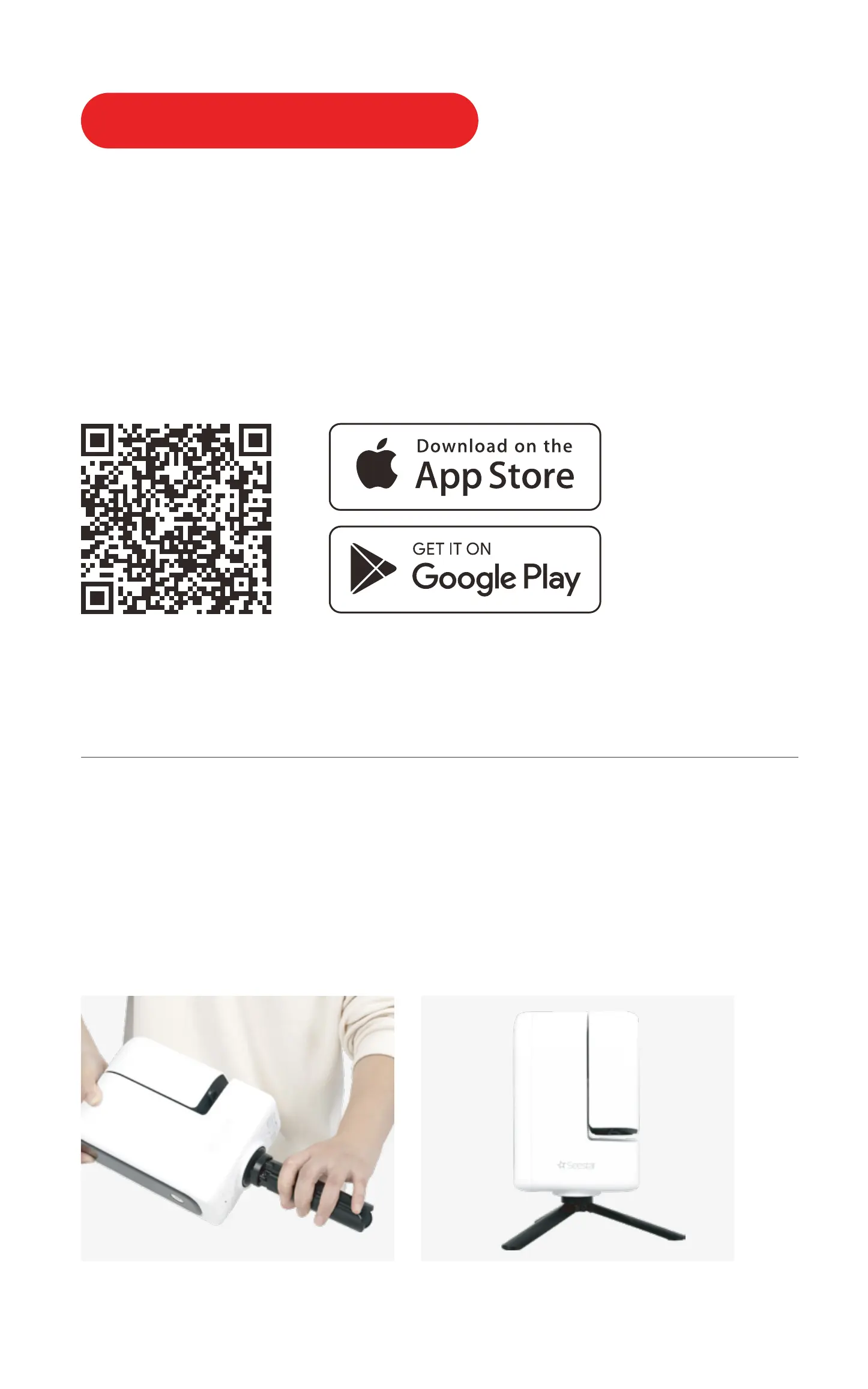
Remove the Seestar S30 from its case, attach the device to
the tripod, and place the setup on a flat, solid, and relatively
stable surface.
2.Powering On and Connecting
the Seestar S30
2.1.For first-time use, briefly press the power
button on the S30 for 1 second, then press and
hold for 2 seconds. Upon hearing a "beep-beep"
sound and seeing the power button light up, the
device has successfully started. For future use,
simply press and hold for 2 seconds to turn the
device on or off.device on or off.
2.2. Once you hear the voice prompt "Powering
on, ready to connect", bring your phone or tablet
close to the device and then tap the "Start
Connection" button on the App's homepage.
Ensure that Bluetooth, device connection, and network
permissions are enabled for the Seestar App.
Note: If the device's battery is low, it will not power on.
Please connect it to a power source in time.
Other application store:
Xiaomi /HUAWEI


 To Next Page
 Loading...