Sensors will start counting after the rst collector reading:5
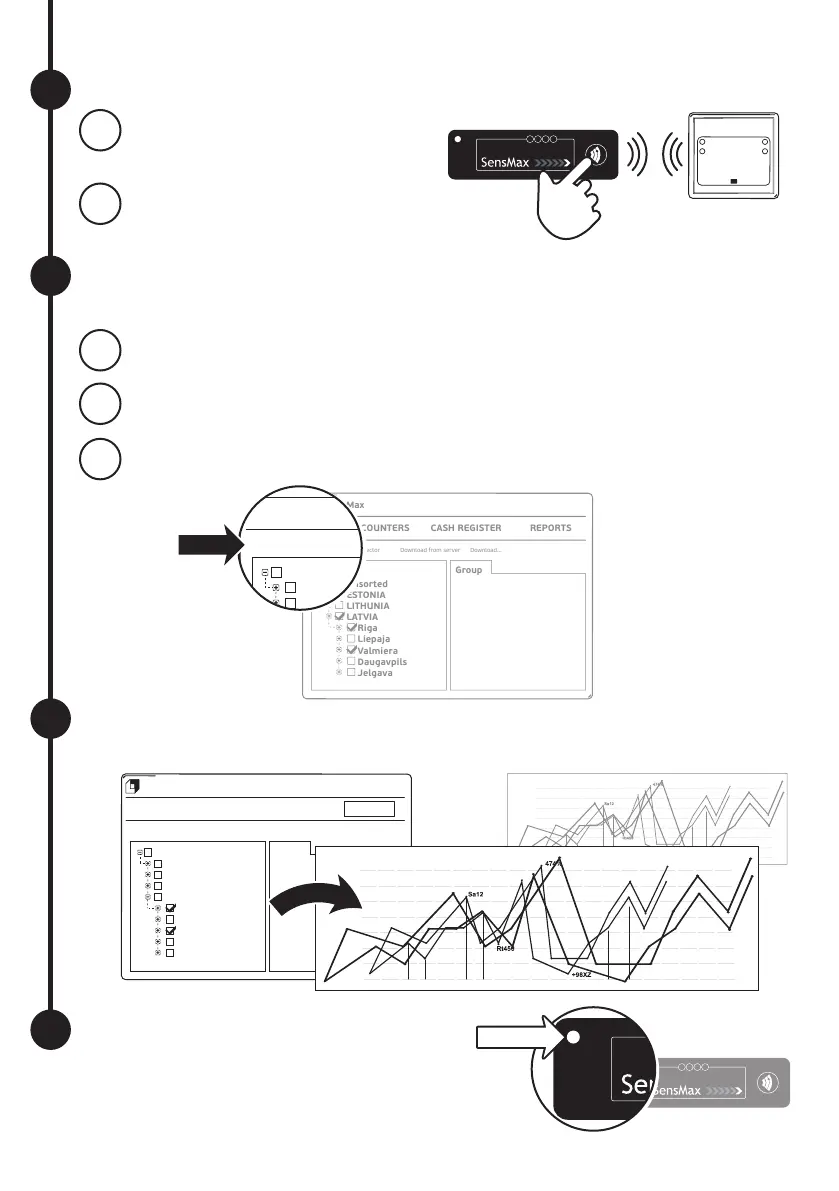
Point the collector to the counter
and press “READ” button.
5.1
Make sure “CROSSING” or “DirA”/”DirB”
lights are blinking when crossing.
5.2
After some crossings have been made, you can collect
rst data from counters and transfer to EasyReport program:
6
Create your rst report by selecting desired
counters and clicking “REPORTS” button
7
While data collector is connected
to PC the battery is charging.
When battery is fully charged
the light indicator “CHARGE” will fade.
8
Read data from counters6.1
Connect via USB data collector to your PC6.2
Press “Download from collector” in EasyReport program
6.3
SensMax
FILE COUNTERS
Download from collector Download from server Download...
CASH REGISTER
Group
REPORTS
All
Unsorted
ESTONIA
LITHUNIA
LATVIA
Riga
Liepaja
Valmiera
Daugavpils
Jelgava
SensMax
FILE COUNTERS
Download from collector Download from server Download...
CASH REGISTER
Group
REPORTS
All
Unsorted
ESTONIA
LITHUNIA
LATVIA
Riga
Liepaja
Valmiera
Daugavpils
Jelgava
SensMax
FILE COUNTERS
Download from collector Download from server Download...
CASH REGISTER
Group
REPORTS
All
Unsorted
ESTONIA
LITHUNIA
LATVIA
Riga
Liepaja
Valmiera
Daugavpils
Jelgava
CHARGE


 To Previous Page
 Loading...